QuickBooks Desktop Multi-User Modeallows multiple authorized users to work on the same QuickBooks company file at the same time. Instead of waiting for one person to finish accounting tasks, businesses can let bookkeepers, accountants, managers, and other employees access the company file simultaneously over a network.
However, Multi-User Mode depends on proper hosting, network connectivity, folder permissions, firewall configuration, and QuickBooks services. If any of these components are incorrectly configured, users may encounter problems such as QuickBooks H202, H101, H303, H505, or messages indicating that the company file cannot be opened.
This guide explains how QuickBooks Desktop Multi-User Mode works, how to set it up, and what to do when it stops working.
What Is QuickBooks Desktop Multi-User Mode?
QuickBooks Desktop Multi-User Mode is a feature that allows several users to access a QuickBooks company file simultaneously.
In a typical setup, one computer acts as the host or server, while other computers act as workstations. The company file is stored on the host computer, and authorized workstations connect to it through the local network.
Multi-User Mode can be useful for businesses where several people need to perform accounting tasks at the same time.
For example:
One employee can enter customer invoices.
Another employee can record vendor bills.
A bookkeeper can reconcile accounts.
A manager can review financial reports.
An accountant can perform accounting adjustments.
This arrangement can reduce interruptions and make collaborative accounting more efficient.
How Does QuickBooks Desktop Multi-User Mode Work?
A multi-user environment generally includes four important components:
Host computer: Stores the QuickBooks company file.
Workstations: Computers used by employees to access the company file.
QuickBooks Database Server Manager: Helps the workstations communicate with the company file hosted on the server.
Network connection: Allows the workstations and host computer to communicate.
The host computer should be configured correctly so that authorized workstations can connect to the company file.
If the Database Server Manager service is stopped, firewall rules block communication, or the company file folder does not have appropriate permissions, Multi-User Mode may fail.
Single-User Mode vs. Multi-User Mode
The primary difference is how many users can access the company file at the same time.
Feature
Single-User Mode
Multi-User Mode
Users
One user
Multiple users
Network required
No
Yes
Shared company file
No simultaneous access
Yes
Best for
Individual accounting tasks
Collaborative accounting
Host computer
Not required
Required
Database Server Manager
Generally not required
Required for network hosting
Single-User Mode is useful when a task requires exclusive access to the company file. Multi-User Mode is better when several authorized users need to work simultaneously.
QuickBooks Desktop Multi-User Mode Requirements
Before setting up Multi-User Mode, make sure your environment meets the basic requirements.
1. Install QuickBooks Desktop
Install a compatible QuickBooks Desktop version on the host computer and workstations.
Keeping QuickBooks updated on all connected computers can help avoid compatibility problems.
2. Select a Host Computer
Choose one computer to store the company file.
Ideally, the host should remain powered on whenever other users need access to QuickBooks.
3. Install QuickBooks Database Server Manager
The Database Server Manager is an important component of a QuickBooks Desktop network.
It helps QuickBooks workstations locate and communicate with company files stored on the host computer.
If you need additional information about this component, see the QuickBooks Database Server Manager guide on Accounts Confidant.
4. Share the Company File Folder
The folder containing the .QBW company file needs appropriate Windows sharing and security permissions.
Users should have the necessary permissions to access the folder over the network.
5. Configure the Firewall
Windows Firewall or third-party security software may prevent QuickBooks from communicating between the workstation and host.
QuickBooks-related programs and services may need to be allowed through the firewall.
6. Maintain a Reliable Network
All computers participating in the Multi-User environment should be able to communicate reliably with the host.
A wired Ethernet connection can sometimes provide greater stability than an unreliable wireless connection.
How to Set Up QuickBooks Desktop Multi-User Mode
Follow these general steps to configure Multi-User Mode.
Step 1: Install QuickBooks on the Host and Workstations
Install the appropriate QuickBooks Desktop version on the host computer and every workstation that needs access.
Keep the software updated consistently.
Step 2: Install Database Server Manager on the Host
Install QuickBooks Database Server Manager on the computer where the company file is stored.
After installation, open the tool and configure the folder containing your company file.
Step 3: Scan the Company File Folder
Open Database Server Manager and locate the folder containing the .QBW file.
Use the folder scanning option to make the company file available to network users.
This process also helps QuickBooks maintain the necessary network configuration files.
Step 4: Verify Windows Folder Permissions
Right-click the company file folder and review its sharing and security permissions.
Make sure authorized users and the appropriate QuickBooks service accounts can access the folder.
Step 5: Configure Firewall Settings
Check Windows Firewall and any third-party security software.
Make sure QuickBooks and its related network services are permitted to communicate on the network.
Step 6: Enable Hosting on the Server
On the computer designated as the host:
Open QuickBooks Desktop.
Open the company file.
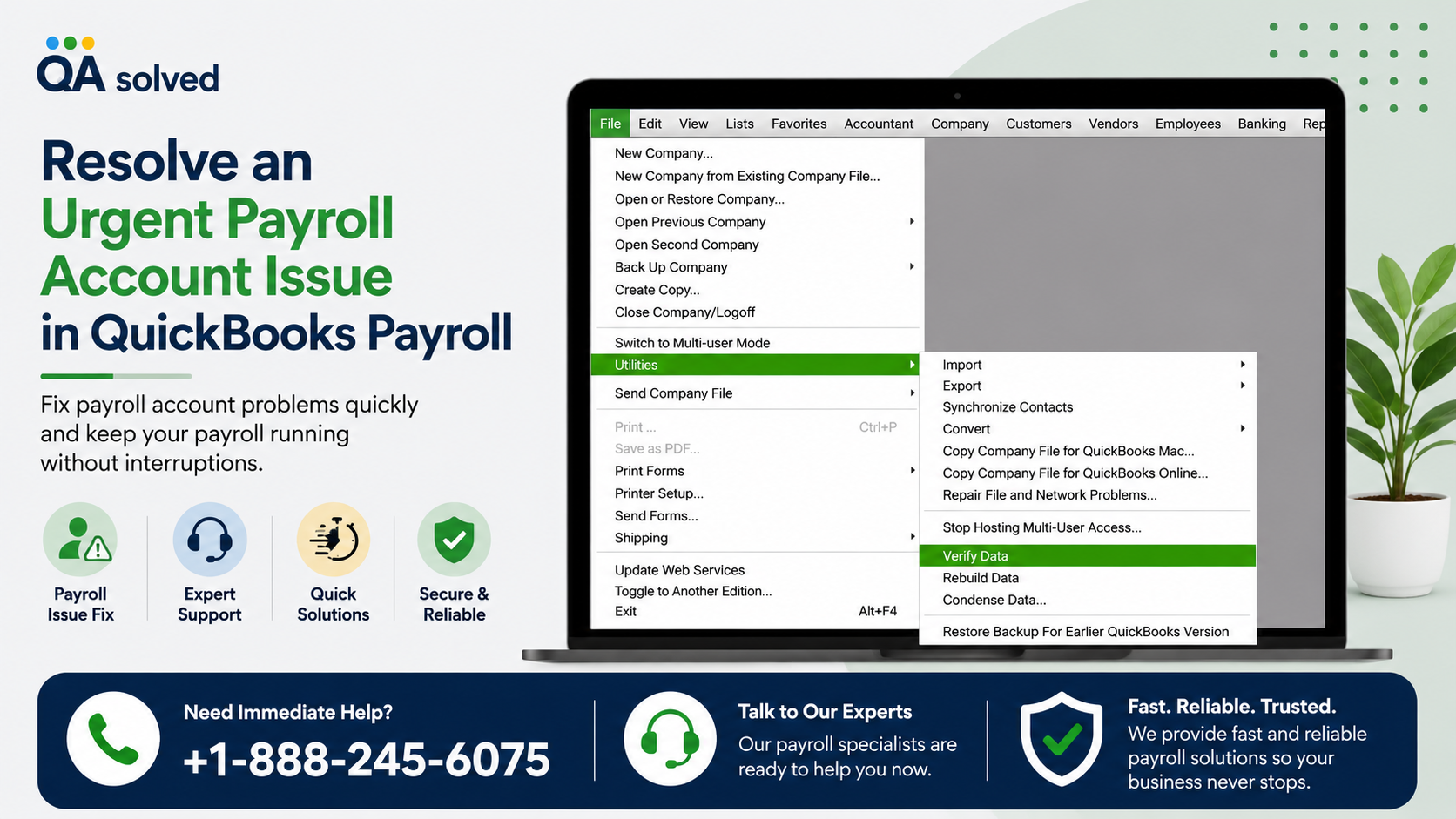
Go to the File menu.
Look for the hosting option under Utilities.
Enable Host Multi-User Access when appropriate.
Only the computer intended to host the company file should be configured as the host.
Step 7: Disable Hosting on Workstations
On workstation computers, verify that they are not configured to host the company file.
Having multiple computers attempting to host the same company file can create network conflicts.
Step 8: Open the Company File from a Workstation
On each workstation:
Open QuickBooks Desktop.
Select the option to open an existing company.
Locate the company file through the shared network location.
Sign in with the appropriate QuickBooks user credentials.
Switch to Multi-User Mode.
Once connected, multiple authorized users should be able to work with the company file simultaneously.
How to Switch QuickBooks Desktop to Multi-User Mode
If QuickBooks is currently operating in Single-User Mode, you can generally switch to Multi-User Mode from the File menu.
Open the company file and choose Switch to Multi-user Mode.
If the option is unavailable or QuickBooks displays a network-related error, check the host settings, Database Server Manager, firewall configuration, and network connection.
Why Is QuickBooks Desktop Multi-User Mode Not Working?
There are several reasons why Multi-User Mode may stop working.
1. QuickBooks Database Server Manager Is Not Running
If the database service is stopped on the host, workstations may not be able to connect to the company file.
Check Windows Services and verify that the appropriate QuickBooks database service is running.
2. Incorrect Hosting Configuration
Only the designated host should host the company file.
If another workstation is incorrectly configured for hosting, it can interfere with network communication.
3. Firewall Is Blocking QuickBooks
Firewall restrictions are a common reason for connectivity problems.
This can happen after:
Windows updates
Antivirus updates
Firewall changes
Installing new security software
Review firewall permissions and make sure QuickBooks network components are allowed.
4. Incorrect Folder Permissions
If a workstation does not have sufficient access to the shared folder, QuickBooks may fail to open the company file.
Review Windows sharing and security permissions on the host.
5. Damaged Network Descriptor File
QuickBooks uses an .ND file to help networked computers locate the company file.
If the network descriptor file is damaged or outdated, rescanning the company file folder through Database Server Manager may help recreate the necessary network configuration.
6. Network Connectivity Problems
An unstable network can cause Multi-User Mode to disconnect or prevent users from opening the company file.
Check whether all computers are connected to the same network and can communicate with the host.
7. QuickBooks Is Outdated
Different maintenance releases across computers can sometimes create compatibility problems.
Update QuickBooks Desktop on both the host and workstations and restart the computers afterward.
Common QuickBooks Multi-User Mode Errors
Multi-User Mode problems can produce several H-series errors.
QuickBooks Error H202
H202 generally indicates that a workstation is having trouble communicating with the computer hosting the company file.
Check the host configuration, Database Server Manager, firewall settings, and network connection.
QuickBooks Error H505
H505 can occur when QuickBooks cannot establish the required connection to a company file hosted on another computer.
Verify that the host is correctly configured and that required QuickBooks services are running.
QuickBooks Error H101
H101 can occur when QuickBooks has difficulty connecting to the company file because of hosting or network configuration problems.
QuickBooks Error H303
H303 may indicate a problem with the network configuration or communication between QuickBooks and the company file.
For H-series errors, start by checking hosting, Database Server Manager, firewall settings, folder permissions, and network connectivity.
Can QuickBooks Tool Hub Help With Multi-User Mode Problems?
Yes. TheQuickBooks Tool Hub includes troubleshooting utilities that can help diagnose certain QuickBooks Desktop problems.
For example, its network-related tools can assist with company file and connectivity issues.
If Multi-User Mode is not working, you can use QuickBooks Tool Hub to investigate network problems, run File Doctor when appropriate, and troubleshoot certain QuickBooks Desktop errors.
However, Tool Hub is not a substitute for properly configuring the host computer, network, firewall, and Database Server Manager.
Best Practices for QuickBooks Desktop Multi-User Mode
To maintain a stable multi-user environment:
Use one dedicated host computer when practical.
Keep QuickBooks Desktop updated.
Keep the host computer and network equipment reliable.
Regularly back up the company file.
Avoid storing the company file in unsuitable or temporary folders.
Check firewall settings after major Windows or security updates.
Make sure only the intended server is hosting the company file.
Give each employee an appropriate QuickBooks user account.
Avoid abruptly shutting down the host computer while QuickBooks is being used.
Periodically verify that QuickBooks services are running.
Final Thoughts
QuickBooks Desktop Multi-User Mode can make collaborative accounting much easier by allowing multiple authorized users to work with the same company file. However, reliable performance depends on correct hosting, Database Server Manager configuration, folder permissions, firewall settings, and network connectivity.
When Multi-User Mode stops working, avoid changing multiple settings randomly. Start with the basics: identify the host, verify the QuickBooks services, check the network, review firewall permissions, and confirm that users can access the company file folder.
With proper configuration and regular maintenance, businesses can create a more stable QuickBooks Desktop environment and reduce interruptions to everyday accounting work.
Frequently Asked Questions
How do I enable Multi-User Mode in QuickBooks Desktop?
Open the company file in QuickBooks Desktop and select File > Switch to Multi-User Mode. If the option is unavailable, verify the hosting configuration, network connection, and QuickBooks Database Server Manager.
Why won’t QuickBooks Desktop switch to Multi-User Mode?
QuickBooks may not switch to Multi-User Mode because of incorrect hosting settings, a stopped database service, firewall restrictions, network problems, or company file access permissions.
How many users can use QuickBooks Desktop Multi-User Mode?
The number of simultaneous users depends on the QuickBooks Desktop edition and applicable license. Check the specific edition and subscription terms before adding users.
Does QuickBooks Multi-User Mode require a server?
A dedicated Windows server is not always mandatory. A suitable computer can host the company file, but it must be properly configured to provide network access to authorized workstations.
Why is QuickBooks Multi-User Mode suddenly not working?
If Multi-User Mode worked previously and suddenly stopped, check whether Windows or antivirus software recently changed firewall settings, whether QuickBooks services are running, and whether the host computer is accessible.
What causes QuickBooks H202 in Multi-User Mode?
H202 commonly occurs when a workstation cannot communicate properly with the computer hosting the company file. Possible causes include firewall restrictions, incorrect hosting, network problems, or Database Server Manager issues.
Can QuickBooks Tool Hub fix Multi-User Mode?
QuickBooks Tool Hub can help troubleshoot certain network and company file problems, but it cannot fix every Multi-User Mode issue. Hosting, firewall, permissions, and network configuration may still need to be checked manually.
Should every computer have QuickBooks Database Server Manager?
Database Server Manager is primarily associated with the computer hosting QuickBooks company files. The installation requirements can vary depending on the QuickBooks Desktop environment and versions being used.
Can I use Wi-Fi for QuickBooks Desktop Multi-User Mode?
A network connection is required, and Wi-Fi can work in some environments. However, an unstable wireless connection can cause connectivity problems, so a reliable wired network may be preferable for a business-critical setup.
How do I fix QuickBooks Multi-User Mode not connecting to the server?
First verify that the host computer is online and hosting the company file. Then check Database Server Manager, firewall permissions, folder sharing, QuickBooks services, and network connectivity. If the problem continues, investigate the specific H-series error displayed by QuickBooks.