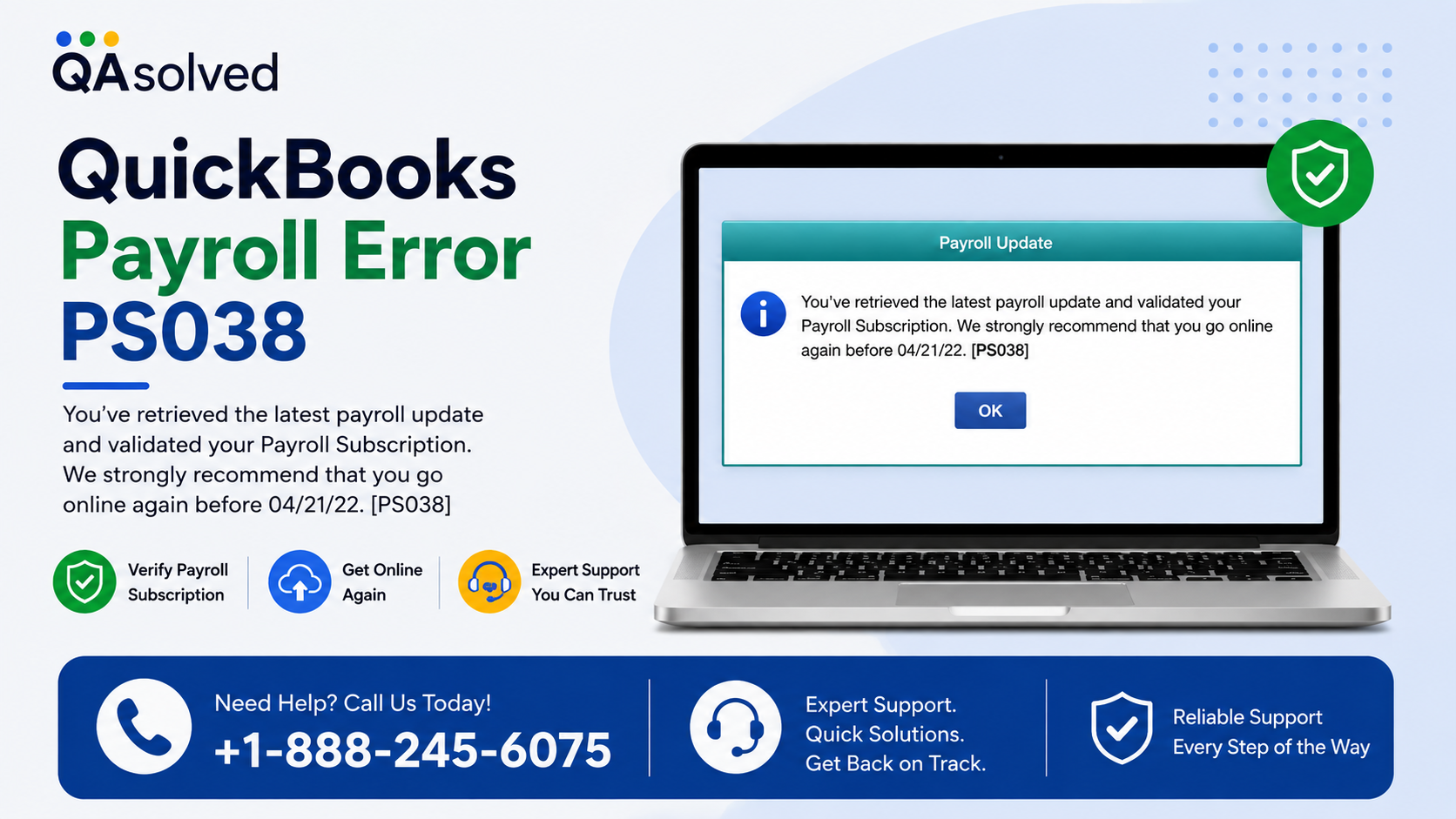
QuickBooks Desktop payroll can sometimes stop working when one or more paychecks remain stuck in an “Online to Send” status. When this happens, you may see QuickBooks Payroll Error PS038 while trying to download the latest payroll updates or process payroll.
This error usually means that QuickBooks has payroll information that has not been successfully sent to Intuit’s servers. In many cases, rebuilding the company data can correct the problem. If the error continues, you may need to manually toggle the affected paychecks so QuickBooks can refresh their status.
This guide explains how to identify stuck paychecks, rebuild your company file, and toggle payroll transactions to resolve QuickBooks Error PS038.
What Causes QuickBooks Payroll Error PS038?
Payroll Error PS038 commonly occurs when paychecks remain in the Online to Send status. These unsent transactions can prevent QuickBooks Desktop from communicating correctly with the payroll service.
Some common reasons include:
- Paychecks remain stuck in the Online to Send status.
- Company file data contains errors.
- Payroll information was not successfully transmitted.
- QuickBooks Desktop is not fully updated.
- Payroll data needs to be synchronized with Intuit’s servers.
- A previous payroll transaction did not process correctly.
Before starting the troubleshooting steps, make sure you have everything needed to work safely with your company file.
What You Need Before Fixing Error PS038
Prepare the following items:
- An updated version of QuickBooks Desktop.
- A recent backup of your QuickBooks company file.
- Your payroll service PIN.
- A stable internet connection.
- Access to the QuickBooks company file experiencing the error.
Creating a backup is particularly important because some troubleshooting steps modify company-file data.
Step 1: Send Your Payroll Data
The first step is to check whether QuickBooks can successfully communicate with the payroll service.
- Open your QuickBooks Desktop company file.
- Select Employees from the top menu.
- Choose My Payroll Service.
- Select Send Usage Data or Send Payroll Data, depending on the version of QuickBooks you use.
- When the Send/Receive Payroll Data window opens, select Send All.
- Enter your payroll service PIN if QuickBooks asks for it.
- Wait for the transmission to finish.
If the payroll data is transmitted successfully, try downloading the latest payroll updates again.
If the transmission fails or QuickBooks continues to display PS038, continue with the next troubleshooting method.
Step 2: Find Paychecks Stuck in “Online to Send”
The next step is to identify the paychecks that QuickBooks has not successfully sent.
- Select Edit from the QuickBooks menu.
- Choose Find.
- Select the Advanced
- In the Choose Filter section, select Detail Level.
- Choose Summary Only.
- Return to the filter list.
- Scroll down and select Online Status.
- Select Online to Send.
- Click Find.
QuickBooks will display paychecks that have not yet been sent to Intuit.
Pay attention to the oldest paycheck listed in the results. Also note the number of matching transactions shown in the Find window. This information can help you determine how many paychecks need attention.
Close the Find window after reviewing the results.
Step 3: Verify Your QuickBooks Company Data
Before manually changing any paycheck, use QuickBooks’ built-in data utilities to check the company file for problems.
Run Verify Data
- Open the File
- Select Utilities.
- Choose Verify Data.
- Allow QuickBooks to scan the company file.
- Review the results when the verification finishes.
If QuickBooks reports a data problem, continue with the rebuild process.
Run Rebuild Data
The Rebuild Data utility can repair certain company-file issues that may be contributing to QuickBooks Payroll Error PS038.
- Open the File
- Select Utilities.
- Choose Rebuild Data.
- Follow the on-screen instructions.
- Create a backup when QuickBooks asks you to do so.
- Allow the rebuild process to complete.
After the rebuild finishes, try downloading the payroll updates again.
If PS038 no longer appears, the issue has been resolved. If the error remains, the stuck paychecks may need to be toggled manually.
Step 4: Toggle the Stuck Paychecks
If rebuilding the company file does not resolve the error, manually editing each affected paycheck can force QuickBooks to refresh its status.
You need to repeat the following process for each paycheck that remains stuck with the Online to Send status.
Open the Affected Paycheck
- Open the oldest stuck paycheck.
- Select Paycheck Detail.
- Go to the Earnings
- Add the same earnings item that appears last in the existing list.
For example, if Hourly Rate is the last earnings item, add Hourly Rate again temporarily.
Save the Temporary Change
When QuickBooks displays the Net Pay Locked message, select No.
Next, carefully check the paycheck details. Make sure the tax amounts and net pay have not changed.
Select OK to continue.
If QuickBooks displays a Past Transaction message, select Yes.
Then select Save & Close.
If a Recording Transaction warning appears, select Yes.
Remove the Duplicate Earnings Item
After saving the paycheck:
- Open the same paycheck again.
- Select Paycheck Detail.
- Find the duplicate earnings item you added earlier.
- Delete that duplicate item.
- Check the tax amounts and net pay again.
- Select OK.
- Save and close the paycheck.
Repeat these steps for every paycheck that is still listed as Online to Send.
Step 5: Download the Latest Payroll Updates
After you have toggled all affected paychecks, try downloading the payroll updates again.
Open Employees, select My Payroll Service, and choose the option to download the latest payroll updates.
If the stuck transactions were successfully refreshed, QuickBooks should be able to communicate with the payroll service normally.
You can then check whether the latest payroll tax table updates are available.
How to Prevent QuickBooks PS038 in the Future
Although payroll errors cannot always be prevented, a few maintenance practices can reduce the chance of company-file and payroll communication problems.
Keep QuickBooks Desktop Updated
Install available QuickBooks Desktop updates regularly. Using an outdated release can cause compatibility and payroll-service problems.
Back Up Your Company File
Create regular backups of your company file. A current backup gives you a safer recovery option before performing data repairs or making significant changes.
Verify Company Data Regularly
If QuickBooks begins behaving unexpectedly, running the Verify Data utility can help identify possible company-file problems early.
Check Payroll Transmission
Make sure payroll information is successfully transmitted after processing payroll. Unsent transactions can remain in the company file and may contribute to future payroll update problems.
Final Thoughts
QuickBooks Payroll Error PS038 can occur when paychecks remain stuck with an Online to Send status. The first troubleshooting step is to send your payroll data and confirm that QuickBooks can communicate with the payroll service.
If that does not resolve the problem, identify the affected paychecks and run Verify Data followed by Rebuild Data. When the error continues after rebuilding the company file, manually toggling each stuck paycheck can refresh its status.
After completing these steps, try downloading the latest payroll updates again. Always create a current backup before performing data-repair procedures or modifying payroll transactions.
Frequently Asked Questions
1. What is QuickBooks Payroll Error PS038?
QuickBooks Payroll Error PS038 appears when one or more paychecks are stuck in the “Online to Send” status. This can prevent QuickBooks Desktop from downloading the latest payroll updates or tax tables.
2. Why does QuickBooks show payroll error PS038?
QuickBooks may display PS038 when payroll transactions have not been successfully sent to Intuit’s servers. Company-file data issues or stuck paychecks can also contribute to this error.
3. How can I fix QuickBooks Error PS038?
Start by sending your payroll data through Employees > My Payroll Service > Send Payroll Data. If the error remains, identify the stuck paychecks, run Verify Data and Rebuild Data, and then toggle the affected paychecks if necessary.
4. How do I find paychecks stuck in “Online to Send”?
Use the Edit > Find option in QuickBooks Desktop. On the Advanced tab, filter the results by Detail Level > Summary Only and then select Online Status > Online to Send. QuickBooks will display the paychecks that have not been sent.
5. Can rebuilding QuickBooks data fix PS038?
Yes. Running the Rebuild Data utility can repair certain company-file data problems that may be associated with PS038. Always create a current backup before rebuilding your company file.
6. What does toggling a paycheck mean in QuickBooks?
Toggling a paycheck involves temporarily adding an existing earnings item, saving the paycheck, reopening it, and removing the duplicate item. This process can refresh the paycheck’s status and help clear the Online to Send condition.
7. Will toggling a paycheck change the employee’s net pay?
The paycheck should retain the correct tax amounts and net pay when the process is completed correctly. Carefully verify the paycheck details before saving and after removing the temporary duplicate earnings item.
8. Why can’t I download the latest payroll tax tables?
A stuck paycheck or unsuccessful payroll data transmission can interfere with payroll updates. If you see PS038, first check for paychecks with an Online to Send status and resolve those transactions before trying the payroll update again.
9. Do I need a backup before fixing QuickBooks PS038?
Yes. Creating a recent backup of your QuickBooks Desktop company file is recommended before running data-repair utilities or manually changing payroll transactions.
10. What should I do if QuickBooks PS038 still appears after rebuilding the data?
If PS038 continues after you rebuild the company file and toggle the affected paychecks, review the payroll transmission and confirm that QuickBooks is fully updated. If the issue persists, professional QuickBooks support may be needed to examine the company file and payroll setup.