

QuickBooks’ online banking feature is one of the most useful tools in the software — it automatically pulls in transactions from your bank and credit card accounts, matches them to your books, and saves hours of manual data entry every month. But when it breaks, it can bring your bookkeeping to a standstill. Bank feeds stop updating, payments fail to sync, and error codes pop up with little explanation.
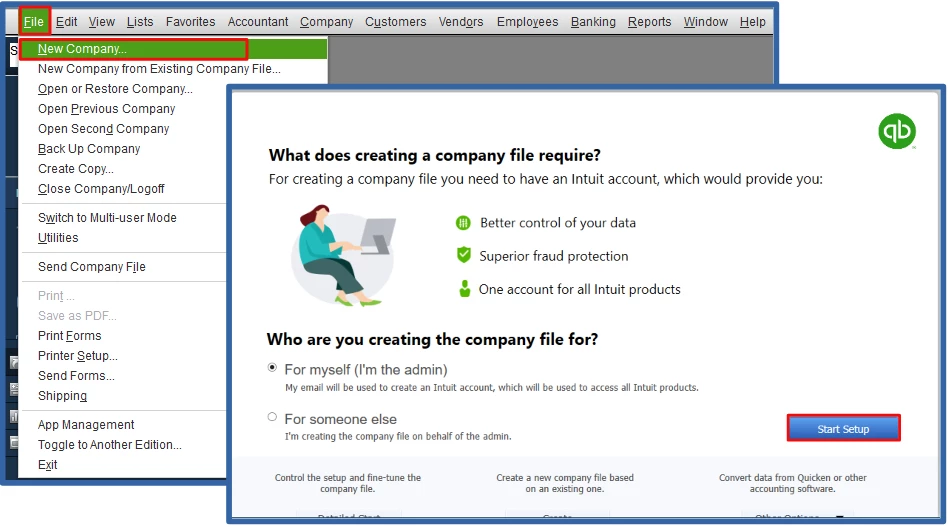
QBDT 2024 bank feeds not working since upgrade to 2024 | QuickBooks Community
This guide walks through the most common QuickBooks Banking Issues, why they happen, and how to fix them — covering everything from payment processing issues to ACH bill pay, connecting American Express accounts, and setting up online banking from scratch.
Why QuickBooks Banking Issues Happen
Before diving into fixes, it helps to understand the root causes. Most banking problems in QuickBooks come down to one of these:
- Bank-side changes: Your bank updates its login page, security protocol, or website structure, breaking the connection QuickBooks uses to pull data.
- Multi-factor authentication (MFA): Many banks now require a one-time code or app approval, which can interrupt the automatic sync if not re-verified.
- Outdated QuickBooks version: Older versions of QuickBooks Desktop or an un-refreshed browser session in QuickBooks Online can lose sync with updated bank servers.
- Duplicate or conflicting bank connections: Reconnecting an account without removing the old connection first often creates duplicate feeds.
- Firewall or internet security software: Overly aggressive firewall settings can block QuickBooks from reaching your bank’s servers.
Banking Issue
| Issue | Common Cause | Fix |
|---|---|---|
| Bank feed not updating | Bank changed login page/security protocol | Update QuickBooks, then disconnect and reconnect the account |
| Payment not syncing | Delay between payment gateway and bank feed | Manually refresh via “Update Now”; check Merchant Service Center |
| Duplicate transactions | Account reconnected without removing old link | Use “Match” or “Exclude” in the For Review tab, don’t re-add manually |
| ACH payment failed | Wrong routing/account number, or bank rejection | Verify bank details on file; check reason code in Payment Activity |
| Bill Pay stuck “Processing” | Standard ACH clearing time (1–3 business days) | Wait for standard processing window before troubleshooting further |
| American Express won’t connect | Too many recent login attempts (Amex throttling) | Wait 24 hours, then retry via Banking > Link Account |
| MFA breaking the connection | Bank requires periodic re-authentication | Re-verify login credentials and 2FA when prompted |
| Error codes (102, 103, 105, 324) | Bank-side site changes or login issues | Check QuickBooks in-app help for the specific code’s fix |
| Deposits “pending” too long | QuickBooks Payments batches deposits | Check deposit schedule settings; confirm on processor’s end |
| Feed broken after reconnect | Old connection not fully removed first | Fully disconnect (Edit > Disconnect), then reconnect from scratch |
Common Payment-Related Issues in QuickBooks
Payment issues are among the most disruptive banking problems because they affect cash flow directly. Common symptoms include:
- Customer payments not syncing to the bank feed
- QuickBooks Payments deposits showing as “pending” far longer than expected
- Payment errors when processing invoices through QuickBooks Payments
- Mismatched or duplicate payment entries after a sync
How to fix payment sync issues:
- Go to Banking > Bank Feeds > Bank Feeds Center and check the connection status for the affected account.
- If a payment is stuck, manually refresh the feed using Update Now.
- Check the Merchant Service Center (for QuickBooks Payments users) to confirm the transaction actually processed on the payment processor’s end — sometimes the delay is on the payment gateway, not QuickBooks itself.
- Review your deposit settings; QuickBooks Payments sometimes batches deposits, which can look like a “missing” payment when it’s really just scheduled for the next business day.
- If duplicates appear, use the Exclude or Match function in the “For Review” tab instead of manually re-adding transactions.
Fixing Online Bill Pay and ACH Issues
Online Bill Pay uses ACH (Automated Clearing House) transfers to move money between your bank and vendors. When ACH payments fail or stall, it’s usually due to one of these:
- Insufficient funds or a mismatched routing/account number
- The vendor’s bank rejecting the deposit
- A held or delayed transaction due to fraud screening
- An expired or disconnected bank authorization
Steps to resolve ACH and Bill Pay issues:
- Confirm the bank account details on file are current — routing and account numbers are the most common cause of ACH rejections.
- Check the payment status inside Bill Pay > Payment Activity to see if it’s marked “Sent,” “Processing,” or “Failed.”
- If a payment failed, QuickBooks usually provides a reason code — cross-reference this with your bank, since some rejections require the vendor to re-confirm their account.
- Re-authorize the bank connection if it’s been more than 90 days since the last login verification; many banks require periodic re-authentication for ACH permissions.
- Allow standard ACH processing time (typically 1–3 business days) before troubleshooting further — a “slow” payment isn’t always a broken one.
How to Connect American Express to QuickBooks
American Express accounts sometimes require a slightly different connection process than standard bank accounts because Amex often uses its own authentication portal.
- In QuickBooks Online, go to Banking > Link Account.
- Search for “American Express” in the bank search field.
- Select the correct Amex login portal (there are sometimes two listed — one for personal cards, one for business/corporate cards).
- Log in with your Amex credentials, complete any two-factor verification Amex requires.
- Select the specific card account(s) you want to connect, then choose the matching account in your QuickBooks chart of accounts.
- Click Connect and allow the initial transaction download to complete — this can take a few minutes for accounts with a long transaction history.
If Amex fails to connect, it’s often because Amex has temporarily throttled the connection due to too many recent login attempts. Waiting 24 hours and trying again typically resolves this.
How to Set Up Online Banking in QuickBooks (From Scratch)
If you’re connecting a bank account for the first time:
- Go to Banking (or Transactions in newer QBO layouts) from the left-hand menu.
- Click Link Account or Connect Account.
- Search for your bank by name.
- Enter your online banking username and password — QuickBooks uses a secure, encrypted connection (via Plaid or a direct bank API, depending on the institution).
- Complete any multi-factor authentication your bank requires.
- Choose the specific accounts to connect (checking, savings, credit card, etc.) and match each to the correct account in QuickBooks.
- Set your transaction download start date — most banks allow 90 days of history, though some go back further.
Fixing General Online Banking Errors
If your bank feed stops working entirely, try these steps in order:
- Update QuickBooks to the latest release (Help > Update QuickBooks Desktop, or refresh your browser for QuickBooks Online).
- Disconnect and reconnect the account: Go to the account’s tile in Bank Feeds, select Edit > Disconnect this account, then reconnect it from scratch. This resolves the majority of stuck-sync errors.
- Clear cache and cookies if you’re using QuickBooks Online in a browser — corrupted cache data is a frequent cause of feed errors.
- Check for bank outages: Sometimes the issue is on the bank’s end. A quick search for “[bank name] down” or checking the bank’s status page can save troubleshooting time.
- Review error codes: QuickBooks banking errors typically follow patterns like 102, 103, 105, or 324 — each corresponds to a specific issue (login problems, MFA issues, site changes, etc.) and QuickBooks’ in-app help provides code-specific guidance.
When to Seek Additional Help
Most banking issues resolve with a reconnect, an update, or a short wait for ACH processing. If a problem persists after trying the steps above — especially anything involving missing funds, failed payments, or account security — it’s worth reaching out to your bank directly first, since they can confirm what’s happening on their end, and then QuickBooks support if the issue is clearly on the software side.
smilebox




















Leave a Reply