


QuickBooks Error 1935: 10 Proven Fixes for Installation Assembly Errors
QuickBooks Error 1935 can stop a Desktop installation, repair, or update when Windows cannot properly register a required assembly component. The message may mention an assembly component, .NET Framework, or another Windows component, and the installation may roll back before completion.
Although the error appears while installing QuickBooks Desktop, QuickBooks Error 1935 is fundamentally associated with Windows component registration. Problems involving .NET Framework, Microsoft Visual C++ Redistributable packages, Windows Installer, MSXML, pending Windows updates, permissions, or security software can all interfere with installation.
For accounting professionals and businesses, the important point is to identify which Windows component the error references instead of repeatedly reinstalling the accounting software. The assembly name shown in the error can provide an important clue about where troubleshooting should begin.
This guide explains the causes, symptoms, ten practical fixes, troubleshooting scenarios, prevention measures, and related installation problems that commonly appear alongside QuickBooks Error 1935.
Understanding QuickBooks Error 1935
What Is Error 1935?
Error 1935 is an installation failure that occurs when Windows cannot register a required assembly during software setup. When QuickBooks Desktop is being installed or updated, the setup process may need to register components associated with .NET Framework, Visual C++, MSXML, or other Windows services.
A typical message may look similar to:
QuickBooks Error 1935. An error occurred during the installation of the assembly component.
The exact wording can vary depending on the Windows version, QuickBooks Desktop release, and component involved.
Because the failure occurs during installation, the software may not install completely. In some situations, an update or repair process can also fail.
Common Symptoms
You may notice one or more of these symptoms:
| Symptom | What You May Notice |
| Installation stops | Setup stops before completion |
| Assembly message | The error identifies a Windows component |
| Installation rollback | Windows reverses recently installed components |
| Update failure | A Desktop update cannot complete |
| Repair failure | Repair or reinstall attempts stop with the same message |
| Repeated installation errors | Every installation attempt fails at a similar stage |
Why the Assembly Name Matters
The component mentioned in the QuickBooks Error 1935 message can help narrow down the cause.
For example:
- Microsoft.VC references can indicate a Visual C++ Redistributable problem.
- .NET or System references can indicate a .NET Framework issue.
- MSXML references can point toward an XML component problem.
- An unclear or missing component name may require broader Windows Installer troubleshooting.
This makes the complete error message more useful than the number 1935 alone.
What Causes QuickBooks Error 1935?
Several Windows-level conditions can produce this installation problem. The most common possibilities include:
| Possible Cause | How It Can Affect Installation |
| Damaged .NET Framework | Required assemblies cannot be registered correctly |
| Corrupted Visual C++ components | Runtime files needed by setup are unavailable or damaged |
| Pending Windows installation | Another update may be using required installation resources |
| Antivirus interference | Security software may block setup activity |
| Windows Installer problems | The installation service may not function correctly |
| Missing Windows updates | Required system components may be outdated |
| User permission restrictions | Setup cannot write or register required components |
| Damaged system files | Windows components required by installation may be unstable |
| Registry problems | Component registration may fail |
| Background software conflicts | Another application may interfere with setup |
Understanding these possible causes helps prevent unnecessary reinstallations.
Before Troubleshooting: Prepare Your Computer
Before making system-level changes, take a few precautions.
1. Back Up Your Company Files
If an existing QuickBooks installation is being repaired or upgraded, create a current backup of important company files.
2. Keep Your License Information Available
Have your product and license information available if the installation requires reactivation.
3. Close Running Applications
Close QuickBooks Desktop and other unnecessary applications before beginning installation troubleshooting.
4. Restart Windows
A restart can clear pending installation operations and release locked system resources.
5. Use an Administrator Account
Installation and component repair may require administrative permissions.
10 Proven Fixes for QuickBooks Error 1935
Fix 1: Restart Windows and Run the Installer as Administrator
This should be the first step because it is simple and can resolve temporary installation conflicts.
Steps
- Save your work and restart Windows.
- Wait for Windows to finish starting.
- Locate the QuickBooks Desktop installer.
- Right-click the installer.
- Select Run as administrator.
- Approve the Windows permission prompt.
- Start the installation again.
A restart can clear a pending Windows installation, release locked files, and reset certain installation services.
Fix 2: Repair .NET Framework Through Windows Features
A damaged or inconsistent .NET Framework installation is a common area to investigate when QuickBooks Error 1935 references .NET components.
Windows can repair some framework components through its optional Windows Features interface.
Steps
- Open Control Panel.
- Select Programs and Features.
- Choose Turn Windows features on or off.
- Locate the available .NET Framework entries.
- If a relevant component is enabled, temporarily clear its checkbox where appropriate.
- Select OK.
- Restart Windows.
- Return to Turn Windows features on or off.
- Re-enable the required .NET Framework component.
- Restart Windows again.
- Retry the QuickBooks installation.
Why This Can Help
Re-enabling the Windows feature can cause Windows to refresh component registrations and replace missing or inconsistent files.
Do not remove unrelated Windows components simply to troubleshoot QuickBooks Error 1935.
Fix 3: Run the QuickBooks Install Diagnostic Tool
If the installation continues to fail, the installation diagnostic utilities included with QuickBooks Tool Hub can help repair common installation components.
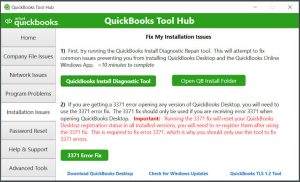
Steps
- Close QuickBooks Desktop.
- Open QuickBooks Tool Hub if it is already installed.
- Select Installation Issues.
- Choose QuickBooks Install Diagnostic Tool.
- Allow the diagnostic process to complete.
- Restart Windows.
- Try installing or updating QuickBooks again.
The diagnostic process can take several minutes, particularly when multiple Windows components need to be checked.
This approach is useful when the problem involves installation components rather than the company file itself.
Fix 4: Repair Microsoft Visual C++ Redistributable Components
If the error message contains an assembly reference such as Microsoft.VC, investigate the installed Microsoft Visual C++ Redistributable packages.
Steps
- Open Control Panel.
- Select Programs and Features.
- Review the installed Microsoft Visual C++ Redistributable packages.
- Select the relevant package.
- Choose Change or Repair, if available.
- Complete the repair.
- Restart Windows.
- Retry the installation.
If a specific Visual C++ package is identified in the error message, pay particular attention to that package rather than randomly removing multiple versions.
Fix 5: Install Pending Windows Updates
An outdated Windows environment can cause compatibility problems during software installation.
Steps
- Open Windows Settings.
- Go to Windows Update.
- Select Check for updates.
- Install available updates.
- Restart the computer when requested.
- Check for additional updates after restarting.
- Retry the QuickBooks installation.
This can be particularly useful when QuickBooks Error 1935 begins immediately after a Windows installation or system change.
Fix 6: Temporarily Check Antivirus Interference
Security software can sometimes interfere with installers when setup attempts to create or register system components.
Instead of leaving protection disabled, use temporary troubleshooting only.
Steps
- Save your work.
- Temporarily pause real-time security protection if your security software permits it.
- Run the QuickBooks installer.
- Monitor whether the installation completes.
- Immediately restore security protection after testing.
If security software is confirmed as the cause, configure an appropriate trusted application or folder exception according to the security product’s recommendations.
Important: Never leave antivirus protection disabled unnecessarily.
Fix 7: Install Using Selective Startup
Third-party background services can sometimes interfere with Windows installation processes.
Selective Startup allows you to temporarily reduce the number of programs and services that launch with Windows.
Steps
- Press Windows + R.
- Enter msconfig.
- Press Enter.
- Open the General tab.
- Select Selective startup.
- Adjust startup options as appropriate.
- Open the Services tab.
- Select Hide all Microsoft services.
- Review the remaining third-party services.
- Restart Windows.
- Run the QuickBooks installer.
After troubleshooting, restore the normal Windows startup configuration.
This method is especially useful when QuickBooks Error 1935 appears only on one computer while the same installation works normally elsewhere.
Fix 8: Repair Windows System Files
Damaged Windows system files can interfere with component registration and installation.
Windows includes built-in tools for checking system integrity.
Run System File Checker
Open Command Prompt as administrator and run:
sfc / scan now
Allow the scan to finish.
If Windows reports problems that require additional repair, you can also use the Deployment Image Servicing and Management utility:
DISM /Online /Cleanup-Image /RestoreHealth
Restart Windows after the repairs and retry the installation.
These tools address Windows system integrity rather than the QuickBooks company file.
Fix 9: Repair Windows Installer and Installation Components
If QuickBooks Error 1935 continues after repairing .NET and Visual C++, Windows Installer itself may need attention.
Basic Troubleshooting
- Restart Windows.
- Make sure no other software installation is running.
- Check Windows Update for pending installations.
- Confirm that you have administrator privileges.
- Retry the installation using Run as administrator.
- If installation problems continue across multiple applications, investigate Windows Installer and operating-system health rather than repeatedly reinstalling QuickBooks.
An Important Diagnostic Clue
If QuickBooks Error 1935 also occurs when installing unrelated applications, the issue is more likely to be within Windows than within QuickBooks Desktop.
Fix 10: Perform a Clean Installation
A clean installation should generally be considered after the Windows and installation components have been checked.
Steps
- Make sure your company files are backed up.
- Keep your license information available.
- Open QuickBooks Tool Hub.
- Select Installation Issues.
- Choose QuickBooks Clean Install Tool when available.
- Follow the on-screen instructions.
- Select the appropriate Desktop version.
- Allow the utility to rename or remove the required installation folders.
- Restart Windows.
- Reinstall QuickBooks Desktop.
A clean installation can resolve problems caused by damaged program files or an incomplete previous installation.
However, it will not automatically repair a damaged Windows .NET, Visual C++, or Windows Installer environment. If QuickBooks Error 1935 is caused by Windows, the underlying component must still be addressed.
How to Identify the Correct Fix
You do not always need to perform all ten methods.
Use the error message as your starting point:
| Error Clue | Area to Investigate |
| Microsoft.VC | Visual C++ Redistributable |
| .NET / System | .NET Framework |
| MSXML | XML/system components |
| Installation rolls back | Windows Installer or component registration |
| Error occurs after Windows update | Windows compatibility or pending update |
| Error appears only on one computer | Local system configuration |
| Error occurs with multiple programs | Windows-level installation problem |
This targeted approach is more efficient than repeatedly uninstalling and reinstalling the accounting software.
QuickBooks Error 1935 vs Other Installation Errors
Error 1935 is often confused with other installation-related problems, but the troubleshooting path can differ.
- Error 1935 generally points toward Windows assembly registration.
- Error 1603 commonly indicates a fatal installation failure and can involve permissions, damaged installation files, or Windows Installer problems.
- Error 1904 can occur when a component cannot be registered correctly.
- Error 1328 can appear when an update or repair process encounters problems with a specific file.
- Error 1712 can occur when Windows cannot restore or remove certain program components.
These errors may appear together during a difficult installation, but they should not automatically be treated as the same problem.
Real-World Troubleshooting Examples
Scenario 1: .NET Component Failure
A business attempted to Install QuickBooks Desktop after a Windows update. QuickBooks Error 1935 appeared while an assembly component was being registered.
The troubleshooting focused on Windows Features and the .NET Framework. After restarting and refreshing the relevant framework components, the installation was attempted again.
The installation completed successfully.
Lesson
When the error references .NET, investigate the framework before performing an unnecessary clean installation.
Scenario 2: Visual C++ Assembly Reference
A workstation displayed QuickBooks Error 1935 with a Microsoft.VC assembly reference.
The installed Visual C++ Redistributable components were reviewed and the relevant package was repaired. After restarting Windows, the installation was attempted again.
The installation completed normally.
Lesson
The assembly name can provide a more useful diagnostic clue than the 1935 error number alone.
Scenario 3: Security Software Interference
A new workstation repeatedly failed during installation while other computers completed the same installation successfully.
The security software logs showed that installation activity was being blocked. After temporary protection testing confirmed the conflict, an appropriate security exception was configured.
The installation was then completed.
Lesson
When an installation works on one computer but fails consistently on another, compare security software, Windows configuration, permissions, and installed components.
Prevention Tips for Future Installation Problems
Keeping the Windows environment healthy can reduce installation failures.
Keep Windows Current
Install important Windows updates and restart when required instead of allowing large numbers of updates to remain pending.
Maintain Reliable Security Software
Keep antivirus protection enabled and configure legitimate software exceptions carefully when necessary.
Use Administrator Permissions
Software installation and repair tasks may require elevated permissions.
Keep Installation Information
Store your product and licensing information securely so it is available during reinstallations.
Back Up Company Data
Regular company-file backups protect against data-access problems and make major maintenance tasks safer.
Avoid Interrupted Installations
Do not shut down the computer while Windows or QuickBooks is installing or updating.
Frequently Asked Questions
What is QuickBooks Error 1935?
QuickBooks Error 1935 is an installation-related error that occurs when Windows cannot properly register a required assembly component during setup, repair, or update.
Is Error 1935 caused by QuickBooks?
Not necessarily. The error is associated with Windows component registration and can also occur when installing other applications. When it appears during a QuickBooks installation, Windows components such as .NET Framework, Visual C++, MSXML, or Windows Installer may require troubleshooting.
What is the fastest way to fix QuickBooks Error 1935?
Restart Windows, run the installer as administrator, and investigate the Windows component identified in the error. If .NET Framework is referenced, refreshing the relevant Windows Feature is an appropriate early troubleshooting step.
Can .NET Framework cause Error 1935?
Yes. A damaged or inconsistent .NET Framework installation can prevent required assemblies from being registered during setup.
Can Visual C++ cause QuickBooks Error 1935?
Yes. If the error references a Microsoft.VC assembly, the Visual C++ Redistributable installation is an important area to investigate.
Can antivirus software cause Error 1935?
Security software can sometimes interfere with installation activity. Temporary testing can help determine whether security software is responsible, but protection should be restored immediately afterward.
Does QuickBooks Error 1935 damage my company file?
The installation error itself does not indicate that your company file has been damaged. Nevertheless, always maintain a current backup before performing major software maintenance.
Should I reinstall QuickBooks immediately?
No. First identify the component named in the error. Reinstalling the application repeatedly will not necessarily resolve a damaged Windows component.
What should I do if Error 1935 keeps returning?
Check .NET Framework, Visual C++ Redistributables, Windows updates, Windows system integrity, security software, administrator permissions, and installation conflicts. If the problem occurs with several unrelated applications, investigate Windows itself.
Final Takeaway
QuickBooks Error 1935 can look like a complicated accounting-software failure, but the underlying problem is usually connected to Windows component registration. The most effective troubleshooting strategy is to read the complete error message, identify the assembly involved, and work on the corresponding Windows component.
Start with a restart and administrator installation. If the message references .NET, investigate the .NET Framework. If it references Microsoft.VC, inspect the Visual C++ Redistributable components. Continue with Windows updates, installation diagnostics, system-file repairs, and selective startup when necessary.
A clean installation can help when program files are damaged, but it should not replace proper Windows troubleshooting. Keeping Windows updated, maintaining backups, and avoiding interrupted installations can also reduce the chance of recurring installation problems.
Need Expert Help?
If QuickBooks Error 1935 continues after these troubleshooting steps or installation problems are preventing your business from accessing essential accounting functions, the Data Service Team can assist with advanced software and system diagnostics.
Data Service Team: +1-(888)-718-7888
The goal is not simply to reinstall the software but to identify the component preventing installation and resolve the underlying issue safely.
















Leave a Reply