
Moving accounting data from QuickBooks Desktop to QuickBooks Online should be planned carefully. However, a migration can sometimes stop during preparation, export, validation, or transfer and display a message such as “QuickBooks Migration Failed Unexpectedly.”
The message itself is broad. It does not necessarily identify one specific problem.
A failed migration can be related to:
- Company-file data integrity
- Unsupported or incompatible data
- File size or transaction-volume limitations
- Incorrect administrator permissions
- Intuit account authentication
- QuickBooks Desktop release issues
- Network interruptions
- Windows permissions
- Security software interference
- Payroll or inventory considerations
- Migration eligibility or account restrictions
The most effective approach is not to repeatedly click the migration button. Instead, identify where the migration fails and whether the source company file itself has problems.
Important: A failed migration attempt does not automatically mean that your original QuickBooks Desktop company file has been deleted or permanently damaged. Nevertheless, always create a verified backup before making significant changes.
Why Does QuickBooks Migration Fail Unexpectedly?
There is rarely one universal cause. The underlying issue depends on the company file, Desktop version, destination account, migration method, and the point at which the transfer stops.
1. Damaged or Inconsistent Company Data
A company file containing data-integrity problems can interfere with migration. Damaged lists, transaction inconsistencies, inventory issues, or other structural problems may prevent the migration process from completing correctly.
This is why Verify Data should be one of the first diagnostic steps.
2. Large or Complex Company Files
A company with many transactions, list records, inventory items, attachments, or historical data can require additional preparation.
Do not assume that every large file has the same migration eligibility. QuickBooks migration limits and supported data can depend on the specific Desktop edition, Online subscription, migration method, and current Intuit rules.
3. Incorrect QuickBooks Online Permissions
Migration generally requires appropriate administrative access to the destination company.
If the wrong Intuit account is signed in, the user lacks sufficient permissions, or the destination company cannot be verified, migration may stop before data transfer begins.
4. Outdated QuickBooks Desktop
An older Desktop release may not work properly with current migration workflows. Updating QuickBooks before attempting another migration is therefore an important troubleshooting step.
5. Network or Windows Problems
Migration requires reliable communication between the Desktop application, local files, and online services.
An unstable connection, restricted permissions, insufficient temporary storage, or security software can interfere with the process.
Before Fixing the Migration Error: Protect Your Data
Before rebuilding, condensing, moving, or otherwise modifying your company file, create a backup.
In QuickBooks Desktop, use the appropriate backup option under the File menu and save the backup somewhere separate from the working company file.
Ideally, maintain:
- A local backup
- A separate external or cloud copy
- A known-good copy before major data repair
Do not overwrite your only backup while troubleshooting.
How to Fix QuickBooks Migration Failed Unexpectedly
Work through these solutions in order. Stop once you identify the cause and successfully complete a controlled migration.
Solution 1: Update QuickBooks Desktop
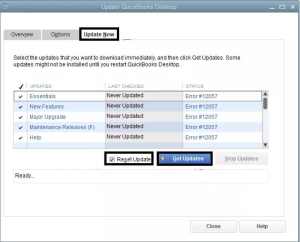
First, make sure QuickBooks Desktop is running a supported and current release.
Open QuickBooks and use:
Help → Update QuickBooks Desktop
Check for available updates, install them, restart QuickBooks, and then test the migration again.
Updating is especially important when the migration process worked previously but suddenly stopped after a software or Windows change.
Solution 2: Run Verify Data
The next important diagnostic step is checking the company file.
Go to:
File → Utilities → Verify Data
Allow the process to finish.
If QuickBooks reports that there are no data problems, continue troubleshooting elsewhere.
If it identifies an integrity issue, record the message before proceeding.
Why Verify Data Matters
Migration is not simply copying a document from one folder to another. Accounting records have relationships between customers, vendors, accounts, transactions, inventory, payments, and other records.
An integrity problem can therefore become relevant when data is converted into another accounting environment.
Solution 3: Run Rebuild Data When QuickBooks Reports Problems
If Verify Data identifies a problem, use:
File → Utilities → Rebuild Data
QuickBooks will normally ask you to create a backup before rebuilding. Follow that prompt carefully.
After the rebuild finishes:
- Run Verify Data again.
- Confirm whether the original problem remains.
- Review any additional messages.
- Do not immediately delete your backup.
- Test the company file before starting migration again.
A rebuild can correct certain data-integrity problems, but it is not a universal repair for every company-file issue.
Solution 4: Test the Company File Locally
If the company file is stored on a server, network drive, removable device, or cloud-synchronized folder, test a working copy from a local drive.
For example:
C:\QBMigration\CompanyFile.QBW
First close QuickBooks, copy the company file to the local folder, open the local copy, and verify that it works correctly.
Why This Test Helps
It removes several variables at once:
- Network connectivity
- Server permissions
- File locking
- Synchronization conflicts
- Remote storage latency
If migration works from the local copy, the original storage environment may deserve further investigation.
Never move or modify the only copy of your company file without maintaining a backup.
Solution 5: Check Your QuickBooks Online Administrator Access
If the migration fails while checking destination credentials, focus on the Online account rather than immediately rebuilding the Desktop file.
Check that:
- You are signed into the correct Intuit account.
- You have the necessary administrator permissions.
- You are migrating into the intended QuickBooks Online company.
- Your Online subscription is active.
- The browser session is not using an outdated or conflicting login.
Sign out of unnecessary Intuit sessions and sign back into the correct account before retrying.
If authentication behaves strangely, testing the process in a private browser window can also help eliminate stale browser-session data.
Solution 6: Check Migration Eligibility and Current Limits
One of the biggest mistakes is relying on an old migration rule without checking whether it applies to the current product and migration route.
Limits can vary based on:
- QuickBooks Desktop version
- QuickBooks Online subscription
- Company-file complexity
- Migration method
- Account type
- Current Intuit migration policies
Therefore, do not automatically assume that every Desktop company file has the same target limit or migration window.
If the migration tool reports a specific limit or eligibility problem, treat that message as the starting point for your investigation.
For exceptionally large or complex files, data cleanup, historical-data planning, or a different migration strategy may be necessary.
Solution 7: Review Windows Permissions
Windows permissions can interfere with applications that need to access company files and temporary folders.
As a diagnostic test, close QuickBooks and launch it using:
Right-click QuickBooks → Run as administrator
Open the company file and test the migration again.
This should be treated as a troubleshooting step rather than a reason to permanently run accounting software with elevated privileges.
If the migration only works with elevated permissions, investigate the underlying Windows account, folder permissions, and security configuration.
Solution 8: Check Antivirus and Firewall Interference
Security software can occasionally interfere with legitimate accounting applications.
Do not permanently disable Windows security protections simply to complete a migration.
Instead:
- Review antivirus and firewall logs.
- Check whether QuickBooks-related processes were blocked.
- Ask your IT administrator to review the security policy.
- Allow legitimate QuickBooks components where appropriate.
- Retry the migration.
This approach is safer than leaving security software disabled.
Solution 9: Free Up Temporary Storage
Migration can require temporary working space.
Check the available storage on the Windows system drive.
If storage is nearly full:
- Remove unnecessary temporary files.
- Empty appropriate Windows temporary locations.
- Remove unused downloads or other large files.
- Restart Windows.
- Retry the migration.
Avoid deleting QuickBooks company files, backups, or application folders simply to create storage space.
Solution 10: Close Conflicting Applications
Before starting migration, close unnecessary programs.
Pay particular attention to:
- Multiple QuickBooks instances
- File synchronization applications
- Backup utilities
- Spreadsheet programs using exported data
- Remote-access tools
- Heavy background applications
Then restart QuickBooks and perform the migration from a clean session.
This reduces the number of processes that could interfere with the company file or migration workflow.
Solution 11: Investigate Payroll Before Migration
Payroll requires additional planning because payroll records and settings may not transfer in exactly the same way as ordinary accounting transactions.
Before migrating:
- Complete required payroll processing in Desktop.
- Review payroll liabilities.
- Verify paycheck information.
- Review payroll tax records.
- Confirm how historical payroll information will be handled in the destination system.
- Avoid scheduling a migration immediately before a critical payroll deadline.
Do not rely on a generic “wait X days” rule for every payroll migration. The correct timing depends on the payroll service, processing status, and current migration instructions.
Solution 12: Review Inventory and Specialized Data
Inventory is another area where migration requires careful verification.
After migration, compare important information such as:
- Inventory quantities
- Inventory valuation
- Item names
- Cost information
- Sales transactions
- Purchase transactions
- Opening balances
Businesses with advanced inventory, manufacturing, industry-specific workflows, or heavily customized Desktop features should perform a detailed migration assessment before relying on the Online company as the new system of record.
QuickBooks Migration Failed Unexpectedly While Checking Destination Credentials
This is a more specific migration problem.
If you receive wording similar to:
“Migration Failed While Checking Destination Credentials”
focus first on authentication and account permissions.
Try:
- Sign out of Intuit accounts.
- Sign into the intended QuickBooks Online company.
- Confirm administrator access.
- Verify that the subscription is active.
- Close QuickBooks Desktop.
- Reopen the application.
- Start the migration again.
If the same credential error continues, avoid repeatedly changing passwords unless there is evidence of an actual authentication problem.
What If QuickBooks Migration Still Fails?
At this stage, separate the problem into two questions:
Does the Desktop company file work correctly?
If the file itself shows Verify/Rebuild errors, crashes, missing transactions, or other data problems, resolve those issues before attempting another migration.
Does the Desktop file work normally but migration still fails?
If the company file passes integrity checks, investigate:
- Online administrator access
- Migration eligibility
- Desktop release
- Windows environment
- Security software
- Network configuration
- Unsupported data
- Destination-company configuration
This diagnostic split can save considerable time because it prevents you from repeatedly repairing a file when the real problem is authentication or migration eligibility.
Common QuickBooks Errors Related to Migration
Migration problems can overlap with other QuickBooks Desktop issues. Depending on the symptoms, related search topics may include:
QuickBooks Error 6143
Often associated with company-file access problems. Investigate the company-file location, permissions, network configuration, and file integrity when this occurs.
QuickBooks Error 6000 Series
Errors such as 6000, -83 and other 6000-series problems can involve company-file access, hosting, network configuration, or damaged files.
QuickBooks Error 6123
This can appear when opening, restoring, or working with a company file and may require company-file and network troubleshooting.
QuickBooks Fatal Error
A fatal or unrecoverable error is different from a migration-specific failure. If QuickBooks crashes before migration begins, troubleshoot the Desktop application first.
QuickBooks Error 1603
This is generally associated with installation or update problems. If the Desktop installation itself is damaged, migration troubleshooting may need to begin with repairing the application.
QuickBooks Tool Hub Problems
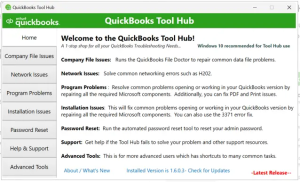
QuickBooks Tool Hub can be useful for diagnosing certain Desktop application and installation problems. However, it should not be treated as a universal migration repair tool.
How to Verify Your Data After Migration
Do not assume that a successful migration means every item transferred exactly as expected.
Perform a structured review.
Compare Financial Reports
Run important reports in Desktop and Online using comparable:
- Date ranges
- Accounting methods
- Accounts
- Reporting settings
Review the:
- Profit and Loss
- Balance Sheet
- Trial Balance
- Accounts Receivable
- Accounts Payable
- Sales reports
- Expense reports
Investigate differences rather than assuming they are migration errors immediately. Differences can result from accounting-method settings, conversion rules, or data that does not transfer identically.
Review Important Data Categories
After migration, check:
- Customers
- Vendors
- Chart of Accounts
- Products and Services
- Invoices
- Bills
- Payments
- Bank accounts
- Credit-card accounts
- Payroll information
- Inventory
- Recurring transactions
- Attachments
- User permissions
- Tax settings
- Reconciliation history
Some Desktop features, settings, reports, integrations, and historical information may not transfer completely.
For that reason, keep the original Desktop company file and backups according to your business’s retention requirements.
QuickBooks Migration Failed Unexpectedly: What Not to Do
Avoid these common mistakes:
Don’t repeatedly retry without diagnosis
If the same condition exists, repeated attempts rarely solve it.
Don’t modify the original file without a backup
Create a separate backup before rebuilding or making significant changes.
Don’t permanently disable antivirus or firewall
Investigate blocked processes and configure legitimate exceptions through an appropriate security policy.
Don’t assume every migration limit is identical
Migration rules can change and can depend on the product and migration path.
Don’t immediately condense historical data
Condensing is a major data-management decision. Determine whether it is actually required before using it.
Don’t delete your Desktop company file after migration
Keep the original file and backup until you have verified the Online data and established an appropriate retention plan.
QuickBooks Migration Troubleshooting Checklist
Before another migration attempt, confirm:
- QuickBooks Desktop is updated.
- A current backup exists.
- Verify Data has been completed.
- Rebuild Data has been completed if required.
- The company file opens normally.
- The file is being tested from a local drive.
- The correct Intuit account is being used.
- Administrator permissions are available.
- The Online subscription is active.
- Migration eligibility has been confirmed.
- Payroll has been reviewed.
- Inventory and specialized features have been reviewed.
- Windows has adequate storage.
- Security software is not blocking legitimate QuickBooks activity.
- Important reports and data have been backed up.
Frequently Asked Questions
What does QuickBooks Migration Failed Unexpectedly mean?
It means the migration process encountered a problem that prevented it from completing. The message is general and can be caused by company-file issues, account permissions, compatibility problems, system conditions, eligibility restrictions, or unsupported data.
Will a failed migration delete my QuickBooks Desktop data?
A failed migration attempt does not by itself mean your original Desktop company file has been deleted. Nevertheless, always create a backup before troubleshooting or modifying the file.
What should I try first?
Start with a backup, update QuickBooks Desktop, run Verify Data, and address any reported company-file problems. Then check Online administrator access and migration eligibility.
Can a damaged company file prevent migration?
Yes. Data-integrity problems can interfere with conversion and migration. Verify Data and, when appropriate, Rebuild Data can help identify and address certain problems.
Should I move my company file to my local computer?
If the company file is currently on a network, removable drive, or cloud-synchronized folder, testing a local copy can help determine whether the storage environment is contributing to the problem.
Why does migration fail while checking destination credentials?
This usually points the investigation toward the QuickBooks Online account, Intuit authentication, administrator permissions, subscription status, or an incorrect destination company.
Does all QuickBooks Desktop data transfer to QuickBooks Online?
No. Desktop and Online are different products, and certain reports, settings, historical information, integrations, payroll details, inventory behavior, and specialized features may require additional review.
Should I keep QuickBooks Desktop after migration?
Keep the original company file and backups until you have thoroughly verified the migrated information and established an appropriate business record-retention process.
Final Thoughts
QuickBooks Migration Failed Unexpectedly is frustrating because the message often provides little information about the actual cause. The best solution is a structured diagnosis rather than repeated migration attempts.
Start with the basics: back up the company file, update QuickBooks Desktop, run Verify Data, use Rebuild Data when appropriate, test the file locally, confirm Online administrator access, and review current migration eligibility.
If the Desktop file is healthy but migration continues to fail, shift your attention toward authentication, destination-account configuration, system permissions, security software, unsupported data, and migration requirements.
The most important rule is simple: protect the original accounting data first, diagnose the failure second, and migrate only after the source and destination environments are ready.
Need Help With QuickBooks Migration?
If your Desktop-to-Online migration continues to fail after standard troubleshooting, the Data Service Team can help review the migration problem, company-file condition, and preparation steps.
Data Service Team Contact Number: +1-(888)-718-7888
When dealing with important accounting records, a careful migration plan is more valuable than repeatedly attempting the same failed transfer.