


QuickBooks Error 1402: 10 Proven Fixes for “Could Not Open Key”
QuickBooks Error 1402 can stop an installation, update, repair, or reinstallation when the Windows Installer cannot access a required Registry key. The error commonly appears with a message such as “Error 1402: Could not open key”, followed by the Registry path that Windows was unable to access.
Although the message appears while working with QuickBooks Desktop, the underlying problem is often related to Windows permissions, damaged installation components, security software, or Registry configuration rather than the company file itself.
This guide explains practical ways to troubleshoot Error 1402, beginning with lower-risk solutions and progressing to advanced Windows repairs. The goal is to identify the cause without making unnecessary changes to your system or company data.
What Is QuickBooks Error 1402?
Error 1402 is a Windows Installer-related error that may occur when QuickBooks Desktop attempts to install, update, repair, or register program components.
The important part of the message is usually:
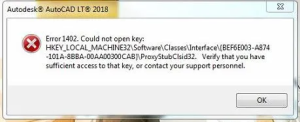
Error 1402: Could not open key
Windows then displays a Registry location associated with the failed operation.
Common symptoms
You may experience one or more of these problems:
- QuickBooks installation stops unexpectedly.
- An update cannot be completed.
- QuickBooks repair fails.
- Reinstallation repeatedly stops at the same point.
- The installer displays a Registry path with the error.
- Windows Installer rolls back the installation.
- QuickBooks components cannot be registered correctly.
Does Error 1402 damage company data?
Generally, Error 1402 concerns the installation or Windows configuration layer rather than the QuickBooks company file. Nevertheless, create a current company-file backup before performing major repairs, especially if you already have access to QuickBooks.
Why Does QuickBooks Error 1402 Occur?
There isn’t one universal cause. The Registry path shown in the error can provide an important clue.
| Possible Cause | How It Can Affect Installation |
| Restricted Registry permissions | Windows prevents the installer from accessing a required key |
| Previous installation remnants | Old components can interfere with a new installation |
| Damaged Windows components | Installer dependencies may not function correctly |
| Security software | Antivirus or endpoint protection may restrict Registry changes |
| Administrator restrictions | The current Windows account may lack required privileges |
| Corrupted installation files | Required program components may be incomplete |
| Windows configuration problems | System-level conflicts can interfere with Windows Installer |
| Temporary installation files | Damaged temporary data may interrupt setup |
Important: Don’t assume the Registry is the only cause simply because Error 1402 mentions a Registry key. Troubleshooting should proceed from safer fixes toward advanced changes.
Before Troubleshooting QuickBooks Error 1402
Take a few precautions before making system-level changes.
1. Back up your company file
If QuickBooks still opens, create a current backup before troubleshooting.
2. Record your product information
Keep your QuickBooks license and product information available if you may need to reinstall the software.
3. Close QuickBooks
Exit QuickBooks Desktop and make sure no related installation process is still running.
4. Restart Windows
A restart can release files or installer processes that remain locked after an unsuccessful update or installation.
5. Sign in with administrator access
Some repair operations require elevated Windows permissions.
10 Ways to Fix QuickBooks Error 1402
Fix 1: Restart Windows and Run the Installer as Administrator
Start with this simple solution before modifying system settings.
Steps
- Close QuickBooks Desktop.
- Restart your computer.
- Locate the QuickBooks installer.
- Right-click the installer.
- Select Run as administrator.
- Follow the installation or update prompts.
Why try this first?
A temporary Windows process or permission conflict may prevent the installer from accessing required resources. Restarting and using elevated permissions can eliminate those temporary conditions.
Fix 2: Run the QuickBooks Installation Repair Tools
If the installation itself is damaged, QuickBooks’ available repair utilities can help identify installation-related problems.
If you already have QuickBooks Tool Hub installed:
- Close QuickBooks.
- Open QuickBooks Tool Hub.
- Select Installation Issues.
- Run the available installation diagnostic utility.
- Allow the diagnostic process to finish.
- Restart Windows.
- Try installing or updating QuickBooks again.
This approach is preferable to immediately changing Registry permissions manually.
Fix 3: Check the Registry Path Shown in Error 1402
The Registry path displayed by QuickBooks Error 1402 can help identify what Windows is attempting to access.
For example, the message may reference a location under:
HKEY_LOCAL_MACHINE
or:
HKEY_CLASSES_ROOT
What to do
Write down the complete Registry path shown in the error.
Don’t immediately delete or modify the key.
Instead, use the path to determine whether the problem is isolated to a particular component or broader Windows configuration.
Safety warning
The Windows Registry is a critical system database. Incorrect permissions, deletions, or ownership changes can cause Windows or other applications to malfunction.
Fix 4: Check Registry Permissions Carefully
This is an advanced troubleshooting method.
Before making any Registry changes, create a system backup or restore point.
Steps
- Press Windows + R.
- Enter:
regedit
- Press Enter.
- Navigate to the exact key displayed by Error 1402.
- Right-click the affected key.
- Select Permissions.
- Review the existing permissions.
- Confirm that the appropriate administrator or system account has the required access.
Important
Do not automatically give “Everyone” Full Control to the Registry.
Broad permission changes can create security vulnerabilities and may damage other Windows components.
If you aren’t comfortable identifying the correct Registry permissions, stop here and use a qualified Windows administrator or technician.
Fix 5: Repair Windows System Components
Error 1402 can sometimes appear when Windows components required by an installer aren’t functioning correctly.
You can use Windows’ built-in system repair commands.
Run System File Checker
- Open Command Prompt as Administrator.
- Run:
sfc /scannow
- Wait for the scan to finish.
- Restart Windows.
If Windows reports that it repaired corrupted system files, retry the QuickBooks installation afterward.
DISM repair
If SFC reports problems it cannot resolve, an administrator can also run:
DISM /Online /Cleanup-Image /RestoreHealth
Restart Windows when the process completes.
Fix 6: Install Pending Windows Updates
An outdated Windows environment can contribute to installation and compatibility problems.
Steps
- Open Settings.
- Go to Windows Update.
- Select Check for updates.
- Install available updates.
- Restart the computer.
- Try the QuickBooks installation again.
If the error appeared immediately after a Windows or software change, note the timing. It can help identify the source of the conflict.
Fix 7: Temporarily Check Security Software
Antivirus and endpoint-security applications can sometimes interfere with software installation by monitoring files, processes, or Registry activity.
Recommended approach
Instead of permanently disabling security protection:
- Check your security software’s event or quarantine history.
- Look for a blocked QuickBooks installer or component.
- If your organization’s security policy permits it, have an administrator review the event.
- Add a narrowly scoped exception only when the installer and file are trusted.
- Re-enable protection after testing.
Never leave security software disabled unnecessarily.
For business computers managed by an IT department, ask the administrator to review the security policy rather than changing it yourself.
Fix 8: Try Windows Selective Startup
Background applications can interfere with software installation.
Selective Startup can help determine whether a third-party service is causing the problem.
Steps
- Press Windows + R.
- Enter:
msconfig
- Open System Configuration.
- Select Selective startup.
- Review startup services carefully.
- Restart Windows.
- Retry the installation.
After testing, return Windows to its normal startup configuration.
Why this helps
If QuickBooks installs successfully under a clean or reduced startup environment, a third-party service or startup application may be contributing to the conflict.
Fix 9: Repair or Reinstall QuickBooks Desktop
If installation components are severely damaged, repairing or reinstalling QuickBooks may be necessary.
Before doing so:
- Back up your company files.
- Record your product information.
- Confirm that you know where your company files are stored.
- Close QuickBooks.
- Make sure you have access to the correct installation media or installer.
A clean installation can remove leftover program components that interfere with a new installation.
Important distinction
A program reinstallation is different from deleting your company file. Your company data should be preserved separately, but always maintain a verified backup before proceeding.
Fix 10: Get Advanced Windows Assistance
If QuickBooks Error 1402 continues after the standard troubleshooting steps, the problem may extend beyond QuickBooks.
Consider professional assistance when:
- The same Registry key repeatedly fails.
- Multiple applications show Windows Installer errors.
- Registry permissions appear inconsistent.
- Windows system files remain corrupted.
- Security software repeatedly blocks installation.
- QuickBooks cannot be installed even after a clean removal.
- The computer is managed by an organization.
At this stage, repeatedly changing Registry permissions can create more problems than it solves.
QuickBooks Error 1402 Troubleshooting Checklist
Use this sequence before moving to advanced Registry changes:
| Order | Action | Risk Level |
| 1 | Restart Windows | Very Low |
| 2 | Run installer as Administrator | Low |
| 3 | Use installation diagnostic tools | Low |
| 4 | Install Windows updates | Low |
| 5 | Run SFC/DISM | Low–Moderate |
| 6 | Review security software logs | Moderate |
| 7 | Test with Selective Startup | Moderate |
| 8 | Repair/reinstall QuickBooks | Moderate |
| 9 | Review Registry permissions | Advanced |
| 10 | Obtain professional Windows assistance | Recommended for complex cases |
Real-World Troubleshooting Examples
Example 1: Error Appeared During an Update
A business user received Error 1402 while installing a QuickBooks update.
The initial troubleshooting involved:
- Restarting Windows.
- Running the update with administrator privileges.
- Checking Windows Update.
- Running installation diagnostics.
- Retrying the update.
The issue was resolved without manually changing Registry permissions.
Lesson: Start with low-risk troubleshooting before editing the Registry.
Example 2: Security Software Blocked Installation
Another installation repeatedly stopped at the same point.
The security software’s event log showed that an installer component had been blocked.
After the security administrator reviewed the event and approved the trusted installation process, the installation completed.
Lesson: Security software should be investigated rather than permanently disabled.
Example 3: Windows System Corruption
A user continued receiving installation errors even after repairing QuickBooks.
Windows system-file diagnostics identified corrupted components.
After Windows repairs and a restart, the QuickBooks installation completed normally.
Lesson: When several applications experience installation problems, investigate Windows itself rather than assuming QuickBooks is the sole cause.
How to Prevent QuickBooks Error 1402
You can reduce the likelihood of installation problems by following a few maintenance practices.
Keep Windows current
Install important Windows updates regularly.
Maintain reliable backups
Keep current backups of important company files before major software changes.
Avoid aggressive Registry cleaners
Third-party Registry cleaners can create unexpected configuration problems.
Keep security software updated
Outdated security definitions can sometimes produce unnecessary compatibility problems.
Don’t modify the Registry unnecessarily
Only change Registry settings when you understand exactly which key needs modification and why.
Maintain sufficient disk space
Low storage can cause software installations and updates to fail.
FAQs About QuickBooks Error 1402
1. What does QuickBooks Error 1402 mean?
It generally indicates that Windows Installer could not access or modify a Registry key required during QuickBooks installation, repair, or updating.
2. Is Error 1402 caused by a damaged company file?
Usually, Error 1402 is associated with the installation or Windows configuration environment rather than the company file.
3. What should I try first?
Restart Windows and run the QuickBooks installer with administrator privileges. If the problem continues, use installation diagnostic tools before making Registry changes.
4. Can antivirus software cause QuickBooks Error 1402?
Security software can sometimes interfere with installers or Registry activity. Review security logs before disabling protection.
5. Should I give everyone full control of the registry?
No. Broad Registry permissions can create serious security and system-management problems. Only modify the permissions of the specific key when you understand the required configuration.
6. Can Windows updates fix QuickBooks Error 1402?
They can help when the problem is related to outdated or damaged Windows components, although an update isn’t guaranteed to resolve every Error 1402 case.
7. Will reinstalling QuickBooks delete my company file?
A standard program reinstallation does not inherently delete your company data. However, create a verified backup before performing any major repair or removal operation.
8. What if QuickBooks Error 1402 keeps returning?
If the same Registry key repeatedly produces the error, investigate Windows permissions, security software, system-file integrity, and previous installation remnants. Persistent cases may require advanced Windows troubleshooting.
Final Takeaway
QuickBooks Error 1402 is primarily an installation or Windows configuration problem that can prevent QuickBooks Desktop from accessing a required Registry key. The best troubleshooting strategy is to work from simple, low-risk solutions toward advanced repairs.
Start with a Windows restart, administrator permissions, installation diagnostics, Windows updates, and system-file checks. If those steps don’t work, investigate security software and installation remnants. Manual Registry modifications should be treated as an advanced step—not the first solution.
Most importantly, protect your company data before performing significant repairs and avoid broad Registry permission changes that could create additional Windows problems.
Need Expert Help?
If Error 1402 continues to prevent QuickBooks Desktop from installing, updating, or repairing, the Data Service Team can help investigate installation, Windows configuration, and related accounting-software issues. 📞 Data Service Team: +1-(888)-718-7888



















Leave a Reply