QuickBooks Desktop Premier: The Complete Industry Editions, Setup, and Troubleshooting Guide
Mid-sized businesses with specialized operational workflows—such as job costing for general contractors, assembly tracking for light manufacturers, donor reporting for non-profits, or batch invoicing for wholesale distributors—frequently outgrow basic bookkeeping software. For these organizations, QuickBooks Desktop Premier provides a powerful balance of double-entry accounting controls, on-premise data security, and tailored industry reporting.
While cloud-based platforms have gained widespread adoption, QuickBooks Desktop Premier remains a cornerstone for businesses requiring robust local database management, complex inventory assemblies, and detailed job-profitability analytics.
This technical guide covers the architecture of QuickBooks Desktop Premier, its specialized industry editions, multi-user deployment strategies, routine maintenance routines, and actionable solutions for common software and database errors.
What Is QuickBooks Desktop Premier?
QuickBooks Desktop Premier is an on-premises, relational-database accounting platform designed for small-to-midsize businesses. Operating on an embedded Sybase/SAP SQL Anywhere database engine, Premier allows up to five concurrent users to collaborate across a local area network (LAN) on a shared company file (.QBW).
Unlike entry-level tiers, Premier includes advanced forecasting tools, multi-currency capabilities, unit-of-measure conversions, sales order workflows, and five specialized industry overlays that alter menus, charts of accounts, and financial reports to match specific business models.

The 5 Industry-Specific Premier Editions
When installing QuickBooks Desktop Premier, administrators can toggle between five tailored editions without paying additional licensing fees:
1. Contractor Edition
Designed for specialty trade contractors, home builders, and commercial remodelers.
- Job Costing Reports: Run Job Estimates vs. Actuals, Billed vs. Unbilled Costs by Job, and Committed Costs reports to track project margins in real time.
- Change Order Management: Update project estimate amounts and scope changes directly on existing customer jobs without breaking audit trails.
- Cost-to-Complete Analysis: Compare percentage-of-completion against incurred subcontractor, labor, and materials expenses.
2. Manufacturing and Wholesale Edition
Tailored for assembly builders, product importers, and distribution centers.
- Bill of Materials (BOM) & Assemblies: Combine raw materials, hardware components, and labor costs into finished inventory assembly items.
- Sales Order Tracking: Track incoming customer orders, create backorders automatically, and prevent raw-material stockouts before production runs.
- Reorder Points by Vendor: Establish dynamic reorder thresholds that automatically generate purchase orders based on sales velocity.
3. Non-Profit Edition
Customized for charitable organizations, religious institutions, and educational associations.
- Unified Form 990 Reporting: Generate financial statements tailored to IRS Form 990 reporting categories (Statement of Financial Position and Statement of Functional Expenses).
- Donor & Contribution Summaries: Track donor contributions, pledge pledges receivable, and generate customized year-end donor acknowledgment letters.
- Fund & Program Accounting: Segment revenues and expenditures by restricted, temporarily restricted, and unrestricted donor funds.
4. Professional Services Edition
Built for law firms, engineering consultancies, architectural practices, and design agencies.
- Time & Billing Integration: Convert tracked employee timesheet hours and out-of-pocket expenses directly into batch client invoices.
- Flexible Billing Rates: Assign customized billing rates by employee tier, service item, or specific customer project.
- Unbilled Expenses by Client: Prevent revenue leakage by surfacing unbilled disbursements across active client matters.
5. Retail Edition
Optimized for brick-and-mortar storefronts, independent retailers, and catalog sellers.
- Gross Margin Tracking: Analyze profitability by product line, department, or individual SKU.
- Purchase Order Reconciliation: Track open vendor orders against received inventory packing slips to catch short-shipments and invoice overcharges.
- Point-of-Sale Integration: Synchronize sales summaries and inventory movement with retail POS hardware.
QuickBooks Premier vs. QuickBooks Pro vs. QuickBooks Enterprise
Understanding where Premier sits in the Desktop product line helps businesses size their deployment properly:
| Feature | QuickBooks Pro Plus | QuickBooks Desktop Premier | QuickBooks Enterprise |
| Max Concurrent Users | Up to 3 users | Up to 5 users | Up to 40 users |
| Industry Editions | Standard General only | 5 Tailored Industry Editions | Advanced Industry Modules |
| Inventory Capabilities | Basic inventory tracking | Advanced assemblies & sales orders | Advanced Inventory (FIFO, serial/lot, bin tracking) |
| Sales Orders & Backorders | No | Full sales order workflow | Advanced pick, pack, and ship |
| Forecasting & Budgets | Basic budgeting | Multi-year forecasting by class | Advanced multi-entity reporting |
| Target Company File Size | Under 250 MB | Up to 500 MB – 750 MB | Up to 2 GB+ |
Recommended System Requirements and Architecture
To ensure responsive performance in multi-user environments, host servers and workstations must meet these baseline hardware and network specifications:
- Workstation OS: Windows 10 (64-bit) or Windows 11 (64-bit).
- Server OS: Windows Server 2016, 2019, or 2022.
- Processor: 2.4 GHz minimum (quad-core or higher recommended for host systems).
- RAM: Minimum 8 GB; 16 GB recommended for server environments hosting multiple users.
- Storage: Solid-State Drives (NVMe or SATA SSD) with at least 5 GB free space for application binaries and sufficient overhead for .QBW company files and transaction logs (.TLG).
- Local Area Network (LAN): Wired gigabit Ethernet (1 Gbps). Never run multi-user QuickBooks over Wi-Fi, VPN connections without terminal services, or cloud-sync folders.
Step-by-Step Multi-User Network Setup for QuickBooks Premier
Deploying QuickBooks Desktop Premier across multiple workstations requires configuring the dedicated database manager on the host system:
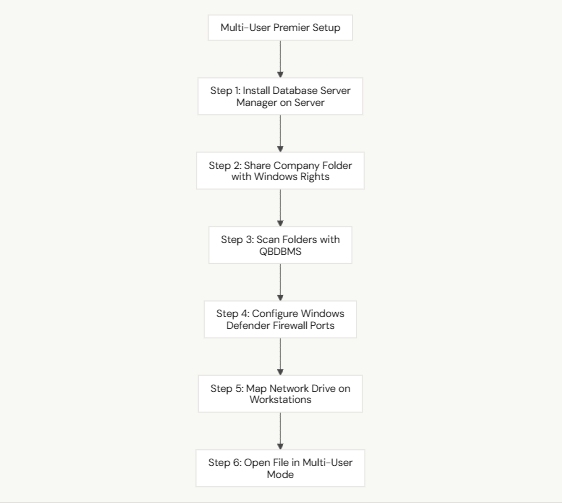
Step 1: Install QuickBooks Database Server Manager on the Host
If hosting company files on a dedicated server that does not require a full Premier interface, choose the Custom and Network Options during installation, then select I will NOT be using QuickBooks Desktop on this computer… to install only the background database service.
Step 2: Configure Shared Folder Permissions
- Create a dedicated folder for your accounting files (e.g., C:\QuickBooksData\Company Files).
- Right-click the folder, select Properties, and open the Sharing tab.
- Click Advanced Sharing, check Share this folder, and click Permissions.
- Add Everyone and the QBDataServiceUserXX account (where XX corresponds to your release year), granting them Full Control.
- Switch to the Security tab and verify that the same groups have Full Control, Modify, Read & Execute, and Write permissions.
Step 3: Scan the Folder Using Database Server Manager
- Launch the QuickBooks Database Server Manager on the host server.
- Under the Scan Folders tab, click Browse and select your company file folder.
- Click Start Scan. Confirm the scan completes with a status of Success, which creates the Network Data (.ND) file needed for client workstations to connect.
Step 4: Map Network Drives on Workstations
- On each client workstation, open Windows File Explorer and map a network drive letter (e.g., Z:\) directly to the shared host folder (\\ServerName\QuickBooksData).
- Launch QuickBooks Premier on the workstation.
- Click Open or restore an existing company, navigate through the mapped Z:\ drive, and open the .QBW file.
- Go to File > Switch to Multi-User Mode to confirm concurrent access is active.
Troubleshooting Common QuickBooks Premier Errors
Even well-configured Premier installations can encounter errors due to network interruptions, damaged configuration files, or Windows updates:
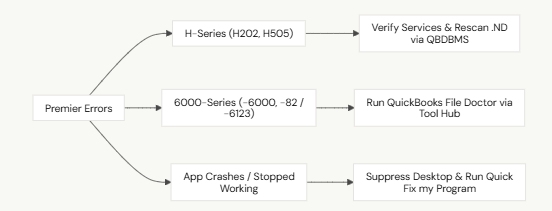
1. Multi-User Connection Errors (Error H202, H505)
- Symptom: Workstations cannot connect to the server when switching to multi-user mode.
- Resolution: Ensure multi-user hosting is disabled on all workstations (File > Utilities > Stop Hosting Multi-User Access). Multi-user hosting must be turned on only on the host server. Restart the QuickBooksDBXX and QBCFMonitorService services in Windows Services (services.msc), then rescan the shared folder using Database Server Manager.
2. Company File Access Failures (The -6000 Series)
- Symptom: Opening the company file triggers errors such as -6000, -82; –6000, -77; or –6123, 0.
- Resolution: Close QuickBooks on all systems. Rename the companion .ND and .TLG files by appending .OLD (e.g., CompanyFile.qbw.nd.OLD). Open the QuickBooks Tool Hub (version 1.6.0.8), navigate to Company File Issues, and run QuickBooks File Doctor to rebuild damaged index tables.
3. Application Freezes and QBW32.exe Crashes
- Symptom: QuickBooks crashes during startup or while opening invoices, displaying “QuickBooks has stopped working.”
- Resolution: Hold the Ctrl key while launching QuickBooks to suppress saved desktop windows. In the QuickBooks Tool Hub, open Program Problems and run Quick Fix my Program to clear cached memory leaks and reset corrupted registry entries.
Best Practices for Maintaining QuickBooks Premier File Health
- Perform Monthly Data Verifications: Run File > Utilities > Verify Data once a month. If the utility flags non-critical data damage, run Rebuild Data immediately to correct internal pointer tables.
- Manage File Size and Transaction Logs: If your .TLG file grows larger than your primary .QBW company file, create a verified local backup (File > Back Up Company > Create Local Backup). A successful local backup resets and shrinks the transaction log file automatically.
- Never Host Working Files on Cloud-Sync Folders: Storing active .QBW working files inside Dropbox, OneDrive, Google Drive, or Box causes file-locking conflicts during synchronization cycles, leading to company file corruption.
- Schedule Automated Offsite Backups: Maintain automated, encrypted backups on secondary physical drives and secure offsite repositories to guard against hardware failure or ransomware.
When to Seek Professional Assistance
While regular maintenance and the QuickBooks Tool Hub resolve most routine issues, complex database problems require specialized technical intervention:
- Severe Structural Database Corruption: QuickBooks File Doctor reports: “File damage cannot be repaired automatically.”
- Accrual Balance Sheet Out of Balance: The Balance Sheet report shows total assets unequal to total liabilities and equity, indicating broken relational database tables.
- File Bloat Exceeding 750 MB: High-volume files experiencing severe lag, frequent unrecoverable crashes, or list-limit warnings (approaching the 14,500-item ceiling).
- Failed Company File Conversions: Upgrades from older Premier versions halting midway with catastrophic data dictionary errors.
Contact the Data Service Team
When automated utilities cannot restore your company file or when facing critical multi-user network downtime, contact specialized recovery experts:
- Support Unit: Data Service Team
- Direct Toll-Free Line: +1-(888)-718-7888
The Data Service Team provides secure database reconstructions, multi-user server optimization, list reduction, transaction recovery, and comprehensive repair services for QuickBooks Desktop Premier environments.
Frequently Asked Questions (FAQs)
What is the maximum number of users supported by QuickBooks Desktop Premier?
QuickBooks Desktop Premier supports up to 5 concurrent users. Each user accessing the shared company file at the same time must have an assigned software license. If your business requires more than 5 concurrent users, you must upgrade to QuickBooks Desktop Enterprise, which supports up to 40 users.
Can I switch between industry editions after installing Premier?
Yes. You can switch industry editions at any time without reinstalling the program. Go to Help > Manage My License > Change Industry Version, select your desired edition (e.g., Contractor, Manufacturing & Wholesale, Non-Profit), and restart QuickBooks.
Does QuickBooks Premier run on Windows 11?
Yes. Current supported releases of QuickBooks Desktop Premier are fully compatible with 64-bit Windows 11 and Windows 10 operating systems, as well as Windows Server 2016, 2019, and 2022.
How do I stop my QuickBooks Premier file from lagging across the network?
Ensure all workstations are connected using wired gigabit Ethernet rather than Wi-Fi. In addition, run a verified local backup to reset the .TLG file, verify that network folder permissions are set to Full Control, and run the Verify Data utility to eliminate internal database fragmentation.
Conclusion & Action Plan
QuickBooks Desktop Premier remains an effective accounting platform for businesses requiring industry-specific reporting, advanced job costing, inventory assemblies, and dependable on-premise data control.
By selecting the right industry edition, following proper multi-user server installation procedures, and performing monthly data maintenance, organizations can maintain a stable, high-performance accounting environment.
Always keep recent, verified backups of your accounting data and avoid opening working files over wireless connections to minimize the risk of database damage.
If your company file experiences persistent multi-user disconnects, –6000 series file damage, or balance sheet discrepancies that built-in tools cannot resolve, contact the certified Data Service Team at +1-(888)-718-7888 for professional, secure database reconstruction, multi-user optimization, and complete technical recovery support.