
QuickBooks Error 15243 can interrupt payroll updates when QuickBooks Desktop cannot successfully apply downloaded update files. The error is commonly associated with the Intuit File Copy Service (FCS), a Windows component involved in copying update files into the QuickBooks installation directory.
When Error 15243 appears, payroll tax table updates may fail, QuickBooks may repeatedly ask you to update, or an update can appear to download successfully before stopping during installation.
The good news is that QuickBooks Error 15243 is usually a program-update problem rather than a company-file corruption problem. In many cases, checking the FCS service, running QuickBooks with appropriate permissions, repairing damaged program components, and refreshing the installation can restore normal payroll updates.
This guide explains what QuickBooks Error 15243 means, why it happens, how to troubleshoot it safely, and what to do if the error continues after the basic fixes.
How Do I Fix QuickBooks Error 15243?
If you need the shortest troubleshooting path, start here:
- Close QuickBooks Desktop.
- Press Windows + R.
- Enter services.msc.
- Locate the QuickBooks/Intuit File Copy Service.
- Check whether the service is stopped or disabled.
- Start the service and use the startup setting appropriate for your installation.
- Reopen QuickBooks as an administrator.
- Run Help > Update QuickBooks Desktop.
- Download the latest payroll update.
- If the error remains, repair QuickBooks or use the QuickBooks Tool Hub for installation-related troubleshooting.
If the update repeatedly fails after these steps, the underlying QuickBooks installation, permissions, security software, or update components may require deeper troubleshooting.
What Is QuickBooks Error 15243?
QuickBooks Error 15243 is generally encountered when QuickBooks Desktop cannot complete the installation of a downloaded update. The message may indicate that the QuickBooks FCS service might be damaged.
The important distinction is that downloading an update and installing that update are two different stages.
QuickBooks may successfully obtain the update files, but the files still need to be copied into the appropriate program folders. If the required service cannot perform that operation because it is unavailable, damaged, blocked, or improperly configured, the update can fail with QuickBooks Error 15243.
Common symptoms include:
- Payroll updates fail repeatedly.
- QuickBooks displays QuickBooks Error 15243.
- The update appears to download but does not install.
- QuickBooks repeatedly requests the same update.
- Payroll tax table updates do not complete.
- QuickBooks program updates fail.
- An FCS-related message appears.
- The problem returns after restarting QuickBooks.
Is QuickBooks Error 15243 a Payroll Data Error?
Not necessarily.
Error 15243 primarily concerns the update process and QuickBooks program components. It does not automatically mean that your company file is damaged.
However, payroll is time-sensitive, so you should avoid repeatedly attempting updates without first identifying the cause. If payroll processing is approaching a deadline, create a current backup of the company file before making major changes to the installation.
What Causes QuickBooks Error 15243?
There isn’t one universal cause. Several Windows and QuickBooks components can contribute to the problem.
1. FCS Service Is Disabled or Not Running
The Intuit File Copy Service is involved in the update process. If the required service cannot start or operate correctly, downloaded files may not be applied successfully.
2. Damaged QuickBooks Program Files
A previous interrupted installation, failed update, or unexpected shutdown can leave program components incomplete or damaged.
3. Insufficient Windows Permissions
QuickBooks may need elevated permissions to modify files inside protected installation directories.
4. Antivirus or Security Software Interference
Security software can sometimes interfere with legitimate QuickBooks processes or prevent update files from being written to program folders.
5. Corrupted Update Components
An incomplete or interrupted previous download can leave temporary update components in an inconsistent state.
6. Payroll Subscription Problems
If the payroll service is inactive or its service information is not correctly recognized, payroll updates may not complete as expected.
7. Network or Security Configuration
Although Error 15243 is primarily associated with the update-application stage, connectivity and security configuration can still affect the overall update process.
8. Incomplete QuickBooks Installation
If QuickBooks was not installed correctly, the services and components required for updating may not be registered properly.
QuickBooks Error 15243 vs. Other Update Errors
Understanding the general difference between update errors can prevent you from applying the wrong solution.
| Error | General Problem Area |
| QuickBooks Error 15243 | Update application/FCS-related problem |
| QuickBooks Error 15215 | Update connection or configuration issue |
| QuickBooks Error 15270 | Payroll update installation/download problem |
| QuickBooks Error 12031 | Network connection interruption |
| QuickBooks Error 12029 | Connection failure during an update |
| QuickBooks Error 12007 | Internet/security configuration problem |
| QuickBooks Error 1603 | Installation failure |
| QuickBooks Error 1904 | Program component or registration issue |
| QuickBooks Error 1935 | Windows component/installation issue |
This distinction matters because a connection error should be investigated differently from an update component that cannot be copied or installed.
Before Fixing Error 15243: Protect Your Accounting Data
Before changing services, repairing QuickBooks, or reinstalling the application, take a few precautions.
Create a backup
If the company file opens normally, create a local backup.
Use:
File > Back Up Company > Create Local Backup
Store the backup somewhere separate from the primary company-file location.
Close QuickBooks
Make sure QuickBooks and any open company files are closed before modifying program components.
Check your Windows account
If possible, use an account with administrator privileges when troubleshooting installation and service problems.
Record your QuickBooks information
Before uninstalling or reinstalling the application, keep your product/license information available.
10 Proven Ways to Fix QuickBooks Error 15243
Method 1: Check the QuickBooks FCS Service
This is one of the first things to investigate when the error message specifically mentions the FCS service.
Steps
- Close QuickBooks Desktop.
- Press Windows + R.
- Type:
services.msc
- Press Enter.
- Locate the QuickBooks/Intuit File Copy Service associated with your installation.
- Open its properties.
- Check the current service status.
- If the service is stopped, start it.
- Review the startup configuration and use the setting appropriate for the QuickBooks installation.
- Click Apply and OK.
- Reopen QuickBooks.
- Try the payroll update again.
Why this helps
If the service responsible for applying update files cannot run, QuickBooks may download the update but fail when attempting to complete the installation.
Important: Do not randomly change Windows services. If the expected FCS service is missing entirely, that can indicate an incomplete or damaged QuickBooks installation.
Method 2: Run QuickBooks as Administrator
Windows permissions can prevent QuickBooks from modifying protected folders.
Steps
- Close QuickBooks.
- Right-click the QuickBooks Desktop icon.
- Select Run as administrator.
- Choose Yes if Windows displays a permission prompt.
- Open your company file.
- Go to the payroll update section.
- Run the update again.
If the update works only when QuickBooks is elevated, investigate Windows permissions and security software rather than permanently relying on administrator mode.
Method 3: Verify Your Payroll Subscription
An update problem can become more complicated when payroll service information is not correctly recognized.
Steps
- Open QuickBooks Desktop.
- Go to the payroll service section.
- Open your account or billing information.
- Confirm that the payroll subscription is active.
- Review the payroll service information.
- If necessary, refresh or re-enter the service information.
- Restart QuickBooks.
- Attempt the payroll update again.
Why this matters
Payroll updates require valid payroll-service authorization. Confirming the subscription before performing advanced repairs can prevent unnecessary reinstallations.
Method 4: Reset the QuickBooks Update
Sometimes the local update cache becomes inconsistent after an interrupted download.
Steps
- Open QuickBooks Desktop.
- Select Help.
- Choose Update QuickBooks Desktop.
- Open the Update Now tab.
- Select Reset Update if the option is available.
- Select Get Updates.
- Allow the update process to finish.
- Close QuickBooks.
- Reopen QuickBooks.
- Retry the payroll update.
When to use this method
Use this approach when QuickBooks repeatedly attempts the same update or appears to be working from an incomplete previous download.
Method 5: Run QuickBooks Tool Hub Repair Utilities
The QuickBooks Tool Hub can be useful when the problem extends beyond a single update.
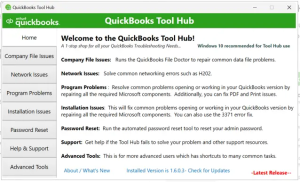
Depending on the version of Tool Hub and the problem being diagnosed, relevant utilities can include:
- Quick Fix My Program
- QuickBooks Install Diagnostic Tool
- Program repair utilities
- Installation troubleshooting tools
Recommended sequence
- Close QuickBooks.
- Open QuickBooks Tool Hub.
- Select Program Problems.
- Run Quick Fix My Program.
- Restart the computer if prompted.
- Reopen QuickBooks.
- Test the payroll update.
If the problem appears installation-related, use the appropriate installation diagnostic utility available in your Tool Hub version.
Method 6: Repair the QuickBooks Installation
If FCS is present and running but QuickBooks Error 15243 continues, the QuickBooks program itself may need repair.
Steps
- Close QuickBooks.
- Open Control Panel.
- Select Programs and Features.
- Locate your QuickBooks Desktop installation.
- Select Uninstall/Change.
- Choose the repair option when available.
- Follow the on-screen instructions.
- Restart Windows.
- Open QuickBooks.
- Run the payroll update again.
Why repair before reinstalling?
Repairing is generally less disruptive than completely removing the application. It gives Windows and QuickBooks an opportunity to restore damaged program components while leaving your company file separate from the application installation.
Method 7: Check Antivirus and Windows Security Interference
Security software can occasionally interfere with legitimate application updates.
Safe troubleshooting approach
- Check whether your antivirus or endpoint-security software recently received an update.
- Review its quarantine or blocked-item history.
- Look for QuickBooks or Intuit update components that were blocked.
- If your security software supports trusted applications or exclusions, follow its documented procedure for adding approved QuickBooks components.
- Retry the update.
Avoid leaving antivirus protection permanently disabled.
If disabling protection is used temporarily as a diagnostic test, re-enable it immediately after testing.
Method 8: Check Windows and System Components
A QuickBooks update depends on the Windows environment in which the application operates.
Check the following:
- Windows is fully updated.
- The system date and time are correct.
- Your Windows account has appropriate permissions.
- Available disk space is sufficient.
- No pending restart is waiting after a Windows update.
- Security software is not blocking the installation.
Restart Windows before attempting another payroll update if the computer has recently installed system updates.
Method 9: Refresh Damaged Update Components
If repeated update attempts fail, previously downloaded update files may be incomplete or corrupted.
A safer approach is to use QuickBooks’ built-in update reset and repair utilities first rather than manually deleting system folders.
If those methods fail, inspect the QuickBooks installation and update components carefully. Avoid deleting unfamiliar Windows or QuickBooks folders simply because they contain the word “Components.”
Expert rule
Do not delete company files, .QBW, .QBB, or payroll data simply to resolve QuickBooks Error 15243.
The objective is to repair the program-update environment—not remove financial records.
Method 10: Perform a Clean Installation
A clean installation should be considered when:
- The FCS service is missing or damaged.
- Repair does not resolve the problem.
- QuickBooks repeatedly fails to update.
- Installation components appear corrupted.
- Other installation errors occur at the same time.
- QuickBooks crashes or behaves abnormally after updates.
General clean-install process
- Create a current company-file backup.
- Close QuickBooks.
- Uninstall the affected QuickBooks Desktop version.
- Use the appropriate QuickBooks clean-install utility.
- Restart Windows.
- Reinstall the correct QuickBooks version.
- Activate the product.
- Update QuickBooks.
- Download the payroll update.
- Open your existing company file and verify the data.
Important
A clean installation targets the QuickBooks program, not your company-file data. Nevertheless, always maintain a reliable backup before performing major installation changes.
What If QuickBooks Error 15243 Appears After a Windows or Security Update?
This timing can provide an important troubleshooting clue.
If payroll updates worked normally yesterday but QuickBooks Error 15243 started immediately after a Windows update, antivirus update, security-policy change, or QuickBooks installation change, check:
- Whether the FCS service is still available.
- Whether the service can start.
- Whether security software blocked QuickBooks components.
- Whether Windows requires a restart.
- Whether QuickBooks needs a program update.
- Whether the QuickBooks installation requires repair.
Avoid assuming that the latest Windows or security update itself is defective. The more useful question is which QuickBooks component stopped functioning after the change?
Expert Troubleshooting Example
The Problem
A small business attempted to download a payroll tax-table update. The download appeared to begin normally, but QuickBooks displayed QuickBooks Error 15243 before completing the installation.
Diagnosis
The FCS-related service was checked first. The service configuration did not allow it to operate correctly.
Resolution
The service was restored to an appropriate configuration, QuickBooks was restarted with sufficient permissions, and the payroll update was attempted again.
Result
The update completed without requiring the company file to be replaced or restored.
Lesson
When Error 15243 specifically identifies the File Copy Service, investigate that component before jumping directly to a clean installation.
QuickBooks Error 15243 Troubleshooting Checklist
Use this checklist in order:
- Back up the company file.
- Close QuickBooks on the affected computer.
- Restart Windows.
- Check the FCS service.
- Confirm the payroll subscription is active.
- Run QuickBooks with appropriate permissions.
- Reset the QuickBooks update.
- Check antivirus/security software.
- Run appropriate QuickBooks Tool Hub utilities.
- Repair the QuickBooks installation.
- Perform a clean installation only when necessary.
- Test the payroll update after each major change.
How to Prevent QuickBooks Error 15243
Prevention is easier when payroll systems are maintained consistently.
Keep QuickBooks Updated
Do not allow program updates to accumulate for long periods. Keeping the application current can reduce compatibility and installation problems.
Maintain Reliable Backups
Keep regular local backups and periodically verify that the backups can be accessed.
Monitor Security Software
When antivirus or endpoint-security policies change, confirm that legitimate QuickBooks processes continue to operate normally.
Avoid Interrupting Updates
Do not shut down Windows or force-close QuickBooks while an update is being installed.
Maintain Windows Properly
Pending Windows updates, incomplete restarts, or damaged system components can affect application installation and update behavior.
Investigate Recurring Errors
If the same payroll update fails repeatedly, don’t simply click Update again. Repeated failures are a signal to investigate the underlying component.
QuickBooks Error 15243 FAQs
What is QuickBooks Error 15243?
QuickBooks Error 15243 is an update-related error that can occur when QuickBooks cannot successfully apply downloaded update files. The message may identify the Intuit File Copy Service as damaged or unavailable.
What is the main cause of Error 15243?
A problem with the FCS service is a key cause, but damaged program files, permissions, security software, incomplete installations, update components, and payroll-service configuration can also contribute.
How do I fix QuickBooks Error 15243 quickly?
Start by checking the FCS service, restarting QuickBooks, verifying your payroll subscription, running QuickBooks with appropriate permissions, and resetting the update. If those steps fail, use repair and installation diagnostics.
Does Error 15243 damage my company file?
Error 15243 is primarily an update/program issue. It does not by itself establish that your .QBW company file is damaged. Always maintain a current backup before performing repairs.
Should I reinstall QuickBooks for Error 15243?
Not immediately. Try checking the FCS service, resetting updates, using repair utilities, and checking security software first. A clean installation is better reserved for persistent installation or component problems.
Can antivirus cause QuickBooks Error 15243?
Security software can interfere with legitimate QuickBooks update processes or file operations. Review blocked items and security logs before making exclusions, and avoid permanently disabling protection.
Why does QuickBooks keep asking me to update?
Repeated update prompts can occur when an update downloads but does not successfully install. Error 15243 can create this type of update loop.
Can QuickBooks Tool Hub fix Error 15243?
Tool Hub can help diagnose and repair program or installation problems that may contribute to the error. It is particularly useful when the issue extends beyond a single failed payroll update.
Is QuickBooks Error 15243 related to payroll tax tables?
It can appear while installing payroll updates, including tax-table updates. However, the underlying issue is generally with the update process rather than the tax calculations inside your existing company file.
What should I do if Error 15243 keeps returning?
If the error returns after checking FCS, resetting updates, repairing QuickBooks, and reviewing security settings, the installation may require a clean reinstall or more advanced diagnostics.
Related QuickBooks Errors and Keywords
Users experiencing QuickBooks Error 15243 may also encounter other payroll, installation, update, or connectivity problems.
Payroll Update Errors
- QuickBooks Payroll Error PS038
- QuickBooks Payroll Error PS033
- QuickBooks Payroll Error PS077
- QuickBooks Payroll Update Error
- QuickBooks Payroll Tax Table Update Error
- QuickBooks Payroll Update Not Working
- QuickBooks Payroll Update Failed
QuickBooks Update Errors
- QuickBooks Error 12031
- QuickBooks Error 12029
- QuickBooks Error 12007
- QuickBooks Error 15215
- QuickBooks Error 15270
- QuickBooks Error 15311
- QuickBooks Update Error
Installation Errors
- QuickBooks Error 1603
- QuickBooks Error 1904
- QuickBooks Error 1935
- QuickBooks Error 1402
- QuickBooks Error 1722
- QuickBooks Error 1328
- QuickBooks Error 1336
- QuickBooks Clean Install Tool
- QuickBooks Install Diagnostic Tool
Program and File Issues
- QuickBooks Won’t Open
- QuickBooks Keeps Crashing
- QuickBooks Update Stuck
- QuickBooks Tool Hub
- QuickBooks File Doctor
- QuickBooks Installation Problems
- QuickBooks Desktop Errors
- QuickBooks Company File Errors
These related topics help users identify whether their problem is actually an update issue, installation problem, payroll-service issue, network error, or company-file problem.
Final Verdict: Fix Error 15243 at the Source
QuickBooks Error 15243 is frustrating because payroll updates can appear to download normally before failing during installation. The most useful troubleshooting strategy is to determine where the update process is breaking instead of repeatedly downloading the same update.
Start with the FCS service, then verify payroll-service status, permissions, update settings, security software, and QuickBooks program integrity. Use QuickBooks Tool Hub and repair utilities before considering a clean installation.
Most importantly, protect your accounting data before making significant changes. QuickBooks Error 15243 does not automatically mean your company file or payroll history has been corrupted.
If the error continues despite these steps, the problem may involve a damaged installation, Windows permissions, security configuration, or a deeper software-environment issue that requires advanced diagnostics.
Need Expert Help With QuickBooks Error 15243?
If QuickBooks Error 15243 continues to prevent payroll updates, or you’re dealing with multiple QuickBooks Desktop, payroll, installation, or company-file errors, the Data Service Team can help identify the underlying problem and guide you through the appropriate resolution.
Data Service Team: +1-(888)-718-7888