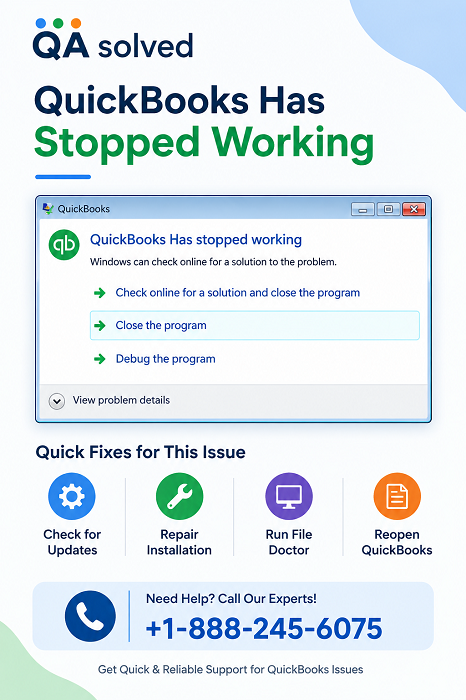
When you try to open QuickBooks Desktop and the program suddenly freezes, crashes, or displays the message “QuickBooks has stopped working,” it can prevent you from accessing your company data and completing important accounting tasks.
This problem can occur for several reasons, including damaged program files, corrupted Windows components, a damaged QBWUSER.INI file, hard-drive problems, or an incomplete QuickBooks installation.
Fortunately, you can troubleshoot the issue using several built-in QuickBooks tools and Windows-based solutions. Follow the methods below in order, starting with the simplest repair option.
What Causes QuickBooks Desktop to Stop Working?
Before troubleshooting, it helps to understand what may be causing QuickBooks to crash or freeze. Common reasons include:
- Your QuickBooks company name may be too long.
- The INI file may be damaged or missing.
- QuickBooks installation files may be corrupted.
- Your Windows operating system may have damaged components.
- Your hard drive may contain corrupted data.
- QuickBooks may have trouble accessing a company file.
- Background processes may interfere with QuickBooks Desktop.
- QuickBooks program files may require repair.
Once you identify the possible cause, you can choose the appropriate troubleshooting method.
How Can You Fix QuickBooks Has Stopped Working?
Try the following solutions one at a time. After completing each method, open QuickBooks Desktop again to check whether the problem has been resolved.
Solution 1: Run Quick Fix My Program From QuickBooks Tool Hub
The QuickBooks Tool Hub includes several utilities designed to troubleshoot common QuickBooks Desktop problems. Its Quick Fix My Program feature closes QuickBooks background processes and performs a quick repair of the program.
Step 1: Download and Install QuickBooks Tool Hub
- Close QuickBooks Desktop.
- Download the latest available version of QuickBooks Tool Hub from a trusted Intuit source.
- Save the installation file somewhere that is easy to locate, such as your Windows desktop or Downloads folder.
- Open the downloaded exe file.
- Follow the on-screen instructions.
- Accept the license terms and complete the installation.
- Once installed, double-click the QuickBooks Tool Hub icon to launch it.
If you cannot find the desktop icon, use Windows Search and type QuickBooks Tool Hub, then select the application from the results.
Step 2: Run Quick Fix My Program
After opening Tool Hub:
- Select Program Problems.
- Choose Quick Fix My Program.
- Allow the tool to complete the repair.
- Launch QuickBooks Desktop.
- Open your company file.
If QuickBooks opens normally, the issue was likely related to a background process or temporary program problem.
Solution 2: Run the QuickBooks Program Diagnostic Tool
If QuickBooks still stops working, use the diagnostic tools available through QuickBooks Tool Hub. These tools can help identify and repair problems affecting QuickBooks program components and Microsoft components required by the application.
How Can You Run the QuickBooks Program Diagnostic Tool?
- Open QuickBooks Tool Hub.
- Select Program Problems.
- Choose the available QuickBooks Program Diagnostic Tool
- Allow the diagnostic process to run without interruption.
- Wait for the tool to finish. The process may take some time.
- Restart your computer.
- Open QuickBooks Desktop again.
After restarting Windows, try opening both QuickBooks and your company file.
Solution 3: Rename the QBWUSER.INI File
A damaged QBWUSER.INI file can prevent QuickBooks Desktop from starting correctly. Renaming this file allows QuickBooks to create a new copy when the program starts.
Keep in mind that renaming the file removes the list of previously opened company files. You can still open those company files manually afterward.
How Can You Rename QBWUSER.INI?
- Close QuickBooks Desktop.
- Open File Explorer.
- Navigate to the QuickBooks user folder. The location generally follows this structure:
Users\[Your User Name]\AppData\Local\Intuit\QuickBooks [Year]
- If the AppData folder is hidden, enable the display of hidden files and folders in Windows.
- Locate INI.
- Right-click the file and select Rename.
- Add .old to the end of the filename so it becomes:
QBWUSER.INI.old
- Locate the ecml file and rename it as well.
- Restart QuickBooks Desktop.
Then check whether QuickBooks starts normally.
Solution 4: Test QuickBooks With a Sample Company File
If QuickBooks opens after renaming the configuration files, test whether the problem is associated with your company file.
- Open QuickBooks Desktop.
- Select the option to open a sample company file.
- Check whether the sample file opens successfully.
If the sample company file opens but your own company file does not, the problem may be related to your company file, its folder, or folder permissions.
Move Your Company File to a Different Folder
You can also test your company file from a different local folder.
- Close QuickBooks.
- Locate your company file.
- Copy the company file to another local folder.
- Open QuickBooks Desktop.
- Browse to the copied company file.
- Try opening it from the new location.
Avoid testing from a network location during troubleshooting. If the copied file opens successfully, the original folder or its permissions may be contributing to the problem.
Solution 5: Restore an Earlier Backup of Your Company File
If QuickBooks can open a sample company file but consistently fails when opening your company file, your company file may be damaged.
In this situation, restoring a recent, healthy backup can help you regain access to your accounting data.
Before restoring a backup, make sure you understand that the restored file may not contain transactions or changes made after the backup was created. Keep the original company file safely stored so you do not accidentally overwrite it.
What If QuickBooks Still Won’t Open?
If QuickBooks cannot open even a sample company file after you have repaired the program and renamed the configuration files, the QuickBooks installation itself may be damaged.
At this stage, additional troubleshooting may be necessary, such as repairing or reinstalling QuickBooks Desktop, checking Windows components, or investigating potential hard-drive problems.
If other Windows applications are also crashing or behaving unexpectedly, the issue may extend beyond QuickBooks. In that case, checking the Windows operating system and disk health can help identify the underlying cause.
Final Thoughts on QuickBooks Has Stopped Working
The QuickBooks has stopped working problem can be frustrating, especially when you need immediate access to your accounting records. However, you can often resolve the issue by repairing QuickBooks background processes, running diagnostic tools, or rebuilding damaged configuration files.
Start with Quick Fix My Program in QuickBooks Tool Hub. If that does not work, try the diagnostic tool and rename the QBWUSER.INI and EntitlementDataStore.ecml files. You can then test a sample company file and move your company file to another local folder to determine whether the problem is related to the program or your company data.
If QuickBooks continues to crash after these steps, consider repairing or reinstalling the application and checking your Windows environment for additional problems.
Frequently Asked Questions
1. Why does QuickBooks say “QuickBooks has stopped working”?
QuickBooks may display the “QuickBooks has stopped working” message because of damaged program files, a corrupted QBWUSER.INI file, Windows problems, hard-drive issues, or problems with the QuickBooks installation. A damaged company file can also cause QuickBooks to freeze or crash when you try to open it.
2. How do I fix QuickBooks Desktop when it stops working?
Start by closing QuickBooks and running Quick Fix My Program through QuickBooks Tool Hub. If the problem continues, run the available QuickBooks diagnostic tools, rename the QBWUSER.INI file, test a sample company file, and check whether your company file opens from another local folder.
3. Why is QuickBooks Desktop not opening?
QuickBooks Desktop may not open because of corrupted installation files, damaged configuration files, Windows compatibility problems, background processes, or company-file issues. Running Quick Fix My Program is a useful first troubleshooting step.
4. Can QuickBooks Tool Hub fix the “QuickBooks has stopped working” error?
Yes. QuickBooks Tool Hub includes utilities that can help troubleshoot several common QuickBooks Desktop problems. The Quick Fix My Program option can close QuickBooks-related background processes and perform a quick program repair.
5. What is the QBWUSER.INI file in QuickBooks?
The QBWUSER.INI file stores certain QuickBooks user and program preferences. If this file becomes damaged, QuickBooks may fail to start or behave unexpectedly. Renaming the file allows QuickBooks to create a new configuration file.
6. What happens when I rename the QBWUSER.INI file?
Renaming QBWUSER.INI can reset certain QuickBooks user settings, including the list of previously opened company files. Your company data is not deleted, but you may need to manually browse to and reopen your company file.
7. Why does QuickBooks open a sample company but not my company file?
If a sample company file opens successfully while your company file does not, the issue may be related to your company file, its folder, or folder permissions. Try copying the company file to another local folder and opening it from there.
8. How can I tell if my QuickBooks company file is damaged?
If QuickBooks opens normally but crashes or stops responding whenever you open a particular company file, the company file may be damaged. Testing a sample company file can help determine whether the problem is with QuickBooks itself or your company data.
9. What should I do if QuickBooks still crashes after using Tool Hub?
If QuickBooks continues to crash after running Tool Hub utilities, check whether the problem occurs with a sample company file. If QuickBooks cannot open even a sample file, the installation may be damaged and you may need to repair or reinstall QuickBooks Desktop.
10. Can Windows problems cause QuickBooks to stop working?
Yes. Damaged Windows components, outdated system components, disk problems, or other operating-system issues can affect QuickBooks Desktop. If multiple applications are also crashing, investigate the Windows environment rather than focusing only on QuickBooks.