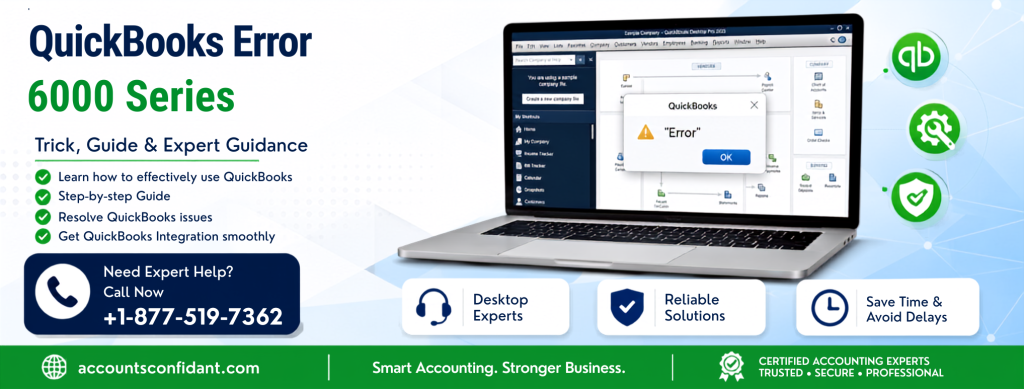
 QuickBooks Error 6000 Series
 is a group of company-file errors that can prevent QuickBooks Desktop users from opening, restoring, or accessing a company file. These errors are commonly associated with damaged company files, incorrect network settings, firewall restrictions, hosting problems, or damaged QuickBooks support files.
A 6000-series error can occur when you work with a company file stored locally or on a network. The exact cause depends on the specific error code displayed on your screen. Intuit currently lists several variants, including
-6000, -82, -6000, -106, -6000, -107, -6129, -6144, -6190, and -6073, among others.
The good news is that many QuickBooks 6000 errors can be resolved by checking the company-file location, hosting configuration, network connection, permissions, and QuickBooks diagnostic tools.
What is QuickBooks Error 6000 Series?
QuickBooks Error 6000 Series refers to multiple errors that occur when QuickBooks Desktop cannot properly access a company file.
Depending on the specific code, QuickBooks may display a message saying that it cannot open or access the company file.
For example:
- Error -6000, -82: Often associated with incorrect network setup.
- Error -6000, -106: Can occur because of company-file access or hosting problems.
- Error -6000, -107: May be related to a damaged transaction log file.
- Error -6129, -101: Can involve folder permissions or Database Server Manager issues.
- Error -6190: Can be caused by a mismatch between the company file and transaction log file or incorrect user mode.
- Error -6073, -816: May occur because multiple computers are hosting the company file, firewall settings are interfering, or the company file has damage.
Because the 6000 series contains many different error codes, identifying the
complete error number is important before applying advanced troubleshooting.

Common Causes of QuickBooks Error 6000
Several issues can trigger a 6000-series error.
1. Damaged Company File
If the
.QBW company file becomes damaged, QuickBooks may have difficulty opening it.
Unexpected shutdowns, storage problems, interrupted processes, or other data issues can contribute to company-file problems.
2. Damaged .ND or .TLG Files
QuickBooks uses support files such as
.ND and
.TLG to help access company files in network and multi-user environments.
If these files become damaged or contain outdated information, QuickBooks may fail to connect to the company file. Renaming these files allows QuickBooks to recreate them.
3. Incorrect Hosting Configuration
In a multi-user environment, incorrect hosting settings can prevent workstations from connecting to the computer hosting the company file.
Intuit recommends checking that hosting is configured correctly and that only the appropriate computer or server hosts the company file.
4. Firewall or Security Software
Windows Firewall or third-party security software can sometimes block the network communication QuickBooks needs to access a company file.
5. Incorrect Folder Permissions
QuickBooks needs appropriate read/write permissions for the folder containing the company file. Insufficient permissions can result in 6000-series errors.
6. Network Problems
If the company file is stored on another computer or server, an unstable network connection or incorrect network configuration can prevent QuickBooks from accessing it.
How to Fix QuickBooks Error 6000 Series
Try the following solutions in order. The appropriate fix can depend on the exact 6000 error code you’re receiving.
Solution 1: Update QuickBooks Desktop
Start by making sure QuickBooks Desktop is updated.
An outdated QuickBooks installation can contribute to company-file and compatibility problems.
Open QuickBooks Desktop and go to:
Help → Update QuickBooks Desktop → Update Now → Get Updates
After installing available updates, restart QuickBooks and try opening your company file again.
Intuit recommends updating QuickBooks before performing several other 6000-series troubleshooting procedures.
Solution 2: Run QuickBooks File Doctor
QuickBooks File Doctor can help diagnose certain company-file and network problems.
You can access it through the QuickBooks Tool Hub:
- Close QuickBooks Desktop.
- Open QuickBooks Tool Hub.
- Select Company File Issues.
- Choose Run QuickBooks File Doctor.
- Select your company file.
- Choose the option to check the file.
- Enter your QuickBooks administrator password.
- Allow the diagnostic process to finish.
- Reopen QuickBooks and test the company file.
Intuit specifically recommends File Doctor as an early troubleshooting step for several 6000-series errors.
For additional instructions, see our guide to
QuickBooks Tool Hub.
Solution 3: Rename the .ND and .TLG Files
If the network or transaction-log support files are damaged, renaming them can allow QuickBooks to create fresh versions.
First, locate the folder containing your company file.
You may see files such as:
CompanyName.qbwCompanyName.qbw.ndCompanyName.qbw.tlg
Right-click the
.ND and
.TLG files and rename them by adding
OLD to the end.
For example:
CompanyName.qbw.nd.OLD
CompanyName.qbw.tlg.OLD
QuickBooks can recreate these support files when needed. Renaming them does not delete the main
.QBW company file.
Solution 4: Check QuickBooks Hosting Settings
If you’re using QuickBooks in multi-user mode, incorrect hosting can cause 6000-series errors.
On the workstations:
- Open QuickBooks.
- Go to File → Utilities.
- Check the hosting option.
- Stop hosting on computers that should not host the company file.
- Leave hosting configured on the appropriate server or host computer.
Incorrect hosting is associated with several 6000-series errors, including -6010, -6138, -6210, and -6189.
Solution 5: Run QuickBooks Database Server Manager
If your company file is stored on a server, QuickBooks Database Server Manager can help establish access to the file.
Open QuickBooks Tool Hub and select:
Network Issues → QuickBooks Database Server Manager
Then scan the folder containing your QuickBooks company file.
The Database Server Manager is particularly useful when the problem involves network access to a company file.
For more related troubleshooting, you can also read our guide to
QuickBooks Database Server Manager.
Solution 6: Open a Sample Company File
Opening a sample company file can help determine whether the problem is with QuickBooks itself or your specific company file.
From the
No Company Open screen:
- Select Open a Sample File.
- Choose one of the available sample companies.
- Try opening it.
If the sample file opens successfully, the issue may be specific to your company file or its location.
If the sample file also fails to open, the QuickBooks installation itself may require repair.
Solution 7: Move a Copy of the Company File to the Desktop
If the company file is stored in a complicated folder structure, copy the
.QBW file to the Windows desktop and try opening the copy.
This can help determine whether the original storage location or path is contributing to the problem.
Important: Work with a copy when testing locations, and maintain a current backup of your original company file.
Solution 8: Check Folder Permissions
Verify that the folder containing your company file allows the required QuickBooks users to access and modify files.
This is particularly important in multi-user environments.
Incorrect folder permissions are among the possible causes of certain 6000-series errors, including
-6129, -101.
Solution 9: Check Firewall and Security Settings
If QuickBooks works locally but cannot access the company file across your network, firewall or security software may be blocking communication.
Check your Windows Firewall and security software configuration and ensure that QuickBooks-related processes are permitted to communicate through the network.
If you’re unsure which firewall rules or security exceptions are appropriate, consult your security software provider or an IT professional.
Solution 10: Restore a Recent Backup
If the company file appears to be damaged and other troubleshooting methods don’t work, consider restoring a recent backup.
Before restoring, make sure you preserve the current company file and understand which transactions may have been created since the backup.
If the backup also produces an error, additional company-file or network troubleshooting may be required.
QuickBooks Error 6000 Series: Local vs. Network Files
One of the easiest ways to narrow down the problem is to determine where the company file is stored.
If the file is stored locally
Focus on:
- Company-file damage
.ND and .TLG files- QuickBooks installation
- File permissions
- File location
- QuickBooks updates
If the file is stored on a network
Focus on:
- Hosting configuration
- Network connectivity
- Firewall settings
- Folder permissions
- Database Server Manager
.ND file configuration- Server availability
This distinction can save time because network-related 6000 errors often require different troubleshooting from errors involving a locally stored company file.
How to Prevent QuickBooks 6000 Errors
You can reduce the likelihood of recurring company-file problems by following a few best practices:
- Keep QuickBooks Desktop updated.
- Create regular company-file backups.
- Avoid abruptly shutting down the computer while QuickBooks is working.
- Use a properly configured network for multi-user access.
- Make sure the server and workstations have appropriate permissions.
- Keep firewall and security software properly configured.
- Avoid unnecessarily moving or renaming company files.
- Use QuickBooks diagnostic tools when company-file problems first appear.
- Make sure only the appropriate computer is configured to host the company file.
Final Thoughts
QuickBooks Error 6000 Series isn’t a single error but a group of company-file access problems with different causes and solutions. The specific error code—such as
-6000, -82, -6000, -107, -6129, -6190, or -6073—can provide an important clue about what is preventing QuickBooks from accessing the file.
Start with basic troubleshooting such as updating QuickBooks, running QuickBooks File Doctor, checking
.ND and
.TLG files, and verifying hosting and network settings. If the problem continues, investigate folder permissions, firewall configuration, Database Server Manager, and potential company-file damage.
Frequently Asked Questions
What is QuickBooks Error 6000 Series?
QuickBooks Error 6000 Series is a group of errors that generally occur when QuickBooks Desktop cannot open, restore, or access a company file. The underlying problem can involve the company file, network, hosting, permissions, firewall, or QuickBooks support files.
Why am I getting QuickBooks Error 6000 when opening my company file?
You may receive a 6000 error because of a damaged company file, incorrect hosting configuration, network problems, firewall restrictions, insufficient folder permissions, or damaged
.ND or
.TLG files.
How do I fix QuickBooks Error 6000 without losing my company data?
Start by creating or confirming a backup of your company file. Then update QuickBooks, run QuickBooks File Doctor, check the
.ND and
.TLG files, and verify your network and hosting settings. Avoid deleting the original company file while troubleshooting.
How do I fix QuickBooks Error -6000, -82?
Check your QuickBooks network and hosting configuration first. Update QuickBooks, run File Doctor, verify folder permissions, and make sure the company file is hosted correctly. Intuit identifies incorrect network setup as a possible cause of this error.
How do I fix QuickBooks Error -6000, -106?
Start by updating QuickBooks and checking the company-file location and hosting configuration. If you’re using multi-user mode, verify that the correct server is hosting the file and that workstations aren’t incorrectly hosting it.
How do I fix QuickBooks Error -6000, -107?
This error can be related to a damaged transaction log file. Renaming the
.TLG file, running QuickBooks File Doctor, and checking the company file can help troubleshoot the problem.
Can QuickBooks Tool Hub fix the 6000 series errors?
Yes. QuickBooks Tool Hub provides diagnostic utilities that can help with certain company-file, network, and program problems. File Doctor and other tools can be useful when troubleshooting 6000-series errors.
Why does QuickBooks show Error 6000 only in multi-user mode?
If the error appears only in multi-user mode, investigate network connectivity, hosting settings, firewall restrictions, folder permissions, and QuickBooks Database Server Manager. These settings control how workstations communicate with the company file.
Will renaming the .ND and .TLG files delete my QuickBooks data?
No. Renaming these support files does not delete the main
.QBW company file. QuickBooks can recreate the
.ND and
.TLG files when required.
What should I do if QuickBooks Error 6000 still won’t go away?
If basic troubleshooting doesn’t resolve the error, avoid repeatedly modifying the original company file. Preserve a backup and consider professional QuickBooks data-file or network troubleshooting, particularly if the company file contains important financial records.
Is QuickBooks Error 6000 the same as QuickBooks Error H202?
No. Both can involve company-file access and network environments, but they are different error families. A 6000-series error can involve company-file access, file damage, hosting, permissions, or networking, while H202 is primarily associated with multi-user communication problems.