QuickBooks Error PS060: Expert Fix for Payroll Service Unavailable
Payroll errors are especially disruptive because they can appear when you are preparing paychecks, downloading payroll tax tables, or completing an important payroll task. One message that can stop the process is:
“Current Enhanced Payroll Service is Unavailable. Error PS060.”
QuickBooks Error PS060 generally appears when QuickBooks Desktop cannot successfully verify or connect to the payroll service. The underlying problem may involve an inactive or incorrectly billed payroll subscription, connectivity, QuickBooks configuration, outdated software, or damaged payroll update components.
The important point is that PS060 does not by itself indicate that your company file or historical payroll data has been lost. The correct troubleshooting approach is to identify whether the failure is related to the subscription, connection, payroll components, or the QuickBooks installation.
This expert guide explains what QuickBooks Error PS060 means, why it occurs, how to troubleshoot it safely, and how it relates to other QuickBooks PS-series payroll errors such as PS032, PS033, PS034, PS036, PS038, PS058, PS060, PS077, PS099, PS101, and PS107.
What Is QuickBooks Error PS060?
QuickBooks Error PS060 is a payroll service availability or verification error that can occur when QuickBooks Desktop cannot successfully communicate with or validate the payroll service.
It may appear while:
- Downloading payroll updates
- Updating payroll tax tables
- Accessing certain payroll services
- Verifying a payroll subscription
- Processing payroll-related tasks
- Connecting QuickBooks Desktop with the payroll service
Common areas to investigate include:
- Payroll subscription status
- Billing or payment information
- Internet connectivity
- QuickBooks Desktop updates
- Payroll update components
- Security software or firewall configuration
- QuickBooks program files
- Windows or network configuration
The exact cause should be diagnosed rather than assuming that every PS060 error has the same root cause.
Why Does QuickBooks Error PS060 Occur?
PS060 can have more than one cause. Correct diagnosis is important because changing payroll files unnecessarily can create additional work.
1. Payroll Subscription Is Inactive
QuickBooks needs a valid payroll subscription to access payroll services and updates.
If a subscription has expired, been cancelled, failed to renew, or is otherwise inactive, QuickBooks may be unable to complete payroll-service verification.
Check the payroll subscription before performing advanced troubleshooting.
2. Billing or Payment Information Needs Attention
A payroll subscription may be affected by:
- An expired payment method
- A declined transaction
- Outdated billing information
- A failed renewal
- A change in account or payment details
In this situation, QuickBooks may not be able to validate the payroll service even though the user expects the subscription to remain active.
3. Internet or Server Communication Problems
Payroll services require communication between QuickBooks Desktop and the relevant online services.
Temporary connectivity problems can result from:
- Unstable Internet
- DNS problems
- Network restrictions
- Firewall rules
- Security software
- Proxy configuration
- Temporary service-side interruptions
Therefore, PS060 does not automatically mean that the payroll subscription has expired.
4. Damaged Payroll Update Components
QuickBooks stores payroll-related update components within its installation structure.
An interrupted update, incomplete download, software crash, or security-software interference can leave payroll update components in an unusable state.
When that happens, rebuilding the affected payroll component may allow QuickBooks to download fresh files.
5. QuickBooks Desktop Is Outdated
An older QuickBooks Desktop release can cause compatibility or service-communication problems.
Keeping the installed QuickBooks version updated is therefore an important troubleshooting and maintenance step.
6. QuickBooks Program Components Are Damaged
PS060 can sometimes occur alongside broader QuickBooks program problems.
For example, a damaged installation or malfunctioning program component can interfere with payroll operations even when the payroll subscription itself is active.
7. Incorrect Account or Subscription Information
Payroll services are associated with account and subscription information.
If QuickBooks is unable to correctly authenticate the payroll service, verify that you are using the appropriate account credentials and that the subscription is associated with the company file and QuickBooks installation you are using.
Symptoms of QuickBooks Error PS060
PS060 can present differently depending on when the service verification fails.
Common symptoms include:
- “Current Enhanced Payroll Service is Unavailable”
- Error PS060 appears during a payroll update
- Payroll tax-table download does not complete
- Payroll update repeatedly fails
- Payroll-related services become unavailable
- QuickBooks repeatedly requests service verification
- Payroll processing is interrupted
- Payroll update files fail to download
- The same error returns after restarting QuickBooks
If the problem occurs only on one computer, compare that workstation’s configuration with another computer in the same QuickBooks environment. This can help distinguish an installation or local configuration issue from an account or service-wide issue.
Before Troubleshooting PS060
Before changing payroll or company-file components, take a few precautions.
Create a Current Backup
Make a current backup of the company file before performing maintenance that changes data or installation components.
Close Unnecessary QuickBooks Sessions
For troubleshooting, close QuickBooks on other workstations when practical.
Record the Exact Error
Write down:
- Error code
- Full error message
- What you were doing when it appeared
- Whether payroll updates worked previously
- Whether the problem occurs on one or multiple computers
This information helps narrow the diagnosis.
How to Fix QuickBooks Error PS060
Use the following troubleshooting sequence from the least invasive checks to more targeted repairs.
Solution 1: Switch to Single-User Mode
Payroll update operations may require QuickBooks Desktop to be in the appropriate operating mode.
If QuickBooks is currently being used in multi-user mode, switch to single-user mode before attempting the payroll update.
Steps
- Open QuickBooks Desktop.
- Select File.
- Choose Switch to Single-user Mode, if available.
- Attempt the payroll update again.
- Check whether PS060 returns.
If the update works afterward, the operating mode was an important part of the problem.
Solution 2: Check Payroll Subscription Status
Subscription verification should be one of the first checks because an inactive service cannot provide payroll updates normally.
Depending on your QuickBooks Desktop version, payroll-account options can appear under the payroll service or employee/payroll menus.
Look for the account or subscription information and verify:
- Payroll service status
- Subscription status
- Service information
- Account associated with the payroll service
- Any renewal or billing notification
If the subscription is inactive, follow the available reactivation or renewal process before attempting additional technical repairs.
Solution 3: Review Billing Information
If the subscription status does not appear as expected, review the billing information associated with the payroll service.
Check for:
- Expired payment information
- Failed renewal
- Incorrect billing details
- Recently changed payment information
- Account notifications requiring action
After correcting billing information, allow the account status to update and then restart QuickBooks before testing the payroll service again.
Solution 4: Check Your Internet Connection
A payroll update cannot be completed normally if QuickBooks cannot communicate with the required service.
Try:
- Confirming that the computer has Internet access.
- Opening several unrelated websites in your browser.
- Restarting the network connection if necessary.
- Testing QuickBooks again.
- Checking whether other computers experience the same problem.
If every workstation experiences the same payroll-service problem at approximately the same time, investigate account or service availability before modifying individual installations.
Solution 5: Update QuickBooks Desktop
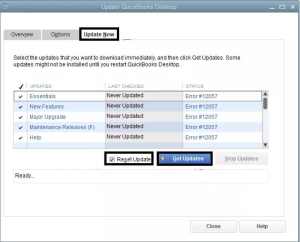
An outdated installation can contribute to payroll-update problems.
Steps
- Open QuickBooks Desktop.
- Select Help.
- Choose Update QuickBooks Desktop.
- Select the appropriate update options.
- Download available updates.
- Close and reopen QuickBooks.
- Retry the payroll update.
Use the update process appropriate for your installed QuickBooks version.
Solution 6: Refresh the Payroll Update Components
If subscription and connectivity checks are normal but PS060 continues, damaged payroll update components may need to be refreshed.
One commonly used troubleshooting approach is to rename the affected CPS folder so QuickBooks can recreate the necessary payroll components.
Important
The exact installation path can vary according to the QuickBooks Desktop version and installation configuration.
A commonly encountered structure resembles:
C:\Program Files\Intuit\QuickBooks [Year]\Components\Payroll\CPS
General Process
- Close QuickBooks Desktop.
- Make sure QuickBooks is no longer running.
- Locate the payroll CPS folder for the installed version.
- Rename the folder to something such as CPSOLD.
- Reopen QuickBooks.
- Start the payroll update.
- Select the option to download the complete update when available.
- Allow QuickBooks to recreate the required payroll components.
Do not delete the original folder immediately. Renaming it preserves a fallback copy while you test the refreshed installation.
If the CPS directory is not present in the expected location, do not create random folders or delete unrelated QuickBooks directories. The installation path should match the actual QuickBooks version installed on the computer.
Solution 7: Use QuickBooks Tool Hub
QuickBooks Tool Hub can help troubleshoot certain program and installation problems.
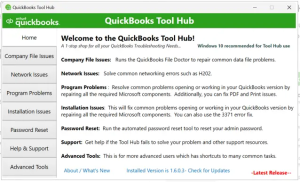
If Tool Hub is already installed, use the troubleshooting utilities available for your QuickBooks version.
A typical process is:
- Close QuickBooks.
- Open QuickBooks Tool Hub.
- Select Program Problems.
- Run Quick Fix My Program, if available.
- Wait for the repair to finish.
- Restart QuickBooks.
- Test the payroll update again.
Tool Hub is useful for program-level problems, but it does not replace subscription verification. If the payroll subscription is inactive, repairing the application alone will not reactivate the service.
Solution 8: Check Firewall and Security Software
Security software can sometimes interfere with QuickBooks network communication.
Instead of permanently disabling protection, use a controlled diagnostic approach.
Check whether:
- QuickBooks is permitted through the Windows firewall
- Required QuickBooks processes can communicate on the network
- Security software is quarantining QuickBooks files
- Network policies are blocking QuickBooks communication
- Recent security changes coincide with the appearance of QuickBooks Error PS060
If your organization’s security policy permits testing, security software can be temporarily paused only long enough to determine whether it is involved, and protection should then be restored immediately.
A properly scoped exception is preferable to permanently disabling firewall or antivirus protection.
Solution 9: Check QuickBooks Network Configuration
If QuickBooks is installed in a multi-user environment, verify that the network configuration is appropriate.
Check:
- Which computer hosts the company file
- Whether the QuickBooks Database Server Manager is installed where required
- Whether the company file is stored in an appropriate location
- Whether users have the necessary permissions
- Whether the network connection is stable
- Whether QuickBooks services are running correctly
QuickBooks Error PS060 is primarily associated with payroll service availability, but network configuration can become relevant when QuickBooks cannot communicate with required services.
Solution 10: Refresh DNS Information
A local DNS problem can occasionally interfere with Internet-based service communication.
If you have ruled out account and subscription problems, refreshing DNS can be a reasonable Windows networking test.
Steps
- Press Windows + R.
- Enter cmd.
- Open Command Prompt.
- Run:
ipconfig /flushdns
- Wait for Windows to report that the DNS cache was successfully cleared.
- Restart QuickBooks.
- Retry the payroll update.
This step is not a direct QuickBooks Error PS060 fix, but it can help when the underlying problem is local network name resolution.
Solution 11: Check Windows Date and Time
Incorrect system date or time can interfere with secure connections and account authentication.
Check:
- Date
- Time
- Time zone
- Automatic time synchronization
Correct the settings if necessary and restart QuickBooks before testing the payroll service again.
Solution 12: Repair the QuickBooks Installation
If QuickBooks Error PS060 continues after subscription, connectivity, update, and payroll-component checks, the QuickBooks installation itself may require repair.
Before reinstalling QuickBooks, consider the repair options provided by Windows and your QuickBooks Desktop installation.
The goal is to repair damaged program components without unnecessarily removing the entire application.
Solution 13: Reinstall QuickBooks as a Last Resort
A complete reinstall should not be the first response to QuickBooks Error PS060.
Consider it only after:
- Subscription status has been verified
- Billing has been checked
- Internet communication has been tested
- QuickBooks has been updated
- Payroll components have been refreshed
- Tool Hub has been used where appropriate
- Security and network configuration have been checked
Before reinstalling, record your QuickBooks version and license information and ensure that current company-file backups are available.
QuickBooks PSXXX Payroll Error Guide
QuickBooks payroll troubleshooting commonly involves a broader family of PS-series errors.
These can include:
- QuickBooks Error PS032
- QuickBooks Error PS033
- QuickBooks Error PS034
- QuickBooks Error PS036
- QuickBooks Error PS038
- QuickBooks Error PS058
- QuickBooks Error PS060
- QuickBooks Error PS077
- QuickBooks Error PS099
- QuickBooks Error PS101
- QuickBooks Error PS107
The codes do not all have identical causes. Some are associated with payroll subscription validation, others with payroll update files, and others with update or synchronization problems.
For this reason, avoid applying a single “universal fix” to every PSXXX error.
QuickBooks Error PS032
PS032 can occur when QuickBooks encounters a problem validating payroll subscription information or completing a payroll update.
Troubleshooting focus
- Check payroll subscription status
- Review billing information
- Update QuickBooks Desktop
- Verify account information
- Refresh payroll update components when appropriate
- Check network and security configuration
QuickBooks Error PS033
PS033 is commonly associated with QuickBooks being unable to read payroll setup files.
Troubleshooting focus
- Close QuickBooks
- Back up the company file
- Inspect the payroll CPS directory
- Rename the relevant CPS folder when appropriate
- Reopen QuickBooks
- Download the payroll update again
If PS033 persists after refreshing payroll components, investigate the QuickBooks installation and company-file environment.
QuickBooks Error PS034
PS034 is another payroll update-related error that can require examination of the payroll service, update process, and installed QuickBooks components.
Check:
- Payroll subscription
- QuickBooks update status
- Internet connection
- Payroll update components
- Security software
- QuickBooks installation
QuickBooks Error PS036
PS036 can occur during payroll subscription or update verification.
Recommended checks:
- Confirm payroll subscription status.
- Verify account information.
- Check billing information.
- Update QuickBooks Desktop.
- Retry the payroll update.
- Investigate payroll components if the error continues.
QuickBooks Error PS038
PS038 is commonly encountered when payroll data has not successfully completed an online transmission or synchronization process.
If paychecks remain in a pending or Online to Send state, do not randomly delete payroll records.
Instead:
- Create a current backup.
- Review pending payroll transactions.
- Determine why the transactions remain pending.
- Use Verify Data if company-file symptoms justify it.
- Correct the underlying issue.
- Resend or transmit the affected transactions using the appropriate payroll workflow.
QuickBooks Error PS099, PS101, and PS107
Other PS-series codes can indicate payroll update, service communication, or installation-related problems.
The safest approach is to:
- Record the exact error.
- Check the payroll subscription.
- Verify Internet connectivity.
- Update QuickBooks.
- Review payroll components.
- Check security and firewall configuration.
- Repair QuickBooks if program files appear damaged.
Do not assume that the presence of “PS” means every code has the same technical cause.
Frequently Asked Questions About QuickBooks Error PS060
What does QuickBooks Error PS060 mean?
QuickBooks Error PS060 generally means that QuickBooks Desktop could not successfully complete a payroll-service availability, subscription-verification, or communication process.
Does PS060 mean my payroll data is lost?
No. PS060 alone does not indicate data loss. It primarily indicates that a payroll service operation could not be completed.
However, if you are also seeing company-file errors, missing transactions, or data-integrity warnings, those issues should be investigated separately.
Can I process payroll while PS060 is appearing?
If QuickBooks Error PS060 prevents required payroll-service verification or payroll updates, you may not be able to complete the affected payroll operation normally. Resolve the underlying service or update problem before relying on payroll calculations or tax tables.
Can renaming the CPS folder fix QuickBooks Error PS060?
It can help when damaged or incomplete payroll update components are contributing to the problem. It is not a universal fix, however. Subscription and connectivity problems must still be addressed separately.
Can QuickBooks Tool Hub fix PS060?
Tool Hub can help with certain QuickBooks program problems that interfere with payroll operations. It cannot repair an expired subscription or correct an account billing problem.
Should I delete the CPS folder?
Do not immediately delete it. If refreshing the payroll component is appropriate for your situation, renaming the folder provides a safer reversible troubleshooting step.
What is the difference between QuickBooks Error PS060 and PS033?
QuickBooks Error PS060 generally points toward payroll service availability, subscription verification, or communication problems, while PS033 is more closely associated with QuickBooks being unable to read payroll setup information.
The appropriate fix depends on the exact symptoms and environment.
What is the difference between QuickBooks Error PS060 and PS038?
QuickBooks Error PS060 is generally associated with payroll service availability or verification, while PS038 is commonly associated with payroll data that has not successfully synchronized or transmitted.
They require different diagnostic approaches.
Do I need to rebuild my company file for PS060?
Not automatically. Rebuild Data should be considered when QuickBooks indicates company-file data problems or other symptoms point toward data damage.
A subscription or payroll-service error should not automatically trigger a company-file rebuild.
Can firewall settings cause PS060?
Firewall or security restrictions can interfere with QuickBooks communication and may contribute to payroll update failures. Check the security configuration rather than permanently disabling protection.
Final Takeaway
QuickBooks Error PS060 is primarily a payroll-service availability and verification problem, not a direct indication of company-file data loss.
The most effective troubleshooting strategy is to work from the outside in:
subscription → billing → connectivity → QuickBooks update → payroll components → security configuration → program repair → company-file diagnostics only when justified.
Avoid jumping straight to reinstallation or rebuilding company data. A structured diagnosis can identify whether the problem is related to the payroll account, network communication, software components, or the QuickBooks installation itself.
If payroll is blocked by QuickBooks Error PS060 and you need professional troubleshooting, Data Service Team can help investigate QuickBooks payroll, update, company-file, and accounting-software issues.
Call +1-(888)-718-7888 to discuss your QuickBooks payroll problem and determine the appropriate troubleshooting path.