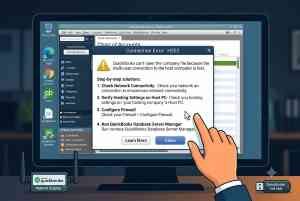
The QBDBMgrN Not Running on This Computer message can prevent QuickBooks Desktop users from opening a company file in multi-user mode. It usually indicates that the QuickBooks database service responsible for hosting the company file is stopped, unavailable, incorrectly configured, or unable to communicate across the network.
This problem is particularly common in QuickBooks Desktop environments where several users access the same company file from different computers. QuickBooks Desktop uses QBDBMgrN.exe as a background service on the computer that stores the company file. Intuit confirms that this service needs to be running on the computer where the company file is stored, even when QuickBooks itself is not open.
Fortunately, you can troubleshoot the problem by checking the QuickBooks database service, hosting configuration, network connection, firewall settings, company-file permissions, and network descriptor files.
What is QBDBMgrN?
QBDBMgrN.exe is the QuickBooks Database Manager process associated with QuickBooks Desktop’s database server functionality. It works in the background to allow QuickBooks workstations to communicate with a company file stored on a host computer.
The related Windows service is generally displayed as QuickBooksDBXX, where the XX portion varies according to the QuickBooks Desktop version.
For example, when QuickBooks Desktop is configured for multi-user access, the database service allows other authorized computers on the network to connect to the company file.
If the service is stopped, a workstation may display messages such as:
QBDBMgrN is not running on this computer
QuickBooks Database Server Manager is not running
Cannot connect to the company file
QuickBooks cannot open the company file in multi-user mode
QuickBooks H202 or H505 errors
Company file cannot be found on the network
Why Does QuickBooks Say QBDBMgrN Is Not Running?
Several issues can cause the QBDBMgrN service to become unavailable. The most common causes include:
The QuickBooks database service is stopped.
The QuickBooksDBXX service is configured incorrectly.
Multi-user hosting is not enabled on the server.
More than one computer is configured as the host.
The Windows firewall is blocking QuickBooks communication.
The network connection between the workstation and server is unavailable.
The .ND network descriptor file is damaged or outdated.
QuickBooks Database Server Manager is missing or damaged.
The QuickBooks service does not have sufficient folder permissions.
A Windows or security-software update changed network or service settings.
Before reinstalling QuickBooks, it is better to determine whether the problem is actually related to the database service or the network.
How to Fix QBDBMgrN Not Running on This Computer
1. Identify the Computer Hosting the Company File
The first step is determining which computer stores the QuickBooks company file.
QBDBMgrN does not need to be running on every workstation. The database service needs to run on the computer that hosts the company file. Intuit’s multi-user documentation specifically states that QBDBMgrN.exe runs as a background service on the computer storing the company file.
Check the location of the .QBW company file and identify the computer or server where it is stored.
If every workstation suddenly experiences the same connection problem, investigate the host computer first.
2. Restart the QuickBooks Database Service
A stopped QuickBooksDBXX service is one of the first things to check.
On the computer hosting the company file:
Press Windows + R.
Type services.msc.
Press Enter.
Locate the QuickBooks database service.
Find the service corresponding to your QuickBooks Desktop installation.
Check its status.
If it is stopped, right-click it and select Start.
If it is already running, select Restart.
Open the service’s Properties.
Check the Startup Type.
After restarting the service, try opening the company file from a workstation.
If Windows reports an error while attempting to start QuickBooksDBXX, the problem may require additional investigation. Intuit documents specific Windows service-start errors, including Error 193:0xc1, and recommends troubleshooting the Windows environment when the service cannot start.
3. Check QuickBooks Multi-User Hosting
Incorrect hosting configuration can also cause QBDBMgrN connection problems.
On the server or host computer:
Open QuickBooks Desktop.
Select File.
Select Utilities.
Check the available hosting option.
Make sure the host computer is configured to host the company file.
On workstations, hosting should not be unnecessarily enabled.
Only the designated host should be responsible for hosting the company file. Incorrect multi-user configuration can result in connection problems and H-series errors.
For additional setup guidance, see the QuickBooks Desktop Multi-User Mode guide.
4. Check QuickBooks Database Server Manager
QuickBooks Database Server Manager is responsible for managing access to company files stored on the host computer.
Check whether Database Server Manager is installed on the computer where the company file is stored.
Open the Windows Start menu and search for:
QuickBooks Database Server Manager
Then verify that the folder containing the company file is included in the scanned folders.
If the company file is not detected, add the appropriate folder and run a scan.
A properly configured Database Server Manager helps QuickBooks workstations locate and communicate with the shared company file.
For a more detailed explanation of installation, scanning, and configuration, read the QuickBooks Database Server Manager guide.
5. Rescan the Company File Folder
A damaged or outdated .ND file can interfere with network access to a QuickBooks company file.
The .ND file is associated with the network configuration of the company file. If QuickBooks cannot correctly identify the host or connection information, workstations may have trouble connecting.
To rescan:
Open QuickBooks Database Server Manager.
Select Scan Folders.
Choose the folder containing your company file.
Start the scan.
Wait for the scan to finish.
Check whether the company file appears in the scan results.
After scanning, close and reopen QuickBooks on the workstation and try connecting to the company file again.
6. Check Windows Firewall Settings
A firewall can prevent a workstation from communicating with the QuickBooks database service.
This can happen after:
Windows updates
Antivirus updates
Security-software changes
Network-profile changes
Firewall configuration changes
If QuickBooks works normally on the host computer but workstations cannot connect, firewall or network communication should be investigated.
Make sure QuickBooks and its required database components are permitted through the appropriate Windows firewall configuration.
Avoid blindly opening ports from an unrelated QuickBooks version. The required configuration can vary by QuickBooks Desktop version, so check the configuration for the specific installation.
7. Check Folder Permissions
The QuickBooks database service must be able to access the folder containing the company file.
Check the permissions on the company-file folder and make sure the appropriate Windows account used by the QuickBooks database service has sufficient access.
Also verify that users accessing the company file have the required network permissions.
Permission problems may produce symptoms such as:
Company file not opening
Access denied messages
Multi-user mode failing
H202 errors
Workstations being unable to locate the company file
If the service starts and immediately stops, permissions should be one of the areas you investigate.
8. Check the Network Connection
If QBDBMgrN is running but workstations still cannot access the company file, the issue may be network-related.
Check:
Whether the host computer is online
Whether the workstation can communicate with the host
Whether network discovery is enabled where appropriate
Whether the company-file folder is shared correctly
Whether the computer name or network path is correct
Whether VPN or security software is interfering with communication
Intuit’s guidance for opening company files on remote computers also includes checking network discovery and the connection between the host and workstations.
9. Restart QuickBooks Services
If the main database service is running but the connection remains unavailable, check other QuickBooks-related services.
For example, QBCFMonitorService can also be relevant when troubleshooting QuickBooks network and multi-user problems.
Restarting the appropriate QuickBooks services can help establish a clean connection between the host and workstations.
However, do not randomly stop services. First identify which QuickBooks version is installed and which computer is configured as the host.
10. Use QuickBooks Tool Hub
If the basic service and network checks do not resolve the problem, QuickBooks Tool Hub may help diagnose certain company-file and installation-related problems.
A useful troubleshooting sequence is:
Install or open QuickBooks Tool Hub.
Select Company File Issues.
Use the appropriate diagnostic option.
Follow the on-screen instructions.
Restart the computer if requested.
Test multi-user access again.
Tool Hub should not automatically be treated as a replacement for checking the underlying network, firewall, hosting, and service configuration.
11. Repair QuickBooks Installation
If the QuickBooks database service is missing, damaged, or repeatedly fails to start, the QuickBooks installation itself may need repair.
Before making significant changes:
Back up your company file.
Close QuickBooks on all computers.
Confirm the QuickBooks version.
Make sure you have administrator access.
Record the current company-file location.
You can then use the available Windows repair options for the QuickBooks installation.
A complete reinstall should generally be considered after less disruptive troubleshooting steps have been attempted.
QBDBMgrN vs QuickBooks Database Server Manager
These terms are closely related but refer to different parts of the same system.
Component
Purpose
QBDBMgrN.exe
Background database process
QuickBooksDBXX
Windows service associated with the QuickBooks database process
QuickBooks Database Server Manager
Tool used to configure and scan company-file folders
QBW file
QuickBooks company data file
ND file
Network descriptor file associated with network access
Understanding these components can make troubleshooting much easier.
For example, if Database Server Manager opens normally but QuickBooksDBXX is stopped, you should investigate the Windows service rather than immediately reinstalling QuickBooks.
How to Tell Whether the Problem Is the Server or Workstation
A simple comparison can help narrow down the problem.
If every workstation cannot connect
Investigate:
Host computer
QuickBooksDBXX service
Database Server Manager
Firewall
Network connectivity
Hosting configuration
If only one workstation cannot connect
Investigate:
That workstation’s network connection
QuickBooks installation
Firewall
Mapped/network path
Local configuration
User permissions
This distinction can save considerable troubleshooting time.
Can QBDBMgrN Be Running but QuickBooks Still Show an Error?
Yes.
A running QBDBMgrN service does not necessarily mean that every component of the network configuration is working correctly.
For example, QuickBooks may still fail to connect because:
Firewall rules are blocking communication.
The company-file folder is not properly shared.
Hosting is configured incorrectly.
The .ND file is outdated.
Folder permissions are insufficient.
The workstation cannot reach the host.
Therefore, checking only Task Manager or Services may not identify the entire problem.
How to Prevent QBDBMgrN Errors in the Future
Once the connection is restored, consider the following maintenance practices:
Keep QuickBooks Desktop updated according to your organization’s requirements.
Keep the host computer maintained and restarted when necessary.
Monitor QuickBooks database services.
Avoid enabling hosting on unnecessary workstations.
Maintain appropriate firewall exceptions.
Keep company files in supported locations.
Regularly back up QuickBooks company files.
Avoid making unnecessary changes to network permissions.
Document which computer acts as the QuickBooks host.
Keep track of the QuickBooks Desktop version installed on the network.
Good network configuration can reduce recurring multi-user connection problems.
Final Thoughts
The QBDBMgrN Not Running on This Computer error is primarily a QuickBooks Desktop multi-user connectivity problem. In many cases, the solution involves restoring the QuickBooks database service on the host computer rather than reinstalling QuickBooks on every workstation.
Start with the basics: identify the host, check the QuickBooksDBXX service, verify multi-user hosting, scan the company-file folder through Database Server Manager, and then investigate firewall, permissions, and network connectivity.
If the service repeatedly stops or the error continues after these checks, the problem may involve a damaged installation or a more complicated Windows/network configuration that requires additional troubleshooting.
Frequently Asked Questions
What does “QBDBMgrN not running on this computer” mean?
It generally means QuickBooks cannot communicate with the database service responsible for hosting the company file. The service may be stopped, unavailable, blocked, incorrectly configured, or running on the wrong computer.
How do I fix QBDBMgrN not running on this computer?
Start by identifying the computer that stores the company file. Open Windows Services on that computer, locate the appropriate QuickBooksDBXX service, and verify that it is running. Then check hosting configuration, Database Server Manager, firewall settings, folder permissions, and network connectivity.
Where is QBDBMgrN located?
QBDBMgrN.exe is installed as part of QuickBooks Desktop’s database-server components. The exact installation folder can vary depending on the QuickBooks version and installation configuration.
Does QBDBMgrN need to run on every computer?
No. The database service needs to run on the computer hosting the QuickBooks company file. Workstations that access the company file do not generally need to host the file themselves. Intuit’s documentation specifically notes that QBDBMgrN.exe runs on the computer storing the company file.
How do I restart QBDBMgrN?
Press Windows + R, enter services.msc, and locate the QuickBooksDBXX service associated with your QuickBooks version. Right-click the service and choose Restart or Start if it is stopped.
Why is QBDBMgrN not running after a Windows update?
A Windows update or security change can sometimes affect services, firewall rules, network profiles, or permissions. Check whether the QuickBooks database service is running and whether the firewall still allows the required QuickBooks communication.
Can QBDBMgrN cause QuickBooks H202?
Yes. If the QuickBooks database service or network communication between the workstation and host is unavailable, users may encounter H-series network errors such as H202. However, H202 can have several possible causes, so the entire network configuration should be checked.
How do I know if QuickBooks Database Server Manager is working?
Check that the appropriate QuickBooks database service is running on the host computer. Then open Database Server Manager and verify that the folder containing your company files can be scanned and detected. Finally, test the company file from a workstation in multi-user mode.
Why does QuickBooks work on the server but not on other computers?
This often points toward a network, firewall, hosting, permissions, or Database Server Manager configuration problem. If the company file opens locally but cannot be accessed from workstations, investigate communication between the workstation and host.
Do I need to reinstall QuickBooks when QBDBMgrN is not running?
Not necessarily. Reinstalling QuickBooks is not the first troubleshooting step. Check the QuickBooksDBXX service, hosting settings, Database Server Manager, .ND file, firewall, network connection, and folder permissions first.
Can I use QuickBooks without QBDBMgrN?
You may be able to open the company file locally in single-user mode on the host computer, but multi-user access depends on the database service being available. If the service is unavailable, other networked users may not be able to access the shared company file.
What is the fastest way to troubleshoot QBDBMgrN?
Start with the host computer. Confirm the QuickBooksDBXX service is running, verify that the host is correctly configured for multi-user access, check Database Server Manager, and then investigate firewall and network connectivity. This approach helps determine whether the problem is a service issue or a broader network configuration problem.


 The QBDBMgrN Not Running on This Computer message can prevent QuickBooks Desktop users from opening a company file in multi-user mode. It usually indicates that the QuickBooks database service responsible for hosting the company file is stopped, unavailable, incorrectly configured, or unable to communicate across the network.
This problem is particularly common in QuickBooks Desktop environments where several users access the same company file from different computers. QuickBooks Desktop uses QBDBMgrN.exe as a background service on the computer that stores the company file. Intuit confirms that this service needs to be running on the computer where the company file is stored, even when QuickBooks itself is not open.
Fortunately, you can troubleshoot the problem by checking the QuickBooks database service, hosting configuration, network connection, firewall settings, company-file permissions, and network descriptor files.
The QBDBMgrN Not Running on This Computer message can prevent QuickBooks Desktop users from opening a company file in multi-user mode. It usually indicates that the QuickBooks database service responsible for hosting the company file is stopped, unavailable, incorrectly configured, or unable to communicate across the network.
This problem is particularly common in QuickBooks Desktop environments where several users access the same company file from different computers. QuickBooks Desktop uses QBDBMgrN.exe as a background service on the computer that stores the company file. Intuit confirms that this service needs to be running on the computer where the company file is stored, even when QuickBooks itself is not open.
Fortunately, you can troubleshoot the problem by checking the QuickBooks database service, hosting configuration, network connection, firewall settings, company-file permissions, and network descriptor files.