

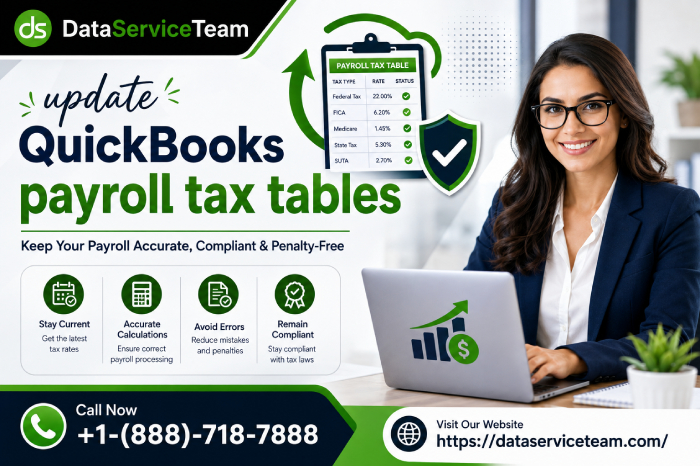
Update QuickBooks Payroll Tax Table:- Keeping the QuickBooks payroll tax table current is essential for accurate employee paychecks, tax withholding, payroll forms, and compliance. When the tax table is outdated, QuickBooks may calculate federal or state payroll taxes incorrectly, display payroll update errors, or prevent you from completing payroll tasks properly.
As a certified QuickBooks ProAdvisor, I have worked with businesses facing payroll update failures, outdated tax tables, payroll subscription issues, and errors such as PS033, PS038, and 15XXX. In most cases, the problem can be traced to an outdated QuickBooks Desktop release, damaged payroll update files, an inactive payroll subscription, Windows permissions, or security software blocking the download.
This complete guide explains how to check your payroll tax table version, download the latest payroll update, troubleshoot common update failures, handle SUI rate changes, and prevent recurring payroll update problems.
Chapter 1: What Is the QuickBooks Payroll Tax Table?
The QuickBooks payroll tax table is a collection of tax calculation information used by supported payroll versions to calculate employee withholding and employer payroll taxes.
These tables can contain updated federal and state tax rates, wage limits, withholding calculations, payroll forms, and other payroll-related information required for supported payroll services.
A current payroll tax table helps QuickBooks calculate payroll correctly based on the applicable tax rules included in the update.
Why Is the Payroll Tax Table Important?
An outdated payroll tax table can affect several parts of payroll processing: ()
| Payroll Area | What Can Happen With an Outdated Table |
| Federal withholding | Employee tax calculations may use outdated rates |
| State taxes | Supported state calculations may not reflect current rules |
| Payroll forms | Updated forms or filing requirements may not be available |
| Tax liabilities | Payroll liabilities may be calculated incorrectly |
| Employee paychecks | Net pay and withholding amounts can be affected |
| Payroll updates | QuickBooks may display update errors or fail to download |
For businesses processing payroll regularly, checking the tax table before running payroll is a practical way to catch an outdated calculation environment early.
QuickBooks Online vs. QuickBooks Desktop Payroll Updates
QuickBooks Online payroll operates differently from QuickBooks Desktop payroll.
QuickBooks Online generally manages payroll tax updates through the cloud, while QuickBooks Desktop users may need to download payroll updates within the application.
If you use QuickBooks Desktop Payroll, make sure both your QuickBooks Desktop program and payroll tax table are properly updated.
Chapter 2: How to Check Your QuickBooks Payroll Tax Table Version
Before downloading an update, check your existing payroll tax table version.
Steps to Check the Tax Table Version
- Open QuickBooks Desktop.
- Go to Employees.
- Select My Payroll Service.
- Choose Tax Table Information.
- Find the line showing your current tax table version.
- Record the version number and effective date.
- Compare it with the currently supported payroll update for your QuickBooks version.
Knowing your current version helps determine whether QuickBooks actually needs a payroll tax table update.
Why the Version Number Matters
Sometimes a payroll update appears to download successfully, but the tax table version does not change.
That usually indicates that the update was not completely installed or that another issue prevented QuickBooks from replacing the existing payroll components.
In that situation, simply downloading the same update repeatedly may not solve the problem.
Chapter 3: How to Update QuickBooks Payroll Tax Table
There are several ways to update payroll tax tables in QuickBooks Desktop. The in-product payroll update is generally the simplest place to start.
Method 1: Download the Payroll Update From QuickBooks Desktop
Follow these steps:
- Open QuickBooks Desktop.
- Select Employees.
- Choose Get Payroll Updates.
- Review the displayed tax table version.
- Select Download Entire Update.
- Click Update.
- Wait until QuickBooks confirms that the update has completed.
- Close QuickBooks.
- Reopen QuickBooks Desktop.
- Check the tax table version again.
If the version has changed to the current supported release, the payroll tax table update was successfully installed.
What If the Payroll Update Takes Too Long?
Do not immediately close QuickBooks while the update is downloading or installing.
A slow payroll update can result from:
- Slow internet connectivity
- Security software scanning the download
- Windows background updates
- Damaged QuickBooks update components
- Payroll subscription verification
- A large or incomplete previous update
Give the update sufficient time to finish before moving to troubleshooting.
Chapter 4: Update QuickBooks Desktop Before Updating Payroll
An outdated QuickBooks Desktop release can interfere with payroll updates.

Method 2: Reset the QuickBooks Desktop Update
- Open QuickBooks Desktop.
- Go to Help.
- Select Update QuickBooks Desktop.
- Open the Update Now tab.
- Select Reset Update.
- Click Get Updates.
- Wait for the update to finish.
- Close QuickBooks.
- Reopen the program.
- Try Employees > Get Payroll Updates again.
Resetting the update can help when QuickBooks repeatedly downloads an update but does not install the required files correctly.
Why This Method Helps
Payroll updates depend on the QuickBooks Desktop installation being compatible with the payroll components being downloaded.
Updating the accounting software first can eliminate conflicts between an older program release and newer payroll components.
Chapter 5: Check Your QuickBooks Payroll Subscription (Update QuickBooks Payroll Tax Table)
An active payroll subscription is an important requirement for supported payroll tax table updates.
How to Check Your Payroll Subscription
- Open QuickBooks Desktop.
- Go to Employees.
- Select My Payroll Service.
- Open Account/Billing Information.
- Sign in when prompted.
- Review your payroll subscription status.
- Confirm that the payroll service is active.
If the subscription is inactive or expired, QuickBooks may not be able to download current payroll tax updates.
Subscription Problems That Can Affect Updates
Payroll update problems may occur when:
- The payroll subscription has expired.
- Billing information needs attention.
- QuickBooks is signed in with the wrong Intuit account.
- Payroll service information has not synchronized correctly.
- The payroll service is active but QuickBooks cannot verify it.
If your subscription is active but QuickBooks still cannot update the tax table, continue with the troubleshooting methods below.
Chapter 6: QuickBooks Payroll Tax Table Won’t Update? Try These Fixes
Update QuickBooks Payroll Tax Table:- When the payroll tax table refuses to download or install, work through these solutions in order.
Method 3: Run QuickBooks With Administrator Permissions
Windows permissions can sometimes prevent QuickBooks from accessing or modifying required files.
- Close QuickBooks Desktop.
- Right-click the QuickBooks Desktop icon.
- Select Run as administrator.
- Choose Yes if Windows displays a permission prompt.
- Open Employees > Get Payroll Updates.
- Try downloading the payroll update again.
If the update works with elevated permissions, the underlying issue may involve Windows permissions or security restrictions.
Method 4: Check Your Internet Connection
Payroll updates require QuickBooks to communicate with its online services.
Before troubleshooting QuickBooks itself:
- Open a web browser.
- Confirm that other websites load normally.
- Restart your router if the connection is unstable.
- Disconnect from a VPN if one is interfering with the connection.
- Retry the payroll update.
A stable connection is particularly important when the update repeatedly stops during downloading.
Chapter 7: Firewall or Antivirus Blocking Payroll Updates
Security software can sometimes interfere with QuickBooks network communication or prevent update components from being written correctly.
Method 5: Test Your Security Software
- Close QuickBooks.
- Review your antivirus and firewall settings.
- Check whether QuickBooks-related activity has been blocked.
- If your security software provides a safe application or exclusion list, add the required QuickBooks program components according to your security provider’s instructions.
- Reopen QuickBooks.
- Retry the payroll update.
Do not leave antivirus protection disabled unnecessarily. If temporarily disabling protection is required for diagnosis, re-enable it immediately after testing.
Signs Security Software May Be the Cause
Security-related interference is more likely when:
- Payroll updates work after security protection is temporarily paused.
- QuickBooks cannot connect to payroll services.
- The update repeatedly stops at the same point.
- QuickBooks works normally for accounting tasks but fails during online updates.
Chapter 8: Fix QuickBooks Payroll Error PS033
QuickBooks Error PS033 can appear when QuickBooks cannot properly read or process payroll setup files.

One troubleshooting approach is to refresh the payroll component files.
Method 6: Rename the CPS Folder
Before making changes, close QuickBooks Desktop.
- Open File Explorer.
- Navigate to the QuickBooks installation directory.
- Locate the Components > Payroll > CPS folder.
- Rename the folder to CPSOLD.
- Close File Explorer.
- Reopen QuickBooks.
- Go to Employees > Get Payroll Updates.
- Download the payroll update again.
QuickBooks can recreate required payroll components during the update process.
If the CPS folder does not exist in the expected location, do not create random replacement folders. Your installation path may differ depending on the QuickBooks version and Windows configuration.
Chapter 9: Fix QuickBooks Payroll Error PS038
QuickBooks Error PS038 is often associated with paychecks remaining in an Online to Send status.

When these transactions remain stuck, payroll updates may not complete properly.
Method 7: Look for Stuck Paychecks
- Open QuickBooks Desktop.
- Go to Edit.
- Select Find.
- Open the Advanced tab.
- Locate the online status filter.
- Search for transactions marked Online to Send.
- Review the affected paychecks.
Before modifying payroll transactions, create a current backup of the company file.
Verify and Rebuild Your Company File
If the company file contains data issues:
- Go to File.
- Select Utilities.
- Choose Verify Data.
- Allow QuickBooks to complete the verification.
- If QuickBooks reports a data problem, return to File > Utilities.
- Select Rebuild Data.
- Follow the on-screen instructions.
- Create a backup when prompted.
- Retry the payroll update.
Do not interrupt the rebuild process.
Chapter 10: Troubleshoot QuickBooks 15XXX Payroll Update Errors
15XXX errors can occur when QuickBooks has difficulty connecting to online services or downloading required update components.
Method 8: Repair the QuickBooks Installation
Start with the QuickBooks Tool Hub if it is available in your installation environment.
- Open QuickBooks Tool Hub.
- Select Installation Issues.
- Run the appropriate installation diagnostic option.
- Allow the diagnostic process to finish.
- Restart Windows.
- Open QuickBooks.
- Retry the payroll update.
If the problem continues, check your Windows configuration, internet connection, firewall, and QuickBooks installation.
Chapter 11: SUI Rate vs. Payroll Tax Table—Do Not Confuse Them
One of the most important payroll troubleshooting distinctions is the difference between a tax table update and a state unemployment insurance rate.
A payroll tax table update does not automatically mean that every company-specific SUI rate will change.
Why Your SUI Rate May Not Update
State unemployment insurance rates can be specific to your business and may be provided through a state-issued notice.
For example, a construction company may download a current payroll tax table and still see its previous SUI rate.
That does not necessarily mean the payroll update failed.
The business may need to manually update its company-specific SUI information using the rate provided by the applicable state authority.
What to Check
If your SUI rate looks incorrect:
- Review your latest state unemployment insurance notice.
- Confirm the effective date.
- Check the rate applicable to your business.
- Review the payroll setup in QuickBooks.
- Update the company-specific rate when required.
- Run a payroll calculation test before processing payroll.
This distinction can prevent unnecessary attempts to reinstall or repeatedly download the payroll tax table.
Chapter 12: What to Do When the Payroll Tax Table Version Does Not Change
Sometimes QuickBooks appears to download the update, but the tax table version remains unchanged.
Method 9: Reset and Reinstall the Payroll Update Components
Work through the following sequence:
- Close QuickBooks Desktop.
- Restart Windows.
- Open QuickBooks as administrator for troubleshooting.
- Go to Help > Update QuickBooks Desktop.
- Select Update Now.
- Check Reset Update.
- Select Get Updates.
- Close QuickBooks after the update completes.
- Reopen QuickBooks.
- Go to Employees > Get Payroll Updates.
- Select Download Entire Update.
- Install the payroll update.
- Check the tax table version again.
If the version still does not change, the issue may require deeper installation or payroll-service troubleshooting.
Chapter 13: Expert Troubleshooting Scenarios
Scenario 1: Payroll Tax Table Remains on an Older Version
The Problem: A business owner downloaded a payroll update, but QuickBooks continued displaying an older tax table version.
Solution Applied:
- Checked the existing tax table version.
- Confirmed the payroll subscription was active.
- Reset the QuickBooks Desktop update.
- Downloaded the latest program update.
- Restarted QuickBooks.
- Downloaded the entire payroll update again.
- Verified the tax table version.
Result: The payroll update installed successfully after the program update was refreshed.
Scenario 2: PS038 Prevents Update QuickBooks Payroll Tax Table
The Problem: Payroll processing was interrupted because paychecks remained in the Online to Send status.
Solution Applied:
- Created a company file backup.
- Located the affected payroll transactions.
- Send the available payroll data.
- Ran Verify Data.
- Rebuilt the company file when required.
- Restarted QuickBooks.
- Retried the payroll update.
Result: The stuck payroll transactions were resolved and the update could proceed.
Scenario 3: Security Software Blocks the Update QuickBooks Payroll Tax Table
The Problem: QuickBooks could access the internet, but payroll updates repeatedly failed during the download process.
Solution Applied:
- Reviewed firewall and antivirus activity.
- Identified QuickBooks-related blocking.
- Added the necessary QuickBooks components to the security software’s allowed list.
- Re-enabled all security protection.
- Restarted QuickBooks.
- Downloaded the payroll update again.
Result: The payroll update completed without the previous interruption.
Chapter 14: Best Practices for Preventing Update QuickBooks Payroll Tax Table Problems
A few regular maintenance habits can prevent many payroll tax table issues.
| Practice | Recommended Timing | Why It Helps |
| Check payroll subscription | Regularly | Prevents service interruptions |
| Update QuickBooks Desktop | Before payroll updates | Maintains program compatibility |
| Check tax table version | Before important payroll runs | Detects outdated tables |
| Back up the company file | Before major changes | Protects payroll data |
| Review SUI notices | Whenever received | Keeps company-specific rates current |
| Monitor security software | After major updates | Prevents blocked components |
| Restart Windows | When updates behave unexpectedly | Clears temporary system conflicts |
Chapter 15: Common Updates QuickBooks Payroll Tax Table
Payroll tax table problems do not always appear under the same error number.
Common issues can include:
- QuickBooks Error PS033 — payroll setup or update component problem
- QuickBooks Error PS038 — paychecks stuck in the Online to Send queue
- QuickBooks 15XXX errors — update, connection, or service-related problems
- QuickBooks payroll update failed — generic update failure
- QuickBooks payroll subscription error — subscription verification problem
- QuickBooks tax table not updating — version remains unchanged after downloading
- QuickBooks payroll update stuck — download or installation does not complete
- QuickBooks payroll service unavailable — connection or service communication problem
- QuickBooks payroll calculation error — tax calculation does not behave as expected
- QuickBooks payroll forms not updating — updated payroll components may not have installed correctly
The correct fix depends on the exact error message, tax table version, QuickBooks release, payroll subscription status, and Windows environment.
FAQs
1. How do I Update QuickBooks Payroll Tax Table?
Open QuickBooks Desktop and go to Employees > Get Payroll Updates. Select Download Entire Update, click Update, and wait for the confirmation message. Then reopen QuickBooks and verify the tax table version.
2. Why is my QuickBooks payroll tax table not updating?
Common reasons include an inactive payroll subscription, outdated QuickBooks Desktop, unstable internet, firewall restrictions, damaged payroll components, or an incomplete previous update.
3. Do I need to update QuickBooks Desktop before updating payroll?
It is recommended to keep QuickBooks Desktop current because payroll components must work with the supported program release. If a payroll update fails, update the desktop application before retrying.
4. How can I check my QuickBooks payroll tax table version?
Go to Employees > My Payroll Service > Tax Table Information and review the displayed tax table version.
5. Why does QuickBooks show an old payroll tax table after an update?
The update may have downloaded but failed to install completely. Resetting the QuickBooks Desktop update and downloading the complete payroll update again can help.
6. Does the Update QuickBooks Payroll Tax Table my SUI rate?
Not necessarily. SUI rates can be company-specific and may need to be entered manually based on the applicable state notice.
7. What does QuickBooks Error PS033 mean?
PS033 can indicate that QuickBooks is having trouble reading or processing payroll setup components. Refreshing the payroll component files and retrying the update may resolve the issue.
8. What does QuickBooks Error PS038 mean?
PS038 can occur when paychecks remain stuck in the Online to Send status. Reviewing those transactions and checking company-file integrity can help resolve the problem.
9. Can antivirus software prevent payroll updates?
Yes. Firewall or antivirus rules can interfere with QuickBooks’ online communication or update files. Review security logs and allow required QuickBooks components when appropriate.
10. Can I run payroll with an outdated tax table?
You should avoid processing payroll with an outdated tax table when a required update is available. Incorrect tax calculations can create additional correction and compliance work.
11. Why does QuickBooks payroll update keep failing?
Repeated failures can indicate a deeper issue involving the payroll subscription, QuickBooks installation, Windows permissions, security software, company-file data, or online connectivity.
12. What should I do if none of the payroll update fixes work?
Create a current company file backup and document the exact error message, tax table version, QuickBooks release, and steps already attempted. This information makes advanced troubleshooting much more efficient.
Conclusion (Update QuickBooks Payroll Tax Table)
Update QuickBooks payroll tax table is an important part of maintaining accurate payroll calculations. The normal process is simple: check the current tax table version, confirm the payroll subscription, update QuickBooks Desktop when necessary, and download the complete payroll update through Employees > Get Payroll Updates.
When the update fails, do not repeatedly download the same update without identifying the cause. Check the payroll subscription, refresh the QuickBooks Desktop update, review firewall and antivirus restrictions, and investigate errors such as PS033, PS038, and 15XXX. If the tax table version remains unchanged, deeper payroll component or installation troubleshooting may be required.
Also remember that a payroll tax table and a company-specific SUI rate are not the same thing. A current tax table does not automatically mean that your business’s SUI rate has been updated.
Regular backups, current QuickBooks software, an active payroll subscription, accurate SUI information, and routine tax table checks can help keep payroll processing reliable and reduce unexpected payroll interruptions.
Need Expert Help? Contact the Data Service Team
If your QuickBooks payroll tax table still will not update, payroll calculations appear incorrect, or errors such as PS033, PS038, or 15XXX continue to interrupt payroll processing, the Data Service Team can help diagnose the underlying QuickBooks, payroll, company-file, and Windows issues.
Data Service Team Contact Number: +1-(888)-718-7888













Leave a Reply