QuickBooks Desktop Payroll makes it easier for businesses to manage employee wages, taxes, deductions, payroll schedules, and other payroll responsibilities. However, problems can occur when payroll updates fail, employees disappear from the payroll list, paychecks do not calculate properly, or QuickBooks refuses to complete a payroll task.
If you are searching for how to fix QuickBooks Payroll not working, the first step is to identify what exactly has stopped working. Payroll problems can come from outdated software, incorrect employee information, payroll subscription issues, tax-table problems, internet settings, firewall restrictions, or company-file data issues.
This guide covers practical troubleshooting steps that can help you identify and resolve common QuickBooks Desktop Payroll problems.
What Does “QuickBooks Payroll Not Working” Mean?
The phrase can describe several different problems. For example, QuickBooks Payroll may:
- Fail to download payroll updates
- Stop calculating employee taxes
- Show incorrect paycheck amounts
- Prevent you from running payroll
- Fail to display an employee
- Show an error while opening Payroll Setup
- Get stuck during payroll processing
- Display PSXXX or UEXP errors
- Show paychecks with an incorrect tax amount
- Prevent payroll data from being sent
- Stop responding when opening payroll features
Because these problems have different causes, applying random fixes is usually not the best approach. Start with the symptoms and work through the relevant troubleshooting steps.
Check Whether Your Payroll Subscription Is Active
One of the first things to verify is the payroll service status.
Open QuickBooks Desktop and go to the payroll service settings. Check whether the payroll service is active and whether the correct service key is being used.
If the service is inactive or the service information is incorrect, payroll updates and other payroll functions may not work as expected.
If you recently upgraded QuickBooks or changed payroll services, review the service configuration again before attempting additional troubleshooting.
Update QuickBooks Desktop
An outdated QuickBooks Desktop release can cause payroll problems, particularly when the payroll service requires updated program components.
To update QuickBooks Desktop:
- Open QuickBooks.
- Select Help.
- Choose Update QuickBooks Desktop.
- Open the Update Now tab.
- Select Get Updates.
- Allow the update to finish.
- Restart QuickBooks.
After restarting, test the payroll function again.
Intuit’s current troubleshooting guidance also recommends installing the latest QuickBooks and payroll updates when payroll calculations are incorrect.
Download the Latest Payroll Tax Table
Payroll calculations depend on current tax-table information. If your tax table is outdated, QuickBooks may calculate payroll incorrectly or fail during payroll processing.
To download payroll updates:
- Open QuickBooks Desktop.
- Select Employees.
- Choose Get Payroll Updates.
- Select the download option.
- Start the update.
- Wait for the process to complete.
- Restart QuickBooks if necessary.
If the update produces an error, write down the error code. Codes such as PSXXX or UEXP can point toward specific problems with the payroll update process.
Verify Payroll Features in Preferences
Another setting worth checking is the payroll preference.
In QuickBooks Desktop:
- Open the company file.
- Select Edit.
- Choose Preferences.
- Select Payroll & Employees.
- Open Company Preferences.
- Check the QuickBooks Desktop Payroll Features setting.
For payroll processing, the Payroll Features setting should be configured appropriately for the payroll service being used.
After making any necessary changes, save the settings and test payroll again.
Check Employee Information
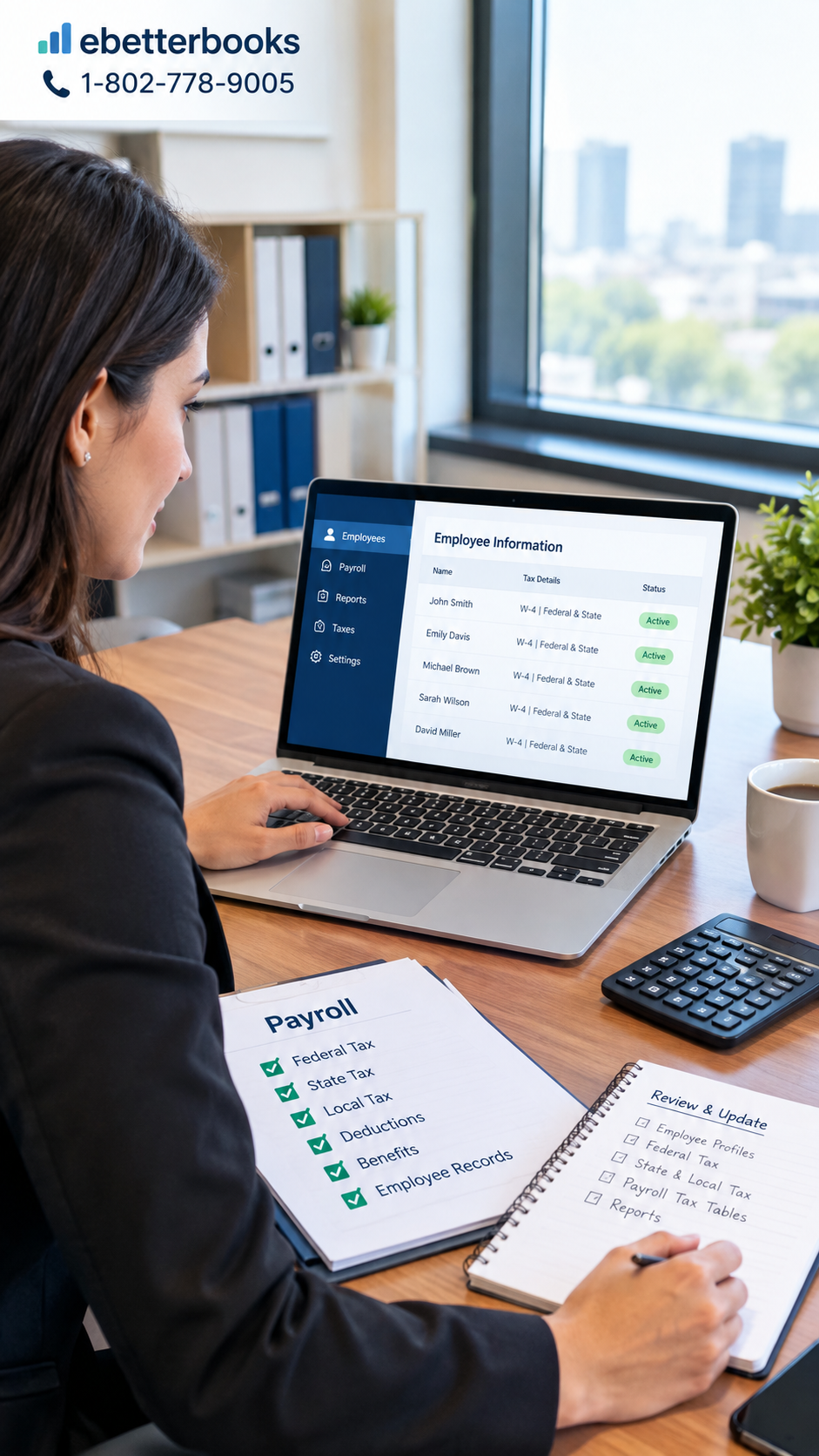
Employee information directly affects payroll calculations. If one employee’s paycheck is incorrect while others are working normally, the employee profile should be reviewed.
Open:
Employees → Employee Center
Then select the affected employee and review the payroll information.
Pay attention to:
- Pay rate
- Payroll schedule
- Federal tax information
- State tax information
- W-4 information
- Deductions
- Contributions
- Employment status
- Employment dates
Incorrect or incomplete employee information can cause payroll calculations to behave unexpectedly.
Check If the Employee Is Inactive
Sometimes payroll appears not to work because an employee is missing from the employee list.
QuickBooks Desktop may hide inactive employees from the normal Employee Center view.
To check:
- Go to Employees.
- Select Employee Center.
- Open the employee filter.
- Select All Employees.
- Locate the missing employee.
- If the employee is inactive, review the status and reactivate them if appropriate.
An employee can also be missing from scheduled payroll when they are not assigned to the correct payroll schedule or have an employment release or termination date.
Review the Payroll Schedule
If an employee is missing when you start scheduled payroll, check the employee’s payroll schedule.
Open the employee profile and select Payroll Info. Review the Payroll Schedule field and make sure the correct schedule is selected.
A mismatch between the employee and payroll schedule can prevent the employee from appearing when you start a scheduled payroll.
After correcting the schedule, run payroll again.
Check the Pay Period and Check Date
Incorrect dates can create confusion during payroll processing.
Before starting payroll, verify:
- Pay period beginning date
- Pay period ending date
- Check date
- Payroll schedule
- Employee pay frequency
If the dates do not match the intended payroll period, QuickBooks may produce unexpected results or exclude employees from the payroll run.
Take a moment to review these dates before making additional changes.
Check Employee Tax Settings
Tax settings are particularly important when payroll calculations appear incorrect.
Open:
Employees → Employee Center → Employee → Payroll Info → Taxes
Review the employee’s federal and state tax information.
Make sure the appropriate W-4 information and filing status are entered. If the employee’s tax circumstances have changed, the payroll profile may need to be updated accordingly.
Incorrect employee tax setup is one of the areas Intuit recommends reviewing when a paycheck calculation affects only one employee.
Review Payroll Items
Payroll items determine how wages, deductions, additions, and contributions are handled.
A payroll item with an incorrect configuration can result in incorrect calculations.
Review the affected payroll item and check:
- Item type
- Tax tracking type
- Taxability
- Rate
- Limit
- Associated accounts
- Employee assignment
If a payroll item has been configured with the wrong Tax Tracking Type, simply changing unrelated employee information may not solve the problem. Intuit recommends correcting the payroll item configuration and, in applicable cases, replacing the incorrect item with a properly configured one.
Check Wage and Deduction Limits
Some payroll calculations change when employees reach applicable wage limits.
If payroll worked correctly earlier in the year but suddenly changes, review the employee’s year-to-date wages and determine whether a wage base or deduction limit has been reached.
Deductions and company contributions can also have limits. If a deduction stops calculating or changes unexpectedly, check whether its configured limit has been reached.
Intuit specifically identifies wage limits and deduction/contribution limits as potential reasons for incorrect payroll calculations.
How to Fix QuickBooks Payroll not working When Paychecks Are Incorrect
If QuickBooks opens payroll normally but calculates the paycheck incorrectly, determine whether the issue affects one employee or multiple employees.
If multiple employees are affected
Start by:
- Updating QuickBooks Desktop.
- Installing the latest payroll update.
- Checking payroll tax-table status.
- Reviewing payroll settings.
- Reverting affected paychecks if necessary.
- Recreating the paychecks after the relevant update or correction.
Intuit recommends installing the latest QuickBooks and payroll updates and, where applicable, reverting and recreating affected paychecks when incorrect calculations affect all employees.
If only one employee is affected
Review that employee’s:
- Tax settings
- W-4 information
- Payroll items
- Pay rate
- Payroll schedule
- State information
- Deductions
- Contributions
- Year-to-date amounts
This distinction is important because a company-wide problem and an individual employee setup problem generally require different troubleshooting approaches.
Revert Saved Paychecks After Making Payroll Changes
If you saved payroll before installing an update or before changing employee tax information, the saved paycheck may still contain the previous information.
QuickBooks Desktop provides a Revert Paychecks option for applicable saved payroll.
You can access the saved payroll and review employees whose information has changed. QuickBooks highlights affected employees, allowing you to revert their paychecks and apply the updated information.
Always review the paycheck carefully before saving it again.
Check Your Internet Connection
Payroll updates require a working internet connection.
If payroll updates fail, test your internet connection outside QuickBooks. If websites load normally but QuickBooks cannot connect, security settings may be interfering with the connection.
Potential causes include:
- Firewall restrictions
- Antivirus software
- VPN configuration
- Proxy settings
- Network security policies
- Incorrect internet settings
Do not permanently disable security software just to test QuickBooks. Instead, review the settings and create appropriate permissions when required.
Troubleshoot PSXXX Payroll Errors
QuickBooks Desktop Payroll can display PSXXX errors when downloading payroll updates.
Intuit identifies possible causes such as incorrect internet settings, firewall restrictions, or damaged files associated with the payroll update process.
Useful troubleshooting steps include:
- Confirm the payroll service subscription
- Verify the service key
- Make sure QuickBooks is activated
- Update QuickBooks Desktop
- Download the latest payroll tax table
- Review firewall/security settings
- Use QuickBooks Tool Hub’s Quick Fix my Program when appropriate
If the problem remains after these steps, record the exact error code before continuing.
Fix UEXP Payroll Update Errors
UEXP can appear when QuickBooks has difficulty verifying account status during payroll updates.
Possible causes include an outdated QuickBooks Desktop release, outdated e-file/e-pay components after an upgrade, or an inactive payroll subscription.
Start by updating QuickBooks Desktop. Then review the payroll service key and download the payroll updates again.
Avoid repeatedly removing and adding payroll services unless you understand how the change affects your installation.
Check for Stuck “Online to Send” Paychecks
A stuck paycheck can prevent payroll from running or interfere with payroll tax-table downloads.
For example, Intuit identifies PS038 as an issue that can occur when paychecks remain in an Online to Send status.
If this occurs:
- Create a recent company-file backup.
- Make sure QuickBooks is updated.
- Open the payroll service menu.
- Try sending payroll or usage data.
- Check whether the transmission completes.
- Attempt the payroll update again.
If the issue remains, follow the specific PS038 troubleshooting procedure rather than making random changes to payroll transactions.
Run QuickBooks Tool Hub
QuickBooks Tool Hub can be useful for several Desktop troubleshooting situations.
Depending on the problem, tools within Tool Hub can help with:
- Program problems
- Installation issues
- Company-file problems
- Network problems
For program-related issues, the Quick Fix my Program utility can close background QuickBooks processes and help repair certain program-related problems.
Before using repair tools, make sure your company data is backed up.
Verify and Rebuild Company Data
A company-file problem can sometimes cause unexpected QuickBooks behavior.
Before using data-repair utilities, create a current backup.
Then use the QuickBooks data utilities to verify whether the company file contains problems. If QuickBooks identifies data damage, follow the appropriate rebuild procedure.
Do not skip the backup step. Payroll contains sensitive financial records, so having a recent recovery copy is particularly important.
Check for Payroll Setup Errors
Payroll Setup can sometimes fail because of incorrect employee information, duplicate payroll items, missing state information, special characters, or damaged program files.
For certain 00000 XXXXX payroll setup errors, Intuit recommends reviewing the detailed error report to identify the specific exception and then correcting the underlying employee, payroll item, or program issue.
This is another reason why the exact error message matters. Two payroll errors that look similar on the surface can have completely different causes.
Repair QuickBooks Desktop
If payroll problems continue after updating the software and checking payroll settings, the QuickBooks installation itself may need repair.
Repairing QuickBooks can be useful when:
- Program files are missing
- Installation files are damaged
- Updates repeatedly fail
- QuickBooks crashes
- Payroll tools stop opening
- Multiple QuickBooks features are affected
After repairing QuickBooks, restart the computer and test payroll again.
If repair does not resolve the issue, a clean installation may be the next appropriate troubleshooting step.
Create a Backup Before Major Changes
Payroll information should always be treated carefully.
Before making significant changes to:
- Payroll items
- Employee tax information
- Payroll transactions
- Company-file data
- Payroll service settings
create a recent backup.
A backup gives you an additional recovery option if an unexpected change affects your company file.
When Professional Help May Be Necessary
Some payroll problems are more complicated than routine software troubleshooting.
Consider getting professional assistance when:
- Payroll calculations remain incorrect after troubleshooting
- Multiple tax liabilities appear wrong
- Company data shows signs of damage
- Payroll transactions need historical corrections
- You are unsure how to adjust payroll liabilities
- A payroll service registration problem continues
- Payroll errors could affect tax filings
Avoid making repeated payroll adjustments simply to make a number appear correct. Payroll corrections can affect financial reports and tax records.
Quick Payroll Troubleshooting Checklist
Before processing the next payroll, review the following:
- Payroll subscription is active
- QuickBooks Desktop is updated
- Latest payroll tax table is installed
- Payroll features are configured correctly
- Employee profiles are accurate
- Employees are active
- Correct payroll schedules are assigned
- Pay periods and check dates are correct
- W-4 information is current
- State tax information is accurate
- Payroll items have correct tax tracking
- Wage and deduction limits are reviewed
- Internet connection is working
- Firewall/security settings are not blocking QuickBooks
- No paychecks are stuck in Online to Send status
- Company-file data has been checked when necessary
- A recent backup is available
Final Thoughts
QuickBooks Payroll problems can look complicated, but many issues become easier to resolve once you identify whether the problem affects one employee, several employees, or the entire payroll system.
Start with the basics: confirm the payroll subscription, update QuickBooks Desktop, download the current payroll tax table, and review employee information. If the problem involves incorrect calculations, inspect payroll items, tax settings, wage limits, and deductions. For update errors, check internet connectivity, security settings, and the specific error code.
For more serious problems, QuickBooks Tool Hub, data verification, program repair, or professional assistance may be appropriate.
The most important point is to avoid making unnecessary changes to payroll records. Take a backup first, identify the exact symptom, and then apply the troubleshooting step that matches the problem. This systematic approach can help restore QuickBooks Payroll while reducing the risk of creating additional payroll or accounting issues.