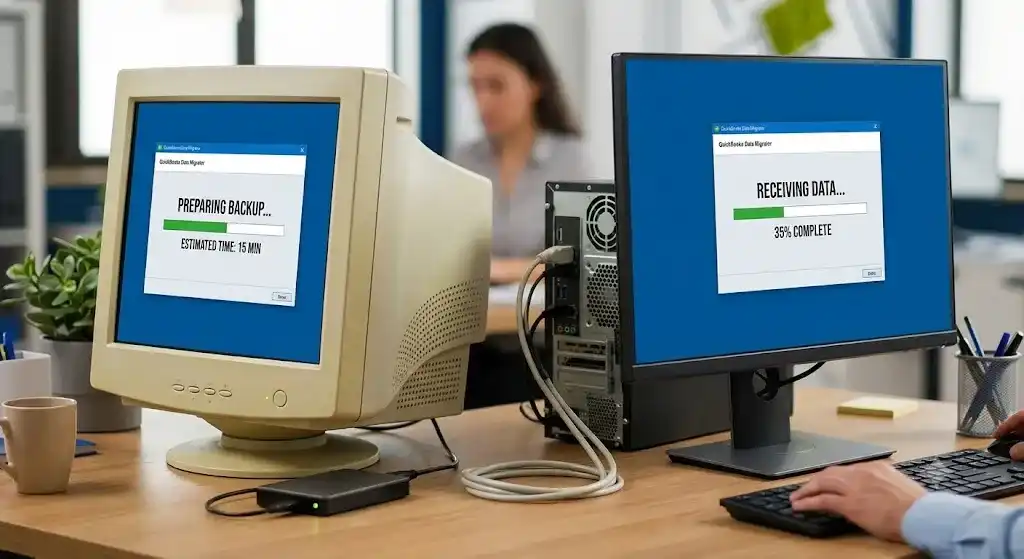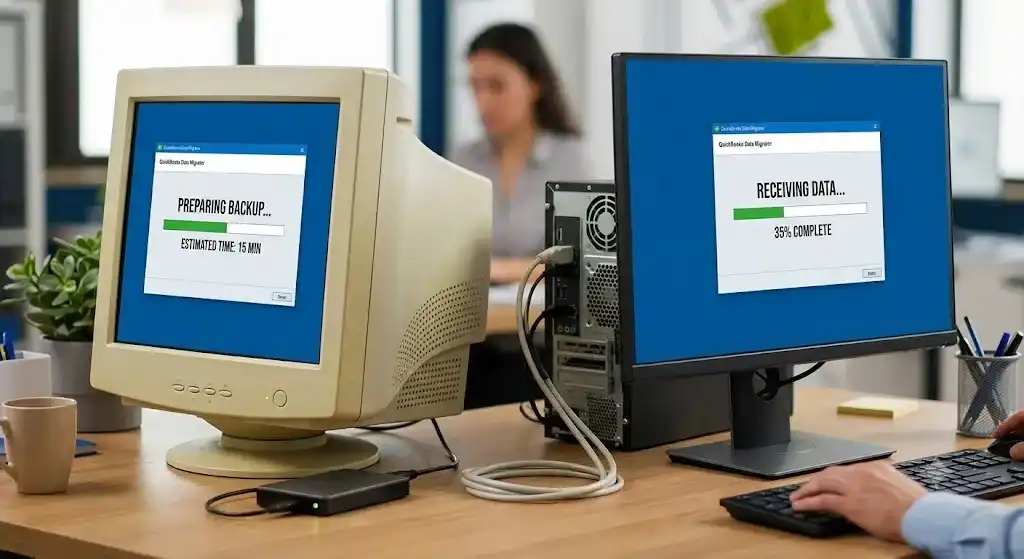
QuickBooks Desktop is widely used by businesses that need reliable access to company files across multiple computers. When the software works over a network, even a small connectivity problem can prevent users from opening company files, switching to multi-user mode, or saving transactions. Network problems may appear as H202, H505, H101, H303, connection-lost messages, or company-file access errors.
The good news is that most QuickBooks Desktop network connectivity problems can be resolved by checking the network connection, hosting settings, firewall configuration, folder permissions, and QuickBooks Database Server Manager. This guide explains practical steps you can follow to restore connectivity and reduce the chances of the problem returning.
Common Reasons QuickBooks Desktop Loses Network Connectivity
Before changing settings, it is useful to understand what can cause the problem. QuickBooks Desktop depends on communication between the workstation and the computer that stores the company file.
Common causes include:
- Unstable or disconnected network connections
- Incorrect hosting settings
- Windows firewall blocking QuickBooks
- Incorrect folder-sharing permissions
- Database Server Manager not running correctly
- Damaged or outdated network configuration files
- Problems with the company-file location
- Incorrect server or workstation configuration
- Power-saving settings interrupting the connection
- Problems with routers, cables, or network protocols
Intuit also identifies firewall configuration, folder permissions, internet settings, and network instability as common causes of company-file connection problems.
Step 1: Check the Network Connection
Start with the simplest troubleshooting step. Make sure the computer running QuickBooks Desktop is connected to the same network as the computer hosting the company file.
If possible, use a stable wired connection instead of relying on an unstable wireless connection. QuickBooks support guidance recommends checking the connection between the workstation and the server when company files are stored on another computer.
You can also test whether the workstation can communicate with the server.
Open Command Prompt and use the following process:
- Press Windows + R.
- Type
cmdand press Enter. - Type
ipconfig /all. - Identify the server or host computer name.
- Enter
ping servername. - Press Enter.
If you receive replies from the server, the basic network connection is working. Packet loss or failed responses may indicate a network problem that needs to be addressed before troubleshooting QuickBooks itself. Intuit recommends pinging the server when a company file cannot be found over a network.
Step 2: Restart the Server and Workstations
A simple restart can resolve temporary communication problems.
First, make sure other users are not working in the company file. Close QuickBooks Desktop on all workstations. Restart the computer that stores the company file, then restart the workstations.
After the computers restart, open QuickBooks Desktop again and try accessing the company file.
Restarting can refresh network services and the Database Server Manager. Intuit specifically recommends restarting the server and workstations when a connection to the company file has been lost.
Step 3: Verify the Company File Location
The company file should remain in a shared folder on the server or host computer. If the file has been moved, renamed, or the mapped network location is unavailable, QuickBooks may not be able to access it.
On the server, locate the company file and confirm that the expected .QBW file exists.
From the workstation, try browsing to the shared folder through Windows File Explorer. If you cannot access the shared folder, the problem is likely related to Windows networking, sharing, or permissions rather than QuickBooks.
Avoid moving the company file unnecessarily. If you do need to move it, ensure the new folder is properly shared and accessible to authorized QuickBooks users.
Step 4: Check QuickBooks Hosting Settings
Incorrect hosting settings can interfere with multi-user connectivity.
On a workstation, open QuickBooks Desktop and go to:
File → Utilities
If you see Host Multi-User Access, hosting is already disabled on that workstation. Do not enable it unless the workstation is supposed to act as the host.
If you see Stop Hosting Multi-User Access, select it to turn off hosting on the workstation.
The computer that stores and hosts the company files should be configured appropriately for multi-user access. Incorrect hosting configurations can contribute to H202, H505, H101, and H303 errors because these errors occur when QuickBooks cannot communicate properly with the server.
Step 5: Use QuickBooks Tool Hub
QuickBooks Tool Hub provides several tools designed to troubleshoot common QuickBooks Desktop problems.
Download and install the latest Tool Hub version from the official QuickBooks source, then open it after closing QuickBooks Desktop.
For network-related problems, select Network Issues.
Depending on the problem, you can use tools such as QuickBooks Database Server Manager and QuickBooks File Doctor. Intuit states that the Tool Hub can address networking errors and company-file problems.
This is particularly useful when basic network checks do not solve the problem.
Step 6: Run QuickBooks Database Server Manager
The QuickBooks Database Server Manager is an important component when multiple computers need access to a company file.
On the server computer:
- Open QuickBooks Tool Hub.
- Select Network Issues.
- Open QuickBooks Database Server Manager.
- Locate the folder containing the company file.
- Start a scan.
- Allow the scan to complete.
- Reopen QuickBooks on the workstations.
Database Server Manager helps QuickBooks identify and manage company files in a network environment. Intuit recommends using it on the server when troubleshooting H202 and related multi-user connection errors.
Step 7: Check Windows Firewall Settings
Windows Firewall can sometimes block QuickBooks from communicating with the company file or other computers on the network.
If QuickBooks suddenly stops connecting after a Windows update, security change, or firewall configuration change, review the firewall settings.
You can use QuickBooks Tool Hub and File Doctor first. If the issue continues, firewall rules may need to be configured manually.
The general process is:
- Open Windows Firewall with Advanced Security.
- Select Inbound Rules.
- Create the required QuickBooks rules.
- Select Outbound Rules and configure the corresponding access.
- Ensure the appropriate QuickBooks programs and ports are allowed.
- Save the changes and restart QuickBooks.
Intuit provides specific firewall configuration instructions because blocked QuickBooks programs or ports can prevent network communication.
Only change firewall settings if you understand the Windows security implications or have assistance from an IT professional.
Step 8: Check Folder Permissions
QuickBooks users need appropriate permissions to access the folder containing the company file.
Right-click the company-file folder in Windows and review its sharing and security settings. Make sure authorized users can access the folder over the network.
Incorrect folder permissions are one of the documented causes of company-file connection errors.
If multiple users require access, verify permissions on the server rather than changing settings on only one workstation.
Step 9: Check the Network Data File
QuickBooks Desktop uses Network Data files with the .ND extension to help identify the database server associated with a company file.
These files contain network-related configuration information, including server and company-file details. Intuit explains that .ND files are used when QuickBooks Desktop accesses a company file in a network or multi-user environment.
If the network configuration has changed, the .ND file may need to be recreated or refreshed.
Before making changes, close QuickBooks on all computers and create a backup of important company data.
Step 10: Use QuickBooks File Doctor
If the network appears to be working but QuickBooks still cannot access the company file, run QuickBooks File Doctor from Tool Hub.
Open:
QuickBooks Tool Hub → Company File Issues → QuickBooks File Doctor
Select the company file and choose the network-related checking option when available.
File Doctor can help identify certain company-file and network-related issues. Intuit recommends it as part of troubleshooting when QuickBooks cannot properly communicate with a company file.
After the scan finishes, reopen QuickBooks and test the connection again.
Step 11: Open the Company File Using the Network Path
If a mapped network drive is not working correctly, try accessing the company file through its network location.
A UNC path generally follows a format such as:
\\ServerName\SharedFolder\
From QuickBooks Desktop, use File → Open or Restore Company and navigate to the network location.
Using the server’s network path can help determine whether the problem is related to a mapped drive rather than the company file itself. Intuit recommends using a UNC path when troubleshooting certain network company-file connection problems.
Step 12: Update QuickBooks Desktop
An outdated QuickBooks Desktop installation may contain compatibility or networking problems that have already been addressed in a newer release.
Open QuickBooks Desktop and check for available updates. Install the latest supported release for your version and restart the application.
Updating QuickBooks is also included among Intuit’s recommended solutions for company-file connection errors how to fix QuickBooks Desktop network connection”.
Step 13: Check Power-Saving Settings
Power-saving settings can sometimes interrupt network communication, particularly when the server computer enters sleep mode.
If the company file is stored on a computer that frequently goes to sleep, review its Windows power settings.
Make sure the server remains available during working hours and does not unexpectedly disconnect from the network.
Intuit specifically lists power-saving behavior as one possible factor when a QuickBooks Desktop company-file connection is repeatedly lost.
Preventing Future QuickBooks Network Problems
After restoring connectivity, take a few preventive steps:
- Keep QuickBooks Desktop updated.
- Keep QuickBooks Tool Hub available for troubleshooting.
- Use a reliable network connection.
- Avoid unnecessarily moving company files.
- Maintain correct shared-folder permissions.
- Keep firewall rules properly configured.
- Make sure Database Server Manager is functioning on the server.
- Regularly back up the company file.
- Avoid putting the server computer into sleep mode during business hours.
- Keep the server and workstations on a stable network.
These practices can reduce recurring network interruptions and make troubleshooting easier when an issue occurs.
Final Thoughts
Restoring network connectivity in QuickBooks Desktop usually requires checking the connection between the workstation and server rather than focusing on the QuickBooks application alone. Start by testing the network, restarting the server and workstations, confirming the company-file location, and checking hosting settings.
If the problem continues, use QuickBooks Tool Hub, Database Server Manager, File Doctor, firewall configuration, folder permissions, and network-path troubleshooting. H202, H505, H101, and H303 errors are commonly associated with blocked communication between QuickBooks workstations and the server.
By following these steps in order, businesses can identify the source of network connectivity problems and restore access to their QuickBooks Desktop company files with less disruption.