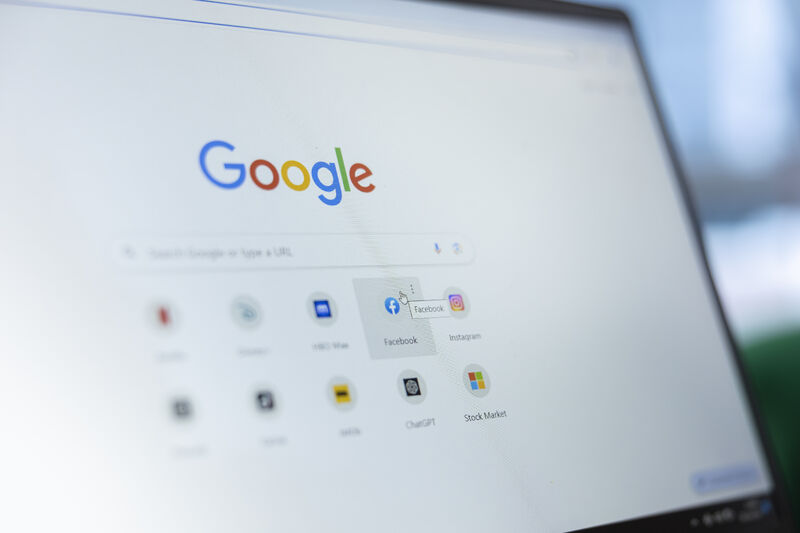
Almost everyone uses Google Chrome every day to browse websites, search for information, watch videos, shop online, and connect with others. Yet many users still wonder about the meaning of the text displayed at the top of the browser that says search Google or type a URL. This simple phrase appears in Chrome’s address bar and serves an important purpose in making web browsing easier and faster.
The Chrome address bar, also known as the Omnibox, combines two powerful functions into one convenient tool. It lets users search for information on the internet and directly visit websites by entering their web addresses. Because these two tasks are merged into a single field, many people become confused about how it actually works.
Understanding the Chrome search bar and web addresses can improve your browsing experience. It helps you navigate the internet more efficiently, avoid mistakes, and reach websites quickly without unnecessary steps.
In this article, we’ll explain what the Google Chrome search bar means, how web addresses work, and why this feature has become an essential part of modern internet browsing.
Understanding the Google Chrome Search Bar
When you open Google Chrome, you’ll notice a long bar at the top of the browser window. This is called the address bar or Omnibox. It is designed to handle multiple tasks at once.
You can use it to:
- Search for information online
- Visit a specific website
- Find bookmarks
- Access browsing history
- Perform quick calculations
- Search for files and settings
The phrase search Google or type a URL simply tells users that they can either enter search terms or type a website address in the same field.
For example:
- Typing “best smartphones in 2026” performs a Google search.
- Typing “youtube.com” takes you directly to YouTube.
This dual-purpose functionality saves time and makes internet browsing more convenient.
What Is a URL?
URL stands for Uniform Resource Locator. It is the unique address used to locate a webpage on the internet.
A URL usually contains several parts:
Protocol
The protocol tells your browser how to connect to a website.
Examples:
- https://
- http://
Most modern websites use HTTPS because it provides a secure connection.
Domain Name
The domain is the website’s name.
Examples:
- google.com
- amazon.com
- wikipedia.org
Path
The path directs users to a specific page within the website.
Example:
https://example.com/blog/article
In this case:
- Domain: example.com
- Path: /blog/article
URLs act like home addresses on the internet. They tell your browser exactly where to find a website.
Why Does Chrome Combine Search and URL Functions?
Years ago, browsers had separate boxes:
- One for website addresses
- Another for search queries
Google simplified this process by creating the Omnibox.
Today, users can perform both actions from one place. This design provides several benefits:
Faster Browsing
Users no longer need to decide which box to use.
Better User Experience
Everything is accessible from a single field.
Smart Suggestions
Chrome predicts websites and search queries as you type.
Increased Productivity
Users can quickly reach websites and information without extra steps.
The phrase search Google or type a URL is essentially a guide that reminds users of these two available actions.
How Does the Chrome Address Bar Work?
The Omnibox is powered by intelligent algorithms.
When you type something, Chrome determines whether you are:
- Searching for information
- Visiting a website
For example:
Search Query
Typing:
Best places to visit in Europe
Chrome understands that you want search results.
Website Address
Typing:
facebook.com
Chrome recognizes it as a web address and opens the site directly.
In some cases, Chrome may ask for clarification if your input could mean either a website or a search term.
Difference Between Searching and Typing a URL
Many users confuse these two actions.
Searching
Searching means asking Google to find information.
Example:
- Best laptops for students
- Weather today
- Healthy breakfast ideas
Google provides a list of results related to your query.
Typing a URL
Typing a URL means entering a website’s exact address.
Example:
- instagram.com
- netflix.com
- wikipedia.org
The browser immediately opens that website.
Knowing the difference can make browsing faster and more efficient.
Why Do Some People Get Confused?
Several reasons cause confusion regarding the Chrome search bar.
Similar Appearance
Both searches and URLs are entered into the same box.
Lack of Technical Knowledge
Not everyone understands what a URL actually is.
Browser Automation
Chrome automatically guesses what users want, making the process appear mysterious.
New Internet Users
Beginners often think every website must be found through Google first.
In reality, entering the website address directly can save time.
Benefits of Understanding Web Addresses
Learning how URLs work offers many advantages.
Faster Navigation
You can visit websites directly.
Improved Security
Recognizing legitimate website addresses helps avoid scams.
Better Productivity
You spend less time searching and more time accessing information.
Easier Troubleshooting
Understanding URLs helps solve browsing issues.
Enhanced Digital Skills
Internet literacy is becoming increasingly important in everyday life.
Security and Website Addresses
Understanding URLs also protects users from cyber threats.
Scammers often create fake websites with addresses that look similar to legitimate ones.
Examples:
- amaz0n.com
- faceboook.com
- paypa1.com
Checking the website address carefully can prevent:
- Identity theft
- Phishing attacks
- Financial fraud
- Malware infections
Whenever possible, ensure websites use:
- HTTPS
- Correct spelling
- Trusted domain names
Features of the Chrome Omnibox
Google continuously improves the Chrome search bar by adding helpful features.
Auto-Complete Suggestions
Chrome predicts what you are typing.
Search Recommendations
Popular searches appear instantly.
Quick Calculations
Type:
500 x 25
The answer appears immediately.
Unit Conversions
Type:
10 miles in kilometers
Chrome provides instant results.
Weather Information
Type:
Weather in New York
Chrome displays the forecast.
These features make the browser much more than a simple search box.
Common Mistakes Users Make
Many users unknowingly make browsing mistakes.
Searching for Website Names Instead of URLs
Some users search for:
Instead of simply typing:
facebook.com
Entering Incomplete Addresses
Typing only part of a website address can sometimes lead to errors.
Clicking Suspicious Search Results
Fraudulent websites may appear in search results.
Ignoring Security Indicators
Users often overlook warning signs in website addresses.
Understanding the Chrome address bar helps reduce these problems.
Tips for Using Chrome More Efficiently
Memorize Frequently Used Websites
Type website addresses directly.
Use Bookmarks
Save websites you visit often.
Pay Attention to Suggestions
Chrome’s recommendations can save time.
Learn Basic URL Structure
Recognizing website components improves internet navigation.
Keep Chrome Updated
New versions provide better performance and security.
The message search Google or type a URL serves as a simple instruction, but understanding its purpose can significantly improve your online experience.
The Future of Browser Search Bars
Browsers continue to become smarter every year.
Artificial intelligence is making search bars more capable by:
- Understanding natural language
- Predicting user needs
- Providing personalized suggestions
- Offering voice search capabilities
- Enhancing security protections
Despite these advancements, the basic concept remains the same. Users either search for information or directly visit a website through a URL.
The phrase search Google or type a URL may appear simple, but it represents one of the most user-friendly innovations in modern web browsing.
Conclusion
The Google Chrome search bar is much more than a place to enter search queries. It is a powerful navigation tool that combines internet searching and website access into a single, convenient feature.
Understanding the difference between a search query and a URL helps users browse faster, improve productivity, and stay safer online. The Chrome Omnibox was designed to simplify internet usage, allowing anyone to find information or visit websites with minimal effort.
The next time you open Chrome and see search Google or type a URL, you’ll know that this small message represents two essential functions that power nearly every online activity. By learning how the address bar and web addresses work, you can become a more confident and efficient internet user.