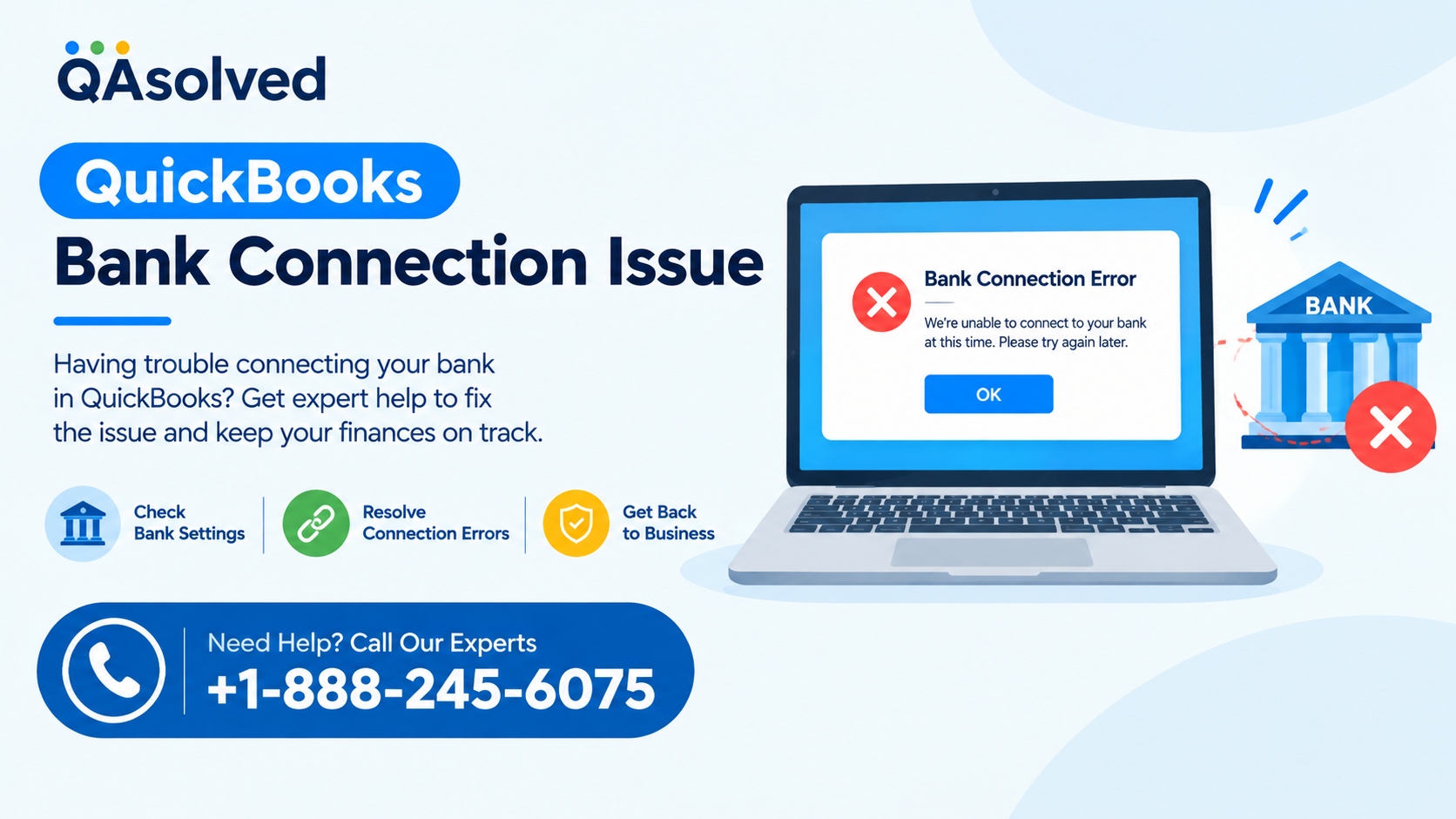
QuickBooks Online makes it easier to connect your bank and credit card accounts so you can automatically download transactions. However, the connection may sometimes expire or stop working because of security updates or changes made by the financial institution. When this happens, you may see QuickBooks Bank Connection Issue Error 350.
Error 350 generally indicates that the secure connection between QuickBooks and your bank account is no longer active. Re-establishing the connection can help restore automatic transaction downloads and keep your bank feed working normally.
This guide explains how to fix QuickBooks Bank Connection Issue Error 350 for both individual and multiple QuickBooks company setups.
What Does QuickBooks Bank Connection Error 350 Mean?
QuickBooks Bank Connection Error 350 occurs when the connection between QuickBooks Online and your bank or credit card account expires or requires authorization again.
Banks may periodically require users to reconnect their accounts for security purposes. The frequency can vary depending on the financial institution. Some banks may require reconnection after a certain period, while others may require it after changing their security or login systems.
When the connection expires, QuickBooks may stop downloading new transactions until you reauthorize the bank connection.
Common Reasons for Error 350
Several situations can trigger this QuickBooks Bank Connection Issue, including:
- Your bank connection has expired.
- Your financial institution changed its online banking security settings.
- Your bank updated its login or authentication process.
- The bank requires you to authorize QuickBooks again.
- Multiple QuickBooks companies are using the same bank login.
- The bank allows only one active connection for the same online banking credentials.
Before troubleshooting, make sure you can successfully sign in to your bank’s website with the same credentials used in QuickBooks.
Best Practices to Prevent QuickBooks Bank Connection Issues
A few simple practices can reduce recurring connection problems.
Assign one person to manage bank connections. If several users work with the same bank login, repeated reconnections can cause one company to reconnect while another becomes disconnected.
Select All Accounts when reconnecting. When your bank asks which accounts you want to share with QuickBooks, select all available accounts, even if you currently use only some of them in QuickBooks.
These practices can help maintain a more stable connection and reduce repeated QuickBooks Bank Connection Issue Error 350 messages.
How to Fix QuickBooks Bank Connection Error 350 for One Account
If only one QuickBooks account is affected, you can usually reconnect the bank or credit card account directly from the Bank transactions page.
Step 1: Open Bank Transactions
Sign in to QuickBooks Online and go to All apps.
Select Accounting, then choose Bank transactions.
Step 2: Select the Affected Bank
Find the bank or credit card account showing the connection error.
Look for the Error 350 notification and select Fix now.
Step 3: Verify Your Bank Login
QuickBooks may ask you to enter the user ID and password you use on your bank’s website.
Enter the correct banking credentials. If your bank requires additional verification, complete the requested security steps.
Step 4: Reconnect the Account
Follow the on-screen instructions and select Save and connect.
If the reconnection succeeds, QuickBooks should display a confirmation that the connection is complete and that transactions have been updated.
Select Close when finished.
What If the Original QuickBooks User Set Up the Bank Connection?
In some situations, the person who originally established the bank connection needs to reauthorize it.
If you see an option such as Send a request in the Error 350 message, select it. QuickBooks can send the original user an email containing instructions for signing back in and restoring the connection.
This approach can be especially useful when the person currently working in the company file is not the user who originally established the bank connection.
How to Troubleshoot Error 350 in a Private Browser
If the bank connection still does not work after entering the correct credentials, browser data may be interfering with the process.
Try signing in to QuickBooks Online through an incognito or private browser window.
For example:
- Chrome: Open an Incognito window.
- Microsoft Edge: Open an InPrivate window.
- Firefox: Open a Private Window.
- Safari: Open a Private Window.
Sign in to QuickBooks and try reconnecting the bank account again.
If the connection works in a private window, clear your regular browser’s cache and cookies, then sign in again.
How to Fix Error 350 When Multiple QuickBooks Companies Use One Bank Login
A more complicated QuickBooks Bank Connection Issue can occur when several QuickBooks companies use the same bank login credentials.
Some financial institutions may allow only one active connection for the same online banking credentials. In this situation, reconnecting the bank in one QuickBooks company can cause another company to lose its connection.
For example, Company A may be disconnected after Company B reconnects using the same bank credentials. Reconnecting Company A may then cause Company B to disconnect again.
This can create a repeated cycle of bank connection errors.
Use a Primary User to Manage Bank Connections
When multiple QuickBooks companies share the same bank login, designate one QuickBooks user to handle bank connection maintenance.
The designated user can manage tasks such as:
- Adding bank accounts.
- Establishing new bank connections.
- Updating connection settings.
- Reconnecting expired accounts.
- Reauthorizing bank feeds when required.
This approach can help prevent different users from repeatedly reconnecting the same bank credentials across separate companies.
What Can Other QuickBooks Users Still Do?
Designating one person to manage bank connections does not mean other users cannot work with the financial data.
Depending on their QuickBooks permissions, other team members can continue performing routine tasks such as:
- Refreshing bank feeds.
- Reviewing downloaded transactions.
- Categorizing transactions.
- Matching transactions.
- Reconciling accounts.
- Reviewing banking activity.
The key is to avoid having multiple users independently change or reauthorize the same bank connection.
What to Check Before Reconnecting Your Bank
Before attempting another fix for QuickBooks Bank Connection Error 350, check the following:
- Confirm that your bank’s website is working normally.
- Sign in directly to the bank using your current credentials.
- Check whether the bank has requested additional security verification.
- Make sure you are using the correct QuickBooks company.
- If multiple companies share the same bank login, identify the primary connection manager.
- Select all relevant accounts when the bank asks which accounts to share.
- Try a private browser window if the connection process does not work normally.
These checks can help identify whether the problem comes from expired authorization, banking credentials, browser data, or multiple-company connections.
When Should You Contact QuickBooks Support?
If Error 350 continues after reconnecting the account and completing browser troubleshooting, the issue may require additional investigation.
Contact QuickBooks Support if:
- Your bank credentials are correct but the connection still fails.
- The bank connection repeatedly expires.
- Multiple QuickBooks companies keep disconnecting.
- Your bank has changed its online banking system.
- You cannot reconnect an account after following the available prompts.
When contacting support, explain whether the issue affects one QuickBooks company or multiple companies. Also mention whether the same bank login is being used across those companies. This information can help support representatives understand the setup and identify the appropriate next step.
Final Thoughts
QuickBooks Bank Connection Issue Error 350 usually appears when the secure connection between QuickBooks Online and your bank or credit card account expires or requires renewed authorization. Reconnecting the affected account, verifying your bank credentials, and completing any required security steps can restore the connection.
If several QuickBooks companies use the same bank login, establish one primary user to manage bank connections. This can help prevent repeated disconnections caused by multiple reconnection attempts.
Keeping your banking credentials current and reviewing connection alerts regularly can also make it easier to maintain reliable bank feeds and download transactions without unnecessary interruptions.
Frequently Asked Questions
1. What is QuickBooks Bank Connection Error 350?
QuickBooks Bank Connection Error 350 occurs when the secure connection between QuickBooks Online and your bank or credit card account expires or needs to be reauthorized. Reconnecting the account can usually restore the bank feed.
2. How do I fix QuickBooks Bank Connection Error 350?
Go to Accounting > Bank transactions, select the affected bank account, and choose Fix now. Enter your current bank login information and follow the prompts to reconnect the account.
3. Why does my QuickBooks bank connection keep expiring?
Your bank may periodically require you to reauthorize the connection for security reasons. Changes to the bank’s website, login system, or security requirements can also cause the connection to expire.
4. Can incorrect bank credentials cause Error 350 in QuickBooks?
Yes. If your bank user ID or password has changed, QuickBooks may not be able to maintain the connection. Verify your credentials by signing in directly to your bank’s website before reconnecting the account.
5. How can I resolve a QuickBooks Bank Connection Issue when multiple companies use the same bank login?
Designate one QuickBooks user to manage the bank connections for all companies that use the same bank credentials. This can help prevent one reconnection from disconnecting another company.
6. Can I fix QuickBooks Error 350 using an incognito browser?
Yes. If the normal browser session is interfering with the connection process, open QuickBooks Online in an incognito or private window and try reconnecting the bank account again.
7. Why does reconnecting one QuickBooks company disconnect another?
Some banks may allow only one active connection for the same online banking credentials. When one QuickBooks company reconnects, the bank may replace the existing connection, causing another company using those credentials to become disconnected.
8. Should I select all accounts when reconnecting my bank to QuickBooks?
Yes. When your bank asks which accounts you want to share with QuickBooks, selecting All Accounts can help prevent connection problems involving accounts that are already linked or need to be maintained.
9. What should I do if QuickBooks Error 350 still appears after reconnecting?
First, verify your bank credentials and check whether your bank requires additional security verification. Then try QuickBooks Online in a private browser window. If the problem continues, contact QuickBooks Support for help reviewing the connection.
10. How can I prevent future QuickBooks Bank Connection Issues?
Assign one person to manage bank connection setup, reconnection, and authorization across your QuickBooks companies. Other users can continue reviewing, categorizing, matching, and reconciling transactions without changing the bank connection settings.