QuickBooks Desktop is widely used for managing accounting records, invoices, expenses, payments, payroll, reports, and other important business activities. Although the installation process is designed to be straightforward, users can sometimes encounter problems while setting up the software on a Windows computer.
The installation may stop before completion, display an unexpected message, freeze during setup, or fail when Windows tries to install one of the required components. In some cases, QuickBooks may install successfully but refuse to open afterward.
If you are facing this situation, there is no need to immediately assume that the software or your computer is permanently damaged. A QuickBooks Desktop install problem can often be connected to Windows components, permissions, an incomplete previous installation, damaged setup files, or another application interfering with the installer.
This guide explains several practical ways to identify and fix the problem.
Why Does QuickBooks Desktop Installation Fail?
There can be several reasons why QuickBooks Desktop does not install correctly. Understanding the possible cause can make troubleshooting faster.
Common reasons include:
- Damaged QuickBooks installation files
- An incomplete previous installation
- Outdated Windows components
- Problems with Microsoft .NET Framework
- Issues with Microsoft MSXML
- Windows Installer problems
- Insufficient folder permissions
- Another installation running in the background
- Antivirus or security software interfering with setup
- A damaged Windows user profile
- Temporary folder permission problems
- Incorrect or outdated installation media
For example, Intuit’s current troubleshooting guidance identifies Windows components, installation files, permissions, and third-party applications as possible factors in different installation errors.
The important thing is to troubleshoot the problem in an organized order rather than repeatedly launching the installer.
1. Restart the Computer
The first step is also one of the easiest.
Restart Windows before attempting another installation.
A restart can close background processes, complete pending Windows changes, release locked files, and clear temporary installation activity.
After restarting:
- Sign in to Windows.
- Close unnecessary applications.
- Make sure no other software is being installed.
- Run the QuickBooks installer again.
If the setup still fails, continue with the next solution.
2. Make Sure You Have the Correct QuickBooks Installer
Sometimes the installation problem is caused by the installer itself.
An incomplete, damaged, or inappropriate installation file may repeatedly fail even when Windows is working normally.
Before trying advanced troubleshooting, confirm that you are using the correct installer for your QuickBooks product and version.
For certain QuickBooks installation situations, Intuit specifically recommends using the latest available installation file instead of relying on an older original installer.
If you have used the same installer several times without success, obtaining a fresh installer can be a useful next step.
3. Run the Installer as Administrator
Windows permissions can prevent setup from creating or modifying files in protected folders.
Try running the installer with administrator privileges.
Right-click the QuickBooks setup file and select Run as administrator. If Windows displays a User Account Control message, approve it and continue with the setup.
This can be especially useful when the error indicates that the installer cannot access a particular folder.
For example, Intuit explains that Error 1303 can occur when the installer does not have sufficient privileges to access a required directory.
If administrator access does not solve the issue, continue rather than repeatedly running the installer.
4. Use QuickBooks Tool Hub
The QuickBooks Tool Hub is one of the most useful troubleshooting resources for common QuickBooks Desktop problems.
Intuit’s current Tool Hub guidance includes dedicated tools for installation and uninstall problems.
To troubleshoot an installation problem:
- Close QuickBooks Desktop.
- Open QuickBooks Tool Hub.
- Select Installation Issues.
- Choose QuickBooks Install Diagnostic Tool.
- Allow the tool to complete its process.
- Restart the computer.
- Try installing QuickBooks again.
The Install Diagnostic Tool can take up to about 20 minutes, so allow it enough time to finish rather than closing it midway.
For many users, this is a better starting point than manually changing Windows components.
5. Update Windows
An outdated Windows environment can contribute to software installation failures.
Open Windows Update and check whether updates are available. Install the appropriate updates and restart the computer.
After Windows has finished updating, try the QuickBooks installation again.
Intuit includes Windows updates among its recommended steps for resolving certain QuickBooks Desktop installation errors.
Updating Windows can also help when QuickBooks requires a system component that is missing or outdated.
6. Check Microsoft .NET Framework
QuickBooks Desktop depends on several Windows components. One of the important components is Microsoft .NET Framework.
If .NET Framework is damaged or incorrectly configured, QuickBooks installation may fail.
This is particularly relevant to certain installation error codes. For example, Intuit notes that Error 1334 during installation can be associated with a damaged .NET Framework or a missing or damaged QuickBooks installation file.
The recommended approach is to run the QuickBooks Install Diagnostic Tool first. If the problem remains, .NET Framework may need to be repaired or reinstalled.
Because .NET Framework is a Windows component, users who are uncomfortable with system repairs should consider getting assistance from a qualified Windows professional.
7. Check Microsoft MSXML
MSXML is another Windows component that can affect QuickBooks installation.
If the QuickBooks Diagnostic Tool and Windows updates do not resolve the issue, MSXML may need to be checked.
Intuit recommends manual Windows component repairs primarily for users who are comfortable working with Windows or have help from an IT professional.
Do not download system components from random websites. Use trusted Microsoft or Intuit resources when repairing Windows.
8. Make Sure Another Installation Is Not Running
Windows may prevent QuickBooks from installing while another software installation is already in progress.
This can happen after:
- A Windows update
- Another software installation
- A Microsoft component update
- An earlier QuickBooks installation attempt
One example is QuickBooks Error 1618, which indicates that another installation is already running. Intuit recommends checking for another Windows Installer process when troubleshooting this problem.
If you recently installed another program, allow that process to finish. Restart the computer and then try QuickBooks again.
9. Check Antivirus and Security Software
Security applications protect your computer, but they can occasionally interfere with software installation.
If QuickBooks setup stops at a particular point every time, check whether your antivirus or security program has blocked an installation file.
Look at the security application’s:
- Protection history
- Quarantine section
- Blocked application list
- Security notifications
Do not permanently disable your antivirus just to install QuickBooks.
If security software is suspected of interfering, use the security provider’s recommended method for allowing a trusted application.
Intuit also identifies third-party security applications as a possible reason for using Selective Startup during installation troubleshooting.
10. Try Selective Startup
Selective Startup allows Windows to start with a limited selection of services and startup applications.
This can help determine whether another program is interfering with QuickBooks installation.
Intuit recommends Selective Startup as a troubleshooting option when third-party applications may be preventing QuickBooks from installing correctly.
If QuickBooks installs successfully in this environment, another startup application or service may be responsible for the original problem.
After troubleshooting, return Windows to its normal startup configuration.
11. Check the Exact Error Message
A specific error code can provide a valuable clue.
Instead of searching only for “QuickBooks won’t install,” record the exact number displayed by the installer.
QuickBooks Error 1303
This error can indicate insufficient privileges to access a particular installation directory.
QuickBooks Error 1334
This can be associated with missing or damaged QuickBooks installation files or a damaged .NET Framework.
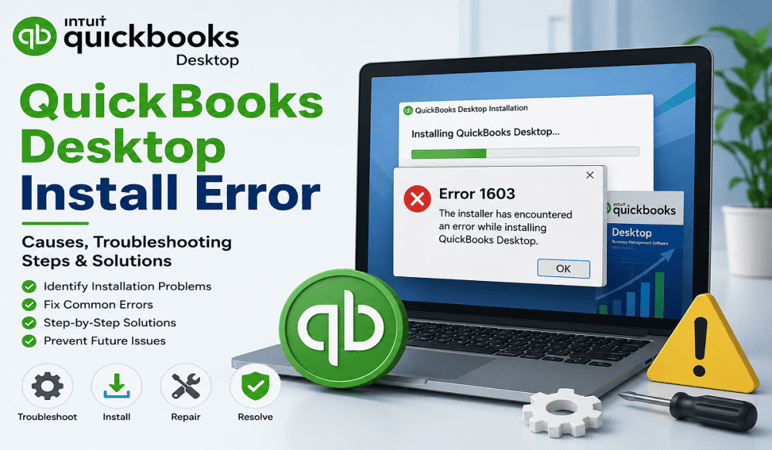
QuickBooks Error 1603
This is a common installation error that may involve Windows components or the installation environment. Intuit recommends starting with the Install Diagnostic Tool and Windows updates.
QuickBooks Error 1618
This generally means another installation process is already running.
QuickBooks Error 1712
This can occur when Windows components required to restore the system state are missing. Intuit recommends QuickBooks Tool Hub and related Windows troubleshooting steps.
QuickBooks Error 1723
This indicates a problem with the Windows Installer package. Intuit’s troubleshooting guidance includes checking permissions for the Windows TEMP folder and using the QuickBooks Tool Hub.
Identifying the error code first can save time because different installation problems require different solutions.
12. Check the Windows TEMP Folder
Certain installation errors can be connected to the Windows temporary folder.
For example, Intuit’s guidance for Error 1723 includes checking permissions for the %temp% folder.
To access it, type:
%temp%
into the Windows search field or Run dialog.
If the installation error specifically points toward TEMP permissions, review the folder’s security settings.
Avoid changing permissions on system folders unless you understand what you are changing. Incorrect permissions can create additional Windows problems.
13. Repair the Existing QuickBooks Installation
If QuickBooks was previously installed on the computer, damaged program files may interfere with another setup attempt.
Instead of immediately uninstalling everything, you may be able to repair the existing installation.
Intuit recommends using QuickBooks Tool Hub’s Quick Fix my Program for certain program problems. The tool closes QuickBooks background processes and performs a quick repair.
After using the repair option:
- Restart Windows.
- Open QuickBooks.
- Check whether the program launches normally.
- If the installation problem continues, run the Install Diagnostic Tool.
- Reinstall QuickBooks if necessary.
14. Check Windows User Permissions
A Windows account with restricted permissions can interfere with software installation.
If the installer repeatedly fails even after using the Diagnostic Tool, consider testing the installation with a Windows administrator account.
Intuit recommends creating or using an administrator account as one possible troubleshooting method for certain installation-related problems.
If QuickBooks installs successfully under another administrator profile, the original Windows account may have a permissions or profile-related problem.
15. Reinstall QuickBooks if Necessary
Sometimes the existing QuickBooks installation is too damaged to repair.
In that situation, reinstalling the software may be necessary.
Before reinstalling:
- Back up important company files.
- Confirm your QuickBooks product and version.
- Keep your license or subscription information available.
- Use an appropriate installation file.
- Close QuickBooks and related processes.
- Restart Windows before beginning the new installation.
Removing QuickBooks from Windows does not mean you should delete your company files. Keep accounting data separate from the application itself.
16. Fix Windows Installer Problems Carefully
Some installation errors are caused primarily by Windows Installer rather than QuickBooks.
For example, Intuit identifies Error 1628 as a failed script-based installation that can occur when the Windows Installer service is not functioning correctly.
Other errors can also point toward Windows Installer problems.
If Windows Installer itself appears damaged, avoid making random Registry changes or deleting system files.
If you are not comfortable with Windows administration, it is safer to get assistance from an IT professional or Windows specialist.
Quick Checklist for Fixing QuickBooks Desktop Install Problems
Before moving to advanced troubleshooting, work through this checklist:
- Restart Windows.
- Verify the QuickBooks installation file.
- Run the installer as administrator.
- Install pending Windows updates.
- Open QuickBooks Tool Hub.
- Select Installation Issues.
- Run the QuickBooks Install Diagnostic Tool.
- Restart the computer after the diagnostic process.
- Check the exact error code.
- Check .NET Framework when indicated.
- Check MSXML when indicated.
- Make sure another installation is not running.
- Review antivirus or security alerts.
- Try Selective Startup if necessary.
- Check TEMP permissions for relevant errors.
- Repair an existing QuickBooks installation.
- Test with a Windows administrator account.
- Reinstall QuickBooks using an appropriate fresh installer.
Mistakes to Avoid
When QuickBooks refuses to install, users sometimes make the problem worse by trying too many fixes at once.
Avoid:
- Downloading QuickBooks setup files from unknown websites
- Deleting random Windows system files
- Removing Registry entries without understanding them
- Permanently disabling antivirus protection
- Changing folder permissions unnecessarily
- Deleting QuickBooks company files during an uninstall
- Repeatedly installing multiple versions without checking the cause
- Interrupting diagnostic tools before they finish
A systematic approach is safer and usually makes it easier to identify the real cause.
When Should You Seek Technical Assistance?
If QuickBooks still refuses to install after running the Install Diagnostic Tool, updating Windows, checking the installation file, and addressing the relevant Windows components, the issue may be related to the operating system itself.
Professional assistance may be appropriate if:
- Other applications are also failing to install.
- Windows Installer is malfunctioning.
- Windows system components appear damaged.
- You have complicated permission problems.
- Multiple QuickBooks versions are conflicting.
- You are uncomfortable modifying Windows components.
This is especially important when the computer contains valuable accounting records.
Final Thoughts
A QuickBooks Desktop install problem can interrupt important accounting work, but many installation failures can be resolved without drastic changes to the computer.
Start with simple troubleshooting: restart Windows, verify the installer, run the setup with administrator privileges, and install pending Windows updates. Then use QuickBooks Tool Hub and the Install Diagnostic Tool to address common installation problems.
If the issue continues, identify the exact error code and investigate the related Windows component. Problems involving .NET Framework, MSXML, Windows Installer, permissions, or the TEMP folder may require more specialized troubleshooting.
The key is to avoid random fixes. Work through the solutions one at a time, protect your company files, and use trusted QuickBooks and Windows resources. With the right troubleshooting approach, many QuickBooks Desktop installation problems can be resolved and the software can be returned to normal operation.