QuickBooks Enterprise API Integration: The Complete Developer and Systems Architecture Guide
Growing mid-market enterprises depend on interconnected software systems to eliminate duplicate data entry, accelerate order-to-cash cycles, and maintain accurate financial ledgers.
When businesses expand their tech stacks—integrating enterprise resource planning (ERP) extensions, custom CRM platforms, automated e-commerce storefronts, or warehouse management systems (WMS)—establishing a dependable QuickBooks Enterprise API Integration becomes essential.
Unlike cloud-native platforms that communicate through standard public REST endpoints, QuickBooks Desktop Enterprise relies on an on-premises relational database architecture (SAP SQL Anywhere).
Integrating external applications with this environment requires an understanding of proprietary communication engines: the QuickBooks Software Development Kit (QBSDK), QBXML request/response schemas, and the QuickBooks Web Connector (QBWC).
This technical guide covers the architecture of QuickBooks Enterprise API integration, data synchronization models, step-by-step connection procedures, and diagnostic workflows for resolving critical synchronization and database errors.
Architectural Foundations: How QuickBooks Enterprise Connects
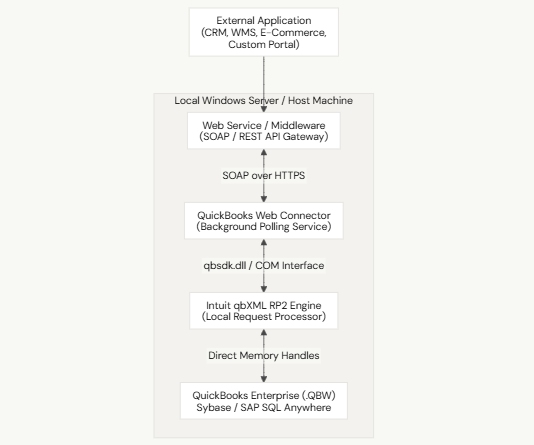
QuickBooks Desktop Enterprise does not expose direct inbound HTTP/REST ports to the open internet for security and architectural reasons. Instead, data exchange operates through two primary technical pathways:
1. The QuickBooks Software Development Kit (QBSDK) & QBXML
The QBSDK allows desktop and local Windows services to communicate directly with QuickBooks through Component Object Model (COM) interfaces (Interop.QBXMLRP2.dll). Data payloads are structured using QBXML—an XML dialect defining financial objects such as <CustomerAddRq>, <InvoiceAddRq>, and <ItemInventoryQueryRq>.
2. The QuickBooks Web Connector (QBWC)
The QuickBooks Web Connector is an Intuit-engineered Windows background utility that bridges the gap between web-based cloud applications and on-premise QuickBooks Desktop Enterprise. It polls designated web services using the Simple Object Access Protocol (SOAP) over secure HTTPS, downloads queued QBXML requests, processes them against the local company file, and posts the resulting execution responses back to your web application.
Core Data Objects Available via API
An enterprise integration supports full Create, Read, Update, and Delete (CRUD) operations across key operational accounting registers:
| Accounting Domain | Primary QBXML Objects | Standard Integration Use Case |
| Sales & Accounts Receivable | CustomerAdd, InvoiceAdd, SalesOrderAdd, ReceivePaymentAdd | Bi-directional CRM synchronization, e-commerce order imports, automatic invoice generation |
| Purchasing & Accounts Payable | VendorAdd, BillAdd, ItemReceiptAdd, PurchaseOrderAdd | Procurement workflows, automated vendor invoice processing, EDI transmissions |
| Inventory & Assemblies | ItemInventoryAdd, ItemInventoryMod, InventoryAdjustmentAdd | Real-time warehouse barcode scanning, multi-bin inventory alignment, assembly builds |
| Banking & General Ledger | JournalEntryAdd, DepositAdd, AccountQuery | Payroll journal entries, merchant processing fee allocations, financial reporting |
5 Powerful Steps to Implement QuickBooks Enterprise API Integration
Connecting a custom portal, CRM, or external web service to QuickBooks Enterprise requires a methodical setup to maintain network security and data consistency:

Step 1: Design and Validate QBXML Schemas
Every request sent to QuickBooks Enterprise must adhere to Intuit’s strict XML Schema Definitions (XSD).
- Example: Creating a new enterprise customer record requires wrapping fields in standard CustomerAddRq containers:
<?xml version=”1.0″ encoding=”utf-8″?>
<?qbxml version=”16.0″?>
<QBXML>
<QBXMLMsgsRq onError=”stopOnError”>
<CustomerAddRq requestID=”1001″>
<CustomerAdd>
<Name>Apex Industrial Logistics</Name>
<CompanyName>Apex Industrial Logistics LLC</CompanyName>
<BillAddress>
<Addr1>100 Technology Parkway</Addr1>
<City>Dallas</City>
<State>TX</State>
<PostalCode>75201</PostalCode>
</BillAddress>
<Phone>214-555-0199</Phone>
</CustomerAdd>
</CustomerAddRq>
</QBXMLMsgsRq>
</QBXML>
Always test XML syntax against the target release schema (e.g., qbxml160 for modern QuickBooks releases) to prevent parser failures.
Step 2: Build and Secure the SOAP Web Service
The external cloud service must implement four mandatory SOAP methods for the QuickBooks Web Connector:
- Server Version(): Handshakes with the connector and verifies supported protocol builds.
- Client Version(): Inspects the version of QBWC installed on the client machine.
- Authenticate(): Validates application username/password and supplies the target .QBW file path.
- SendRequestXML(): Sends the queued QBXML payload to QuickBooks Enterprise.
- Receive ResponseXML(): Receives and parses the execution confirmation or error codes returned by QuickBooks.
- Close Connection(): Safely closes the session handle once transaction queues are empty.
Security Requirement: All web service endpoints must use an active TLS 1.2/1.3 SSL certificate issued by a recognized Certificate Authority (CA). Self-signed certificates will cause QBWC to abort authentication.
Step 3: Generate the Configuration (.QWC) File
The .QWC file is an XML configuration file that registers your web application with the local QuickBooks Web Connector utility.
<?xml version=”1.0″?>
<QBWCXML>
<AppName>Enterprise WMS Order Sync</AppName>
<AppID>App-Enterprise-001</AppID>
<AppURL>https://api.yourdomain.com/qbconnector.asmx</AppURL>
<AppDescription>Synchronizes orders and inventory levels</AppDescription>
<AppSupport>https://yourdomain.com/support</AppSupport>
<UserName>QBIntegrationUser</UserName>
<OwnerID>{90A44FB5-33D9-4815-AC85-AC86A7E7D1EB}</OwnerID>
<FileID>{57F4E51C-7F1D-41CE-A238-C39908F49EEF}</FileID>
<QBType>QBFS</QBType>
<Scheduler>
<RunEveryNMinutes>10</RunEveryNMinutes>
</Scheduler>
</QBWCXML>
Step 4: Authorize Application Rights Inside QuickBooks
- Log into QuickBooks Desktop Enterprise as the primary Admin user in Single-User Mode.
- Launch the QuickBooks Web Connector.
- Click Add an Application, browse to your .QWC file, and click Open.
- When prompted by the QuickBooks Application Certificate dialog:
- Select: “Yes, always; allow access even if QuickBooks is not running.”
- Choose an authorized Windows user with appropriate financial data access permissions.
- Check the box: “Allow this application to access personal data such as Social Security Numbers and customer credit card information” if processing merchant transactions.
- Click Continue, confirm the security summary, and click Done.
Step 5: Test Execution and Establish Background Polling
- In the Web Connector console, locate your newly registered application.
- Enter the secure integration password created for the web service.
- Check the selection box on the left-hand column.
- Click Update Selected.
- Monitor the progress bars (Total Progress and Application Progress) to ensure the handshake finishes with a status message of 100% Complete.
- Switch the company file back to Multi-User Mode so routine staff data entry can proceed without interrupting API synchronization tasks.
Troubleshooting Common QuickBooks Enterprise API Errors
When programmatic data synchronization fails, issues typically originate from permission locks, malformed XML, or database engine conflicts:
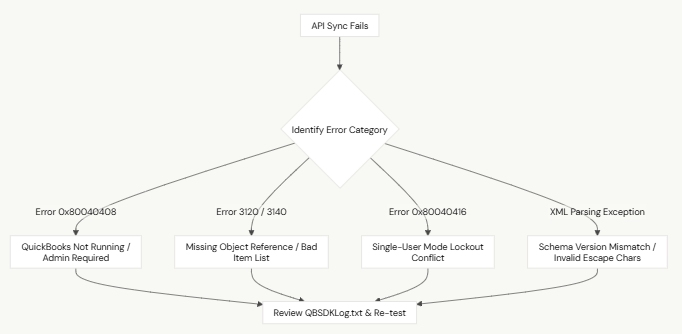
1. Error 0x80040408: “Could not start QuickBooks”
- Cause: The Web Connector was configured to access the company file only when QuickBooks is open, or the path specified in the .QWC file does not match the actual .QBW location.
- Resolution: Re-run the application certificate wizard. Ensure the connection is set to allow access even if QuickBooks is not running, and verify that the company file path uses explicit drive letters rather than unmapped dynamic paths.
2. Error 3120: “Object not found” or Error 3140: “Required field missing”
- Cause: The inbound QBXML payload is referencing an entity that does not exist in the QuickBooks database—such as an invalid Customer Name, inactive Inventory Item, or non-existent Sales Tax Code.
- Resolution: Implement validation queries (ItemQueryRq, CustomerQueryRq) in your middleware to confirm parent dependencies exist before dispatching creation requests (InvoiceAddRq).
3. Error 0x80040416: “Connection closed: File is open in exclusive mode”
- Cause: Another user is performing administrative tasks (such as running payroll, rebuilding data, or updating tax tables) in Single-User Mode, which locks third-party API engines out of the database.
- Resolution: Require all administrative operations to be performed outside core business hours, and build retry-with-backoff logic into your web service queue to handle temporary single-user locks.
4. Special Character Parsing Exceptions
- Cause: Customer names, memo fields, or line-item descriptions contain unescaped XML reserve characters (&, <, >, “, ‘).
- Resolution: Sanitize all incoming string fields with standard XML entities (e.g., convert & to &) before compiling the QBXML payload.
When to Seek Professional Assistance
While standard web-connector integrations handle routine sales order and customer syncing cleanly, certain complex enterprise scenarios require specialized technical support:
- High-Volume Concurrency Bottlenecks: Systems pushing thousands of transactions per hour where synchronous COM queues lead to database deadlocks or –6000 series file damage.
- Complex Multi-Tier Assemblies: Integrations involving multi-level Bills of Materials (BOM), automated serial/lot tracking, or multi-bin inventory allocations that trigger inventory valuation discrepancies.
- Database Catalog Corruption Detected in QBSDK Logs: Detailed log diagnostics in C:\ProgramData\Intuit\QuickBooks\QBSDKLog.txt showing relational database internal errors (Sybase assertion failures).
- Cross-Subnet Enterprise Deployments: Connecting distributed cloud applications to on-premise Windows Server environments running across strict enterprise firewalls, domain controllers, or custom DMZs.
Contact the Data Service Team
When automated integration scripts fail, company file access locks up, or custom applications trigger database corruption, contact specialized enterprise recovery technicians:
- Support Unit: Data Service Team
- Direct Toll-Free Line: +1-(888)-718-7888
The Data Service Team provides secure database extractions, enterprise API architecture optimization, damaged transaction log (.TLG) rebuilds, and comprehensive recovery for QuickBooks Desktop Enterprise files.
Best Practices to Prevent Integration Disruptions
- Dedicated Integration User Account: Never run automated integrations under a general administrator account. Create a designated user profile (e.g., API_Integration_User) with explicit role-based permissions restricted only to necessary financial modules.
- Implement Rate Limiting & Batching: Avoid dispatching individual transactions one at a time. Group records into batch sizes of 25 to 50 items inside a single QBXMLMsgsRq container to reduce database locking overhead.
- Monitor the QBSDK Diagnostic Log: Enable verbose SDK logging when developing or deploying updates by editing C:\ProgramData\Intuit\QuickBooks\qbsdk.ini (Level=VERBOSE). Inspect the generated QBSDKLog.txt regularly to identify slow queries and schema warnings.
- Schedule Automatic Database Backups: Maintain scheduled, verified local backups (.QBB) before running high-volume batch data updates to ensure immediate recovery if an integration script inserts miscalculated journal entries.
Frequently Asked Questions (FAQs)
Does QuickBooks Desktop Enterprise support a native REST API?
No. Unlike QuickBooks Online, which exposes a cloud-based REST API, QuickBooks Desktop Enterprise uses the local QBSDK and QBXML standards. Web-based applications connect through the QuickBooks Web Connector using SOAP services, or via third-party middleware platforms that translate REST requests into QBXML payloads locally.
Can an API integration access QuickBooks Enterprise while multiple users are logged in?
Yes. As long as QuickBooks Enterprise is running in Multi-User Mode and the integration user account has appropriate permissions, third-party applications can read and write data concurrently with active staff sessions.
How often can the QuickBooks Web Connector poll for new data?
The Web Connector scheduler can be set to run at intervals as short as every 1 to 5 minutes. However, for high-volume enterprise files, a 10-to-15-minute polling interval is recommended to prevent continuous file-locking cycles and maintain responsive desktop performance for human users.
What is the maximum size for a company file using API integrations?
QuickBooks Desktop Enterprise can technically support company files of 1 GB or larger. However, high-volume automated API writing can cause the Transaction Log file (.TLG) to expand rapidly. Running regular verified local backups shrinks the .TLG file and preserves fast API query performance.
What is the difference between a QuickBooks Online API setup and a QuickBooks Enterprise API Integration?
A QuickBooks Online API setup relies on a cloud-hosted REST API that exchanges standard JSON payloads via OAuth 2.0 directly over public web endpoints. In contrast, a QuickBooks Enterprise API Integration operates on an on-premise relational database (SAP SQL Anywhere) hosted on local Windows hardware or private cloud servers. It requires using the QuickBooks Software Development Kit (QBSDK), structured QBXML schemas, and the QuickBooks Web Connector (QBWC) over SOAP protocols to read and write records securely without exposing open inbound internet ports.
Can a QuickBooks Enterprise API Integration run while multiple users are actively working in the company file?
Yes. A QuickBooks Enterprise API Integration functions alongside active staff sessions as long as QuickBooks Desktop Enterprise is configured in Multi-User Mode. During initial setup, the administrator must grant application permissions allowing the integration user account to access the file concurrently. The only time an API integration is locked out is when an administrative user switches the company file into Single-User Mode to execute tasks like rebuilding data, closing a fiscal year, or running payroll.
Does a QuickBooks Enterprise API Integration support real-time webhooks?
No, native real-time webhooks are not supported out of the box in a QuickBooks Enterprise API Integration. Because QuickBooks Enterprise runs locally on a private network, it cannot push unsolicited HTTP webhooks to external web servers. Instead, integrations use an automated polling model managed by the QuickBooks Web Connector, which queries web services on a scheduled cadence (such as every 5 to 15 minutes), or local Windows background services that monitor event handles directly via the QBSDK COM interface.
How does a high-volume QuickBooks Enterprise API Integration affect company file size and performance?
A high-volume QuickBooks Enterprise API Integration that processes thousands of invoices, inventory adjustments, or sales receipts can cause the Transaction Log (.TLG) file to grow rapidly relative to the primary .QBW database. If the .TLG file expands unchecked, it introduces database latency and query timeouts. To maintain peak performance, administrators should batch API payloads into groups of 25 to 50 records and schedule routine, verified local backups (.QBB) to reset and truncate the transaction log automatically.
What are the most common error codes encountered during a QuickBooks Enterprise API Integration?
The most frequent errors in a QuickBooks Enterprise API Integration include:
- Error 0x80040408: Occurs when QuickBooks is closed and the application certificate was not configured to allow background access.
- Error 3120 / 3140: Triggered when an inbound QBXML payload references an object (such as an inactive vendor, deleted account, or missing inventory item) that does not exist in the company file.
- Error 0x80040416: Appears when the company file is temporarily locked in exclusive Single-User Mode by another user.
- Error 8004040a: Indicates that multiple integration processes are attempting to open concurrent COM handles to the same company file without releasing locks cleanly.
Can I build a custom REST API wrapper around my QuickBooks Enterprise API Integration?
Yes. Many development teams build or deploy private REST middleware to simplify their QuickBooks Enterprise API Integration. The middleware sits on the local Windows host machine alongside QuickBooks Enterprise, exposes modern REST/JSON endpoints to your cloud applications, and translates those incoming requests into compliant QBXML queries that communicate directly with the local QBSDK Interop.QBXMLRP2 dynamic-link library.
How do I troubleshoot data discrepancies generated by a QuickBooks Enterprise API Integration?
To diagnose and resolve synchronization discrepancies in a QuickBooks Enterprise API Integration:
- Enable verbose logging by editing the configuration file located at
C:\ProgramData\Intuit\QuickBooks\qbsdk.iniand settingLevel=VERBOSE. - Inspect the generated
QBSDKLog.txtfile to view the raw XML request sent to the database and the exact error response returned by the Sybase engine. - Cross-reference the transaction ID inside QuickBooks using the Audit Trail report to identify missing fields, tax calculation mismatches, or unexpected currency conversions.
When should I engage professional assistance for a QuickBooks Enterprise API Integration?
You should consult enterprise database specialists for your QuickBooks Enterprise API Integration if you encounter:
- Recurring -6000 series company file corruptions or unrecoverable application crashes following automated batch syncs.
- Multi-user database deadlocks that cause client workstations to freeze when the API updates inventory records.
- Complex, multi-tier assembly builds or Advanced Inventory setups (FIFO, lot/serial numbers, multiple bin locations) that trigger Cost of Goods Sold (COGS) imbalances.
Conclusion & Action Plan
A well-architected QuickBooks Enterprise API Integration streamlines operations by connecting your accounting core with customer relationship systems, warehouse management platforms, and e-commerce storefronts.
By designing compliant QBXML schemas, deploying secure SOAP endpoints via the QuickBooks Web Connector, and following disciplined error-handling protocols, enterprises can automate complex data flows without sacrificing data accuracy.
Always test integrations thoroughly in a sample or staging company file before deploying scripts against your live general ledger, and monitor diagnostic logs to resolve synchronization bottlenecks early.
If your integration triggers database lockouts, severe multi-user errors, or relational data table damage, contact the certified Data Service Team at +1-(888)-718-7888 for professional, secure database reconstruction, enterprise API optimization, and complete QuickBooks technical recovery support.