


QuickBooks Multi-User Mode Not Working? 10 Proven Fixes for H-Series Errors
QuickBooks Multi-User Mode helps accounting teams work on the same company file from multiple computers. When it stops working, users may see H101, H202, H303, H505, or related network and hosting errors. The problem can prevent workstations from connecting to the computer that stores the company file.
The good news is that Multi-User Mode failures are usually caused by configuration, network, firewall, service, hosting, or permissions issues rather than immediate loss of accounting data.
This comprehensive troubleshooting guide explains the most common causes and provides practical steps for resolving QuickBooks Multi-User Mode Not Working, including H-Series Errors, database service problems, firewall conflicts, and company-file connectivity issues.
What Causes QuickBooks Multi-User Mode to Stop Working?
Multi-User Mode depends on several components working together. A problem with any one of them can interrupt access.
Common causes include:
- Incorrect hosting configuration
- Multiple computers attempting to host the company file
- QuickBooks Database Server Manager problems
- QuickBooks database services not running
- Windows Firewall blocking QuickBooks communication
- Incorrect folder permissions
- Damaged .ND or .TLG network files
- Different QuickBooks versions or releases
- Network connectivity problems
- DNS or server-name resolution issues
- Security software interfering with QuickBooks
- Damaged company-file or network configuration data
The exact cause depends on the error code and the environment in which the company file is stored.
QuickBooks H-Series Errors Explained
Understanding the specific code can make troubleshooting much faster.
| Error | Typical Meaning |
| H101 | The workstation needs additional hosting or network configuration |
| H202 | The workstation cannot communicate with the computer hosting the company file |
| H303 | Additional configuration is required to access the company file |
| H505 | Hosting or network configuration is preventing access to the company file |
Other errors, including 6175, 0, may also appear when QuickBooks cannot communicate correctly with its database service.
Is Your QuickBooks Data Safe?
An H-Series error does not automatically mean your company file is damaged or your financial information is lost. These QuickBooks Errors frequently result from networking, hosting, permissions, or service configuration problems.
Before making significant changes, create a current backup of the company file whenever possible.
10 Proven Fixes for QuickBooks Multi-User Mode Not Working
Fix 1: Verify Which Computer Is Hosting the Company File
One of the first things to check is hosting configuration.
Only the computer that stores and serves the company file should be configured to host Multi-User access.
On Each Workstation
- Open QuickBooks Desktop.
- Select File > Utilities.
- Look for the hosting option.
- If you see Stop Hosting Multi-User Access, hosting is enabled on that computer.
- Select it to turn hosting off on the workstation.
On the Server
- Open QuickBooks Desktop on the computer storing the company file.
- Select File > Utilities.
- Confirm that hosting is enabled.
- If Host Multi-User Access appears, select it to enable hosting.
Why This Matters
If several computers attempt to host the same company file, QuickBooks can experience conflicts that result in H202, H505, and related connectivity problems.
Fix 2: Run QuickBooks Database Server Manager
QuickBooks Database Server Manager is an important component in a networked Multi-User environment.
Use it on the server computer where the company file is stored.
Steps
- Open QuickBooks Tool Hub.
- Select Network Issues.
- Open QuickBooks Database Server Manager.
- Browse to the folder containing the company file.
- Select Scan Folders or add the appropriate company-file folder.
- Start the scan.
- Allow the process to finish.
- Reopen QuickBooks and test Multi-User Mode.
The scan can help QuickBooks identify company-file folders and refresh network-related configuration.
Fix 3: Restart QuickBooks Database Services
A stopped or malfunctioning database service can prevent workstations from connecting to the company file.
Steps
- Press Windows + R.
- Enter services.msc.
- Press Enter.
- Locate the QuickBooks database service associated with your installed version.
- Right-click the service and select Restart.
- Locate QBCFMonitorService.
- Restart the service if available.
- Open the service properties and verify that the appropriate startup configuration is enabled.
- Restart QuickBooks on the affected workstation.
If the service repeatedly stops, investigate Windows event logs, security software, recent Windows changes, and service permissions rather than repeatedly restarting it.
Fix 4: Check Windows Firewall Permissions
Windows Firewall or third-party security software can prevent QuickBooks from communicating across the local network.
Check the firewall configuration on the server and affected workstations.
Common QuickBooks executables that may require appropriate firewall access include:
- QBW32.exe
- QBDBMgrN.exe
- QBCFMonitorService.exe
- QBUpdate.exe
Basic Firewall Check
- Open Windows Defender Firewall.
- Select Advanced Settings.
- Review inbound and outbound rules.
- Confirm that required QuickBooks applications are permitted.
- Apply the appropriate rules for your network profile.
- Restart QuickBooks.
Avoid leaving security software disabled permanently. If temporarily disabling protection confirms that it is responsible, create an appropriate exception and immediately restore normal security protection.
Fix 5: Verify Company-File Folder Permissions
The server must provide the required access to the folder containing the QuickBooks company file.
Steps
- Navigate to the company-file folder.
- Right-click the folder.
- Select Properties.
- Open the Security tab.
- Review the permissions assigned to the QuickBooks database service account.
- Confirm that the required permissions are available.
- Open the Sharing tab and verify that the folder is shared appropriately.
- Test access from a workstation.
Incorrect folder permissions can produce symptoms that look like network or hosting failures.
Fix 6: Rename the .ND and .TLG Files
Network configuration files can become damaged or contain outdated information.
The .ND file helps QuickBooks identify the company file’s network configuration, while the .TLG file stores transaction-log information.
Steps
- Close QuickBooks on every computer.
- Open the folder containing the .QBW company file.
- Locate the matching .ND file.
- Locate the matching .TLG file.
- Right-click the .ND file and select Rename.
- Add .OLD to the filename.
- Repeat the process for the .TLG file.
- Reopen QuickBooks.
- Test the company file in Multi-User Mode.
For example:
Company File.ND → Company File.ND.OLD
Company File.TLG → Company File.TLG.OLD
QuickBooks can create fresh configuration files when required.
Fix 7: Check the Network Connection
If the workstation cannot reach the server, Multi-User Mode cannot function correctly.
Test the Server
On the server:
- Open Command Prompt.
- Enter ipconfig.
- Identify the server’s local IP address.
On the workstation:
- Open Command Prompt.
- Run a ping test using the server name.
- If necessary, test the server’s IP address.
- Compare the results.
If the server’s IP address responds but the server name does not, investigate local DNS or name-resolution configuration.
Also confirm that:
- Both computers are connected to the same business network.
- The network profile is appropriate for the environment.
- The server is powered on.
- The company-file folder is accessible.
- The workstation can reach the shared folder.
Fix 8: Make Sure Every Computer Uses the Same QuickBooks Version
Version or release mismatches can create unexpected network behavior.
Check the Versions
- Open QuickBooks on the server.
- Press F2.
- Review the product and release information.
- Repeat the process on each workstation.
- Compare the installed versions and releases.
- Update systems that are out of sync.
Keep the server and workstations maintained consistently rather than updating only one computer and leaving the others significantly behind.
Fix 9: Run QuickBooks File Doctor
If the problem involves both the company file and network connectivity, QuickBooks File Doctor can help identify potential issues.
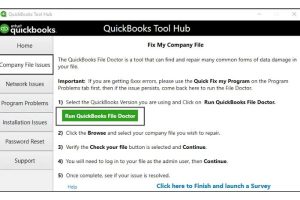
Steps
- Open QuickBooks Tool Hub.
- Select Company File Issues.
- Choose QuickBooks File Doctor.
- Select the affected company file.
- Choose the appropriate network or file diagnostic option.
- Enter the QuickBooks administrator credentials if requested.
- Allow the diagnostic process to complete.
- Reopen QuickBooks and test Multi-User Mode.
File Doctor is particularly useful when the symptoms involve company-file access in addition to networking.
Fix 10: Test the Company File and Sample File Separately
A useful diagnostic technique is to determine whether the problem affects one company file or the entire QuickBooks installation.
Test the Company File
Try opening the same company file directly on the server.
If it opens successfully on the server but fails from workstations, concentrate on:
- Network configuration
- Hosting
- Firewall
- Database services
- Folder permissions
- .ND configuration
Test a Sample Company
From the QuickBooks No Company Open screen, open a sample company file.
If the sample file opens normally but your company file does not, investigate the company file and its location.
If QuickBooks itself fails to open sample files, investigate the installation or program environment.
QuickBooks H202 Error: Targeted Troubleshooting
QuickBooks Error H202 commonly appears when a workstation cannot communicate with the computer hosting the company file.
Work through these checks in order:
- Confirm the server is online.
- Confirm the company file is stored on the server.
- Verify hosting configuration.
- Restart QuickBooks database services.
- Run Database Server Manager.
- Check firewall rules.
- Test network connectivity.
- Rename the .ND file if appropriate.
- Confirm folder permissions.
- Test the company file again.
If other workstations also experience H202 at the same time, prioritize server, network, firewall, and database-service troubleshooting.
QuickBooks H505 Error: What to Check
H505 can occur when the network configuration prevents a workstation from communicating correctly with the company file host.
Check:
- Whether the correct computer is hosting
- Whether other computers are incorrectly hosting
- QuickBooks database services
- Firewall configuration
- Company-file folder permissions
- Network connectivity
- Server-name resolution
- .ND configuration files
- QuickBooks version consistency
Do not assume that H505 automatically means the company file itself is damaged.
QuickBooks Error 6175, 0
Error 6175, 0 can appear when QuickBooks cannot communicate properly with its database service.
Recommended checks include:
- Restart the QuickBooks database service.
- Verify that the service is configured correctly.
- Confirm the company-file folder is accessible.
- Run Database Server Manager.
- Check firewall permissions.
- Verify hosting configuration.
- Restart the server if required.
- Test Multi-User Mode again.
If the service repeatedly stops, investigate the underlying Windows or security configuration.
Expert Troubleshooting Scenarios
Scenario 1: H202 Appeared After Replacing a Workstation
A company replaced one workstation and soon afterward several users began receiving H202.
Diagnosis
- The replacement computer had been configured incorrectly for hosting.
Resolution
- The workstation’s hosting setting was disabled, while hosting was confirmed on the server.
Result
- The other computers were able to reconnect to the company file.
Lesson: Check hosting configuration whenever a network problem begins after adding or replacing a computer.
Scenario 2: Multi-User Mode Stopped After a Windows Update
The server could open the company file, but workstations could not connect.
Diagnosis
- The QuickBooks database service was not running correctly after the Windows update.
Resolution
- The database service was restarted, its startup configuration was reviewed, and firewall access was checked.
Result
- Workstations successfully reconnected.
Lesson: When the server works but every workstation fails, investigate server-side services and network security first.
Scenario 3: Firewall Software Caused H202
A business began receiving H202 shortly after installing new security software.
Diagnosis
- The security software was blocking QuickBooks network communication.
Resolution
- QuickBooks applications were permitted through the firewall while normal security protection remained enabled.
Result
- Multi-User Mode resumed normal operation.
Lesson: Security software should be configured to permit required QuickBooks traffic rather than permanently disabled.
Prevention Tips for QuickBooks Multi-User Problems
| Best Practice | Recommended Timing | Benefit |
| Check hosting configuration | After adding a computer | Prevents hosting conflicts |
| Review database services | After Windows updates | Detects stopped services |
| Check firewall rules | After security changes | Prevents blocked communication |
| Keep QuickBooks versions consistent | During updates | Reduces compatibility issues |
| Back up company files | Regularly | Provides recovery protection |
| Verify network connectivity | When errors appear | Separates network problems from file problems |
| Monitor company-file permissions | Periodically | Prevents access failures |
| Run diagnostics when needed | When symptoms appear | Helps identify file/network problems |
FAQs (QuickBooks Multi-User Mode Not Working)
Why is QuickBooks Multi-User Mode not working?
Common causes include incorrect hosting, blocked firewall communication, stopped database services, damaged network files, folder-permission problems, network connectivity failures, and inconsistent QuickBooks versions.
How do I fix QuickBooks H202?
Start by confirming the correct host computer, then check QuickBooks database services, Database Server Manager, firewall permissions, folder sharing, network connectivity, and .ND files.
What does H505 mean in QuickBooks?
H505 generally indicates that the workstation cannot communicate correctly with the computer hosting the company file. Hosting, firewall, services, permissions, and network configuration should be checked.
Which computer should host QuickBooks Multi-User Mode?
The computer that stores and serves the company file should be configured as the host. Other workstations should not independently host the same company file.
Why does QuickBooks work on the server but not on workstations?
This usually points toward a network, firewall, hosting, service, folder-permission, or name-resolution problem rather than a basic QuickBooks installation problem.
Can a firewall cause QuickBooks H202?
Yes. Firewall rules can prevent QuickBooks processes from communicating between workstations and the server.
Can renaming the .ND file fix Multi-User Mode?
It can help when the network descriptor file contains outdated or damaged configuration information. Renaming it allows QuickBooks to generate a fresh file.
Does Multi-User Mode require QuickBooks Database Server Manager?
A networked QuickBooks Desktop environment generally relies on the database server component to provide company-file access to workstations.
Can Windows updates cause QuickBooks network problems?
Windows updates can change security, networking, or service behavior and may expose configuration problems. If an H-Series error begins immediately after an update, compare the timing and review server services and firewall settings.
Is QuickBooks Multi-User Mode available with every setup?
Multi-User Mode depends on the QuickBooks Desktop edition, company-file environment, network configuration, and proper server setup. Cloud, hosted, NAS, and remote-access environments can have different requirements.
Final Checklist
Before contacting an expert, verify these items:
- The company file is stored on the correct server.
- Only the appropriate computer is hosting.
- QuickBooks Database Server Manager is functioning.
- QuickBooks database services are running.
- Firewall rules permit required QuickBooks communication.
- The company-file folder has appropriate permissions.
- The workstation can reach the server.
- Server-name resolution works correctly.
- .ND and .TLG files have been checked.
- QuickBooks versions and releases are consistent.
- The company file opens normally on the server.
- A current backup exists.
Conclusion
QuickBooks Multi-User Mode failures can interrupt an entire accounting team’s workflow, but most H-Series problems can be traced to a manageable configuration issue. The most effective approach is to identify whether the failure originates from hosting, the database service, firewall, permissions, networking, or the company-file configuration.
For QuickBooks Multi-User Mode Not Working, start with the basics: confirm the correct host, run Database Server Manager, restart the relevant services, check firewall permissions, verify folder access, and test network connectivity. If the problem continues, investigate .ND files, version consistency, and company-file integrity.
A structured troubleshooting process is safer and more effective than repeatedly changing settings at random. Always maintain a current backup before performing significant company-file maintenance.
Need Expert Help?
If Multi-User Mode remains unavailable after these troubleshooting steps, the Data Service Team can assist with QuickBooks network configuration, H-Series errors, company-file access problems, database-service issues, and advanced troubleshooting.
Data Service Team Contact Number: +1-(888)-718-7888












Leave a Reply