

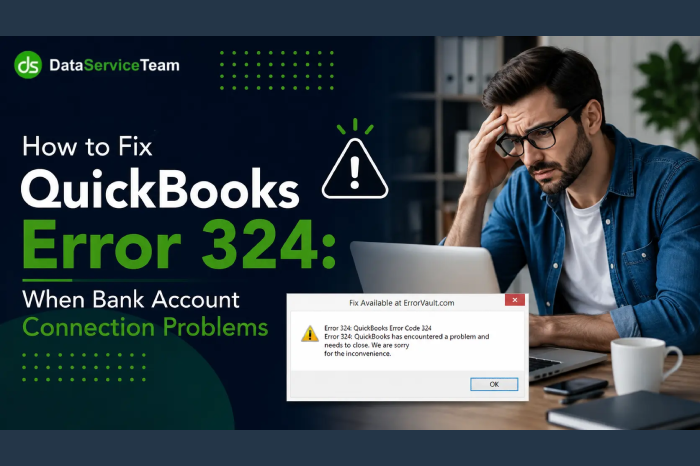
QuickBooks Error 324 can interrupt your banking workflow when a previously connected bank or credit card account can no longer be located during a transaction sync. You may see a message indicating that QuickBooks cannot find the account at your financial institution or asking you to verify which account should be connected.
The important thing to understand is that Error 324 usually does not mean your QuickBooks company file is damaged. In most cases, the bank connection itself has changed. A financial institution may have issued a new card, changed an account identifier, migrated its online banking system, modified third-party access, or changed the credentials required for authorization.
This guide explains how to troubleshoot QuickBooks Error 324 systematically, protect existing transaction history, reconnect the correct account, and avoid duplicate accounts during the process.
Chapter 1: Understanding QuickBooks Error 324
What Is QuickBooks Error 324?
QuickBooks Error 324 is a bank-feed connection error that occurs when QuickBooks can no longer locate a bank or credit card account that was previously connected.
Unlike an initial connection problem, Error 324 generally indicates that the account was connected successfully in the past and something changed afterward.
When the banking connection becomes invalid, QuickBooks may stop downloading new transactions. This can affect bank feeds, credit card feeds, automatic transaction downloads, account reconciliation, and other bookkeeping tasks that depend on current banking data.
How QuickBooks Error 324 Usually Appears
You may notice one or more of these symptoms:
- QuickBooks displays QuickBooks Error 324 while updating bank transactions.
- Previously downloaded transactions remain visible, but new transactions stop downloading.
- A connected bank account cannot be found during reconnection.
- QuickBooks asks you to verify the account at your financial institution.
- A bank or credit card connection suddenly requires authorization again.
- The account appears disconnected after a bank website or security change.
- Reconnecting creates the risk of duplicate accounts if the wrong mapping option is selected.
QuickBooks Error 324 vs. Error 106
Although both errors involve banking connections, their circumstances can be different.
| Error | Typical Situation | General Troubleshooting Direction |
| Error 324 | A previously connected account can no longer be located | Refresh, reauthorize, or disconnect and reconnect |
| Error 106 | The account cannot be found during the original or attempted connection | Verify the bank, login, account availability, and financial institution portal |
The most useful diagnostic question is simple: Was this exact bank account working in QuickBooks before the error appeared?
If the answer is yes, investigate what changed at the bank before making major changes inside QuickBooks.
Is Your QuickBooks Data Safe?
In most cases, yes.
Transactions that were already downloaded and accepted into your QuickBooks company are stored in the accounting records. A broken bank connection does not normally erase those transactions.
However, you should avoid deleting the existing QuickBooks account simply because the bank feed is not working. Disconnecting and reconnecting the feed correctly is generally safer than creating unnecessary duplicate accounts.
Chapter 2: What Causes QuickBooks Error 324?
QuickBooks Error 324 can have several causes. Identifying the recent change is often more useful than repeatedly refreshing the bank feed.
1. Your Bank Issued a New Account or Card Number
A replacement debit or credit card may have a different account identifier. QuickBooks can continue looking for the old connection while the bank now exposes a different account.
2. Your Bank Changed Its Online Banking System
Financial institutions periodically upgrade or migrate their online banking platforms. These changes can affect how third-party accounting applications identify connected accounts.
3. Bank Authorization Changed
A bank may require you to authorize third-party applications again after a security update, password change, or policy modification.
4. Your Bank Account Was Closed
A closed or suspended account cannot continue downloading transactions through an active banking connection.
5. Different Bank Credentials Were Used
Using a different login during reconnection can expose a different set of accounts. This can happen when another employee, business partner, or household member manages the bank connection.
6. Duplicate Account Names Exist
Two accounts with nearly identical or identical names can make account mapping confusing during reconnection.
7. The Account Selection Changed
During authorization, the bank may display multiple checking, savings, credit card, or loan accounts. Selecting only some accounts can unintentionally change which accounts QuickBooks receives authorization to access.
8. The Bank Changed Third-Party Access Requirements
Some financial institutions periodically modify how external applications connect to their banking platform. An existing connection may therefore require a fresh authorization.
Expert insight: Before troubleshooting QuickBooks itself, check your bank’s online account. If the account number, card, login, account status, or security settings recently changed, that information can point directly toward the cause.
Chapter 3: Primary Fixes—Start Here
Method 1: Use the Fix Now Option
The Fix Now option is often the quickest way to repair a broken banking connection without unnecessarily rebuilding your accounting records.
Steps:
- Sign in to QuickBooks Online.
- Open Accounting and select Bank Transactions.
- Locate the account showing QuickBooks Error 324.
- Select Fix now.
- Sign in using your current bank credentials.
- Complete any security verification requested by the financial institution.
- When the bank asks which accounts you want to share, select the accounts that should remain connected.
- When QuickBooks asks where the account should be placed, select the existing QuickBooks account when appropriate.
- Complete the authorization process.
- Return to Bank Transactions and refresh the connection.
Why This Fix Works
The Fix Now process can refresh authorization and help QuickBooks establish a current connection with the financial institution.
The most important step is correct account mapping. If the bank shows an updated version of an existing account, linking it to the existing QuickBooks account can preserve the accounting history rather than creating an unnecessary duplicate.
Method 2: Refresh the Banking Connection
Before disconnecting anything, try a simple connection refresh.
Steps:
- Sign in to QuickBooks Online.
- Go to Accounting > Bank Transactions.
- Select the affected account.
- Select Update or the refresh option.
- Wait for the banking connection to complete.
- Review the account status.
- If QuickBooks displays a connection warning, follow the available reauthorization instructions.
- Check whether new transactions are now downloading.
A temporary connection problem can sometimes clear after authorization is refreshed.
If QuickBooks Error 324 returns immediately, proceed to the full reconnect process rather than repeatedly refreshing the same failed connection.
Chapter 4: Disconnect and Reconnect the Bank Account
Method 3: Disconnect and Reconnect the Existing Account
When QuickBooks can no longer identify the previously connected account, a complete disconnect and reconnect may be necessary.
Before disconnecting, review any transactions currently waiting for review. This helps prevent confusion when the new connection begins downloading transactions.
Steps:
- Open Accounting > Bank Transactions.
- Locate the account showing QuickBooks Error 324.
- Select Fix now if available.
- Choose the option to disconnect the affected account.
- Confirm the disconnection.
- Return to the banking area.
- Select Link account or Add account.
- Search for your financial institution.
- Sign in using the current credentials.
- Complete any required security verification.
- Select the correct bank or credit card account.
- When prompted, choose Link to an existing account if the account already exists in QuickBooks.
- Select the matching QuickBooks account.
- Complete the connection.
- Review newly downloaded transactions before accepting them.
Why Existing Account Mapping Matters
Suppose a checking account called Business Checking has five years of transaction history in QuickBooks. The bank now presents that account under a different identifier after issuing a replacement card.
Creating another QuickBooks account called Business Checking 2 could split your financial history across two ledgers.
When the bank account is actually the same accounting account, linking the new bank connection to the existing QuickBooks account is generally the cleaner approach.
Method 4: Connect a New Account Separately
Sometimes the original bank account genuinely no longer exists.
For example, a company may close one checking account and open another with the same bank. In that situation, the new account should not necessarily be merged with the old one.
Steps:
- Review and categorize all remaining transactions from the old account.
- Disconnect the closed bank connection.
- Confirm the old QuickBooks account remains available for historical reporting.
- Select Link account.
- Search for the financial institution.
- Sign in with the current credentials.
- Select the new account.
- Choose the option to create a new QuickBooks account when appropriate.
- Review the downloaded transactions.
- Reconcile the new account normally.
This approach keeps historical activity separate from the newly opened financial account.
Chapter 5: Special Fixes for QuickBooks Error 324
Method 5: Rename Duplicate Bank Accounts
Duplicate or confusing account names can make bank-feed management unnecessarily difficult.
For example, a company may have:
- Business Checking
- Business Checking
- Business Savings
- Business Credit Card
Using more descriptive names can make account mapping easier.
Recommended Naming Structure
Instead of two accounts named Checking, consider:
- Operating Checking
- Payroll Checking
- Business Savings
- Corporate Credit Card
Steps:
- Open your QuickBooks chart of accounts.
- Locate the duplicate or confusing account names.
- Edit the account name.
- Give each account a unique and recognizable name.
- Save the changes.
- Return to Bank Transactions.
- Retry the connection.
Unique account names reduce the risk of selecting the wrong ledger during reconnection.
Method 6: Use the Correct Bank Login
If multiple people manage the company’s banking, verify that the same credentials are being used consistently.
A bank login can expose a different group of accounts depending on the user’s permissions.
Steps:
- Confirm which user originally established the QuickBooks connection.
- Sign in to the bank’s website using the appropriate business credentials.
- Verify that the affected account is visible.
- Confirm the user has permission to access the account.
- Reconnect QuickBooks using the appropriate credentials.
- Review the list of accounts provided by the bank.
- Select the correct account.
- Map it to the appropriate QuickBooks account.
If the bank does not display the account at all, the problem may be related to bank-side permissions rather than QuickBooks.
Method 7: Check Whether the Account Is Closed or Suspended
QuickBooks cannot maintain an active banking feed for an account that the financial institution has closed or suspended.
Check the account directly through your bank’s online portal.
Look for:
- Closed account status
- Frozen account
- Suspended access
- Replacement account
- New card number
- Changed account identifier
- Pending security verification
If the account is permanently closed, disconnect its bank feed and keep the historical QuickBooks account for reporting and reconciliation purposes.
If a replacement account exists, connect that account separately when appropriate.
Method 8: Check Special Bank Connection Requirements
Some financial institutions use specific account-selection or authorization procedures.
A credit card account may appear under an individual card name rather than the name of the parent banking relationship. In these situations, searching for the wrong institution or selecting the wrong account can prevent successful reconnection.
If the bank offers several similarly named institutions or account types, verify the exact institution and account displayed on the bank’s online portal before reconnecting.
Note:- Learn how to update QuickBooks Desktop safely, resolve update issues, and keep your accounting software running smoothly.
Chapter 6: Expert Troubleshooting Scenarios
Scenario 1: A Bank Issued a Replacement Card
The Problem:
A business received a replacement credit card. The previous QuickBooks banking connection subsequently displayed Error 324.
Solution Applied:
- Opened Bank Transactions.
- Selected Fix now.
- Signed in with current banking credentials.
- Completed the bank’s security verification.
- Selected the replacement account.
- Linked it to the appropriate existing QuickBooks account.
- Reviewed downloaded transactions before accepting them.
Result:
The banking feed resumed without unnecessarily creating a second accounting ledger.
Scenario 2: Two Accounts Had the Same Name
The Problem:
A business had two checking accounts with identical names. During reconnection, the wrong account was repeatedly selected.
Solution Applied:
- Reviewed the Chart of Accounts.
- Renamed the accounts using unique business descriptions.
- Returned to Bank Transactions.
- Reconnected the correct bank account.
- Mapped the connection to the correct existing account.
Result:
The account connection was restored and future account selection became clearer.
Scenario 3: The Original Account Was Closed
The Problem:
A company closed an old checking account and opened a new one at the same bank. QuickBooks continued displaying Error 324 for the old connection.
Solution Applied:
- Reviewed pending transactions from the old account.
- Completed necessary reconciliation work.
- Disconnected the inactive banking connection.
- Connected the newly opened account.
- Created or selected the appropriate QuickBooks account.
- Reviewed the first downloaded transactions.
Result:
The old account remained available for historical records while the new account handled current transactions.
Chapter 7: Prevention Best Practices
| Practice | Recommended Timing | Benefit |
| Review bank connections | Weekly | Detects feed problems early |
| Use unique account names | During setup | Prevents mapping confusion |
| Keep bank credentials current | Whenever changed | Avoids authorization failures |
| Review downloaded transactions | Every banking session | Helps maintain accurate books |
| Verify account status at bank | After banking changes | Identifies closed or replaced accounts |
| Use the existing QuickBooks account when appropriate | During reconnection | Prevents duplicate ledgers |
| Keep one primary person responsible for bank connections | Ongoing | Reduces conflicting authorizations |
A reliable bank-feed process is especially important for businesses that depend on frequent transaction downloads, automated categorization, and regular account reconciliation.
Chapter 8: When to Contact Support
Signs You May Need Expert Help
Consider professional assistance when:
- Error 324 continues after disconnecting and reconnecting.
- The affected account does not appear at all after bank authorization.
- The bank account is visible online but unavailable to QuickBooks.
- Several QuickBooks companies use the same financial institution credentials.
- The account repeatedly disconnects after successful authorization.
- Transactions are being downloaded into the wrong QuickBooks account.
- Duplicate accounts have already been created.
- The banking connection appears correct but will not refresh.
- The issue began immediately after a major bank-system change.
Before requesting assistance, collect useful diagnostic information.
Have available:
- Financial institution name
- Account type
- Date the banking connection stopped working
- Recent bank changes
- Whether the account number or card number changed
- Whether banking credentials changed
- Whether the account was replaced or closed
- Whether multiple QuickBooks companies use the same bank login
- Whether duplicate accounts exist in QuickBooks
This information can significantly reduce troubleshooting time.
FAQs
1. What is QuickBooks Error 324?
QuickBooks Error 324 is a banking connection error that occurs when QuickBooks can no longer locate a previously connected bank or credit card account. It commonly appears after a change at the financial institution or during a banking authorization update.
2. What causes QuickBooks Error 324?
Common causes include a changed account or card number, bank-system migration, changed authorization requirements, closed accounts, different login credentials, duplicate account names, and changes to third-party banking access.
3. How do I fix QuickBooks Error 324?
Start with the Fix now option in Bank Transactions. If that does not resolve the issue, refresh the connection and then disconnect and reconnect the bank account using current credentials. When the bank account is the same accounting account, map it to the existing QuickBooks account.
4. Does QuickBooks Error 324 delete my transactions?
No. Transactions that were previously downloaded and accepted into the QuickBooks company file generally remain in your accounting records. The error affects the banking connection rather than automatically deleting historical transactions.
5. What is the difference between QuickBooks Error 324 and Error 106?
Error 324 generally involves a previously connected account that QuickBooks can no longer locate. Error 106 can occur when an account is not found during a banking connection process. The exact troubleshooting path depends on what changed at the financial institution.
6. Should I disconnect my bank account when Error 324 appears?
If the Fix now and refresh options do not resolve the problem, disconnecting and reconnecting can be appropriate. Before doing so, review pending transactions and make sure you understand which existing QuickBooks account should receive the new connection.
7. Should I create a new QuickBooks account after Error 324?
Not automatically. If the bank connection represents the same accounting account, linking it to the existing QuickBooks account can help preserve one continuous transaction history. Create a new account only when it is genuinely a different financial account.
8. What if my bank account disappeared during reconnection?
First, verify that the account is active and visible through the bank’s online portal. Then confirm that you are using the correct credentials and that the bank user has permission to access the account. If the bank does not provide the account during authorization, the financial institution may need to investigate the connection.
9. Can Error 324 affect bank reconciliation?
The error does not normally erase previously recorded transactions, but it can interrupt the flow of new transactions. If the banking feed remains disconnected, reconcile the account using the transactions already available in QuickBooks and restore the feed as soon as possible.
10. Can duplicate bank accounts cause QuickBooks banking errors?
Yes. Duplicate or confusing account names can make it easier to map a bank connection to the wrong QuickBooks ledger. Using unique account names is a practical way to reduce this risk.
You should also know:- Explore common QuickBooks errors, their causes, and practical troubleshooting steps to restore normal software functionality.
Conclusion
QuickBooks Error 324 is usually a bank connection problem rather than a company-file corruption problem. The most effective troubleshooting approach is to identify what changed at the financial institution and then repair the connection without disturbing established accounting records.
Start with Fix now, refresh the banking connection, and verify that the correct account is being shared by the bank. If those steps fail, disconnect and reconnect the account using current credentials. When the bank account is still the same accounting account, map the new connection to the existing QuickBooks account rather than creating an unnecessary duplicate.
If the account was closed or replaced, keep its historical QuickBooks records intact and connect the new financial account separately. Unique account names, consistent credentials, regular bank-feed reviews, and careful transaction mapping can also help prevent recurring banking connection problems.
QuickBooks Error 324 may stop automatic transaction downloads, but a structured troubleshooting process can usually restore the connection while keeping your bookkeeping history organized.
Need Expert Help? Contact the Data Service Team
If QuickBooks Error 324 continues after the standard troubleshooting steps, or if a complex banking connection is affecting transaction downloads, reconciliation, or account mapping, the Data Service Team can provide professional diagnostic assistance. Data Service Team Contact Number: +1-(888)-718-7888.












Leave a Reply