


QuickBooks Error 6000 Series: Complete Guide to Fix Company File Access Errors
QuickBooks Error 6000 Series is a group of company-file access errors that can prevent QuickBooks Desktop from opening, locating, or connecting to a company file. Instead of treating every 6000-series message as the same problem, the most effective troubleshooting approach is to identify the complete error code first.
Messages such as QuickBooks Error -6000, -82, QuickBooks Error -6000, -107, QuickBooks Error -6000, -816, QuickBooks Error -6129, -101, and QuickBooks Error -6190, -83 can have different causes. Network configuration, damaged .ND or .TLG files, incorrect hosting settings, folder permissions, security software, or company-file problems may all contribute.
This guide explains how to identify the QuickBooks Error 6000 Series, prepare your system safely, troubleshoot common network and company-file problems, and determine when the issue requires deeper data repair.
Important: Always create or confirm a recent backup before performing company-file troubleshooting. Avoid deleting the .QBW company file itself while attempting to repair an access problem.
Chapter 1: Understanding QuickBooks Error 6000 Series
What Are QuickBooks 6000-Series Errors?
The QuickBooks Error 6000 Series is not one individual error. It is a family of errors related to accessing a QuickBooks Desktop company file.
These errors can occur when:
- Opening a company file locally
- Opening a company file from a network location
- Switching to multi-user mode
- Connecting a workstation to a hosted company file
- Accessing a file after moving it to another computer
- Connecting to a company file through QuickBooks Database Server Manager
The complete error number provides an important diagnostic clue.
Common QuickBooks Error 6000 Codes
| Error Code | Common Troubleshooting Area |
| -6000, -82 | Network configuration or .ND file |
| -6000, -106 | Incorrect network path or .ND file issue |
| -6000, -107 | Damaged .TLG file |
| -6000, -305 | Network configuration or company-file issue |
| -6000, -832 | Hosting configuration or .ND file problem |
| -6000, -1076 | QuickBooks installation problem |
| -6129, -101 | Folder permissions or Database Server Manager |
| -6144, -103 | Network path or Database Server Manager configuration |
| -6176, 0 | Firewall or network communication problem |
| -6189, -83 | Incorrect hosting configuration |
| -6190, -83 | Hosting or company-file mismatch |
| -6190, 816 | Multi-user or transaction-log issue |
| -6073, -816 | Hosting, firewall, or company-file access problem |
The exact cause can vary by Windows environment, QuickBooks version, network setup, and company-file location. Use the code as a starting point rather than assuming one solution works for every QuickBooks Error 6000 Series.
Is Your Company Data Safe?
A QuickBooks error 6000 series does not automatically mean that your accounting data is corrupted.
Many cases are caused by:
- Network paths
- Hosting settings
- Permissions
- .ND configuration files
- .TLG transaction-log files
- Firewall restrictions
- Background applications
However, some cases can involve company-file damage. That is why creating a backup and testing the file carefully should come before aggressive troubleshooting.
Chapter 2: Why Does QuickBooks Error 6000 Occur?
QuickBooks Desktop needs several components to work together before a company file can open successfully.
The company file itself, the Windows permissions, the network location, hosting configuration, Database Server Manager, and QuickBooks processes all need to communicate correctly.
Common Causes of QuickBooks Error 6000 Series
| Cause | What Can Happen |
| Damaged .ND file | QuickBooks cannot correctly locate the network company file |
| Damaged .TLG file | Transaction-log information interferes with opening the file |
| Hosting conflict | More than one computer attempts to host the company file |
| Incorrect folder permissions | QuickBooks cannot read or write required files |
| Firewall restrictions | Computers cannot communicate properly |
| Wrong network path | QuickBooks points to an incorrect company-file location |
| Company-file damage | QuickBooks cannot properly read the .QBW file |
| Backup software | A background application may lock the company file |
| Outdated QuickBooks | Program or network components may be incompatible |
| Database Server Manager issue | Workstations cannot properly connect to the hosted file |
Chapter 3: Before You Begin—Essential Precautions
Before changing company-file or network settings, complete these basic checks.
Step 1: Confirm Your Company File Backup
If you have access to the company file, create a current backup.
Use:
File > Back Up Company > Create Local Backup
If the company file cannot be opened, locate your most recent valid .QBB backup instead.
Step 2: Close QuickBooks Everywhere
Ask other users to close QuickBooks on every workstation.
A company file that is still being accessed by another user can complicate troubleshooting.
Step 3: Confirm the Company File Location
Find the .QBW file and note its exact folder location.
Avoid troubleshooting a copy of the file without knowing whether it is the active production file.
Step 4: Update QuickBooks Desktop
Open:
Help > Update QuickBooks Desktop > Update Now
Install available updates and restart QuickBooks.
Step 5: Identify the Complete Error Code
Do not troubleshoot based only on the word “6000.”
Record the entire message, including the numbers after 6000. For example:
-6000, -82
is different from:
-6000, -107
and:
-6000, -816
Chapter 4: QuickBooks File Doctor—The First Diagnostic Step
QuickBooks Tool Hub includes troubleshooting utilities designed to help diagnose certain company-file and network problems.
Why File Doctor Can Help
The File Doctor utility can check for certain company-file and network-related problems. It can be useful when the issue involves:
- Company-file access
- Network connectivity
- .ND configuration files
- Certain forms of company-file damage
How to Run QuickBooks File Doctor
- Close QuickBooks Desktop.
- Open QuickBooks Tool Hub.
- Select Company File Issues.
- Choose Run QuickBooks File Doctor.
- Select the affected company file.
- Choose the appropriate file-checking option.
- Enter the QuickBooks administrator credentials when requested.
- Allow the diagnostic process to finish.
- Open QuickBooks again.
- Test the company file.
The scan can take time depending on the company-file size and the type of problem being examined.
If File Doctor does not resolve the issue, move to the targeted troubleshooting method for your specific error code.
Chapter 5: Fix QuickBooks Error -6000, -82
QuickBooks Error -6000, -82 is commonly associated with network configuration, hosting, or .ND file problems.
Method 1: Check Hosting Settings
On the workstation:
- Open QuickBooks.
- Go to File > Utilities.
- If you see Stop Hosting Multi-User Access, select it.
- Confirm the change.
- Repeat the check on other workstations.
The goal is to ensure that the correct computer is responsible for hosting the company file.
Method 2: Rename the .ND File
The .ND file helps QuickBooks identify the network configuration for the company file.
- Close QuickBooks on all computers.
- Open the company-file folder.
- Locate the file with the same base name as the .QBW file and the .ND extension.
- Right-click the .ND file.
- Rename it by adding .OLD to the end.
- Reopen QuickBooks.
- Test the company file.
QuickBooks can recreate the network configuration file when required.
Chapter 6: Fix QuickBooks Error -6000, -106
When QuickBooks Error -6000, -106 occurs, check the company-file path and network configuration.
Check the Company File Path
Make sure the workstation is opening the company file from the intended shared folder.
Avoid storing the active company file in:
- Temporary folders
- Desktop folders used for downloads
- Email attachments
- Random local folders
- Uncontrolled cloud-sync folders
For multi-user environments, the company file should remain in the properly configured shared location.
Recreate the .ND File
If the network configuration file appears damaged:
- Close QuickBooks.
- Open the company-file folder.
- Locate the matching .ND file.
- Rename it with .OLD.
- Reopen QuickBooks.
- Test access again.
Chapter 7: Fix QuickBooks Error -6000, -107
QuickBooks Error -6000, -107 can be associated with a damaged transaction-log file.
Rename the .TLG File
The .TLG file is associated with transaction-log information for the company file.
- Close QuickBooks.
- Open the folder containing the company file.
- Find the .TLG file with the same base name as the .QBW file.
- Right-click the .TLG file.
- Rename it by adding .OLD.
- Reopen QuickBooks.
- Test the company file.
For example:
CompanyFile.TLG
can be renamed to:
CompanyFile.TLG.OLD
Do not delete the .QBW company file.
Chapter 8: Fix QuickBooks Error -6129, -101
QuickBooks Error -6129, -101 can occur when QuickBooks has trouble accessing the company file because of permissions, network configuration, or Database Server Manager problems.
Check Folder Permissions
The Windows user and QuickBooks processes need appropriate access to the folder containing the company file.
Check that the company-file folder permits the required read/write access.
Check QuickBooks Database Server Manager
If the company file is hosted on a server:
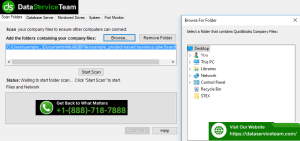
- Open the server computer.
- Confirm that QuickBooks Database Server Manager is installed.
- Open the Database Server Manager.
- Check the company-file folder.
- Rescan the folder if necessary.
- Restart QuickBooks.
- Test access from the workstation.
A server-based multi-user environment should have a clearly defined hosting configuration rather than multiple computers attempting to perform the same role.
Chapter 9: Fix QuickBooks Error -6176, 0
QuickBooks Error -6176, 0 can be associated with firewall or network communication problems.
Check Windows Firewall
The firewall may prevent QuickBooks processes from communicating between the workstation and server.
Review the firewall configuration and make sure the required QuickBooks applications and ports are permitted according to your network configuration.
After making the change:
- Restart QuickBooks.
- Reconnect to the company file.
- Test multi-user access.
If the problem disappears after correcting firewall permissions, the network security configuration was likely preventing the required communication.
Chapter 10: Fix QuickBooks Error -6189, -83 and -6190, -83
These errors can occur when the company file is being hosted incorrectly or when the workstation cannot communicate properly with the computer hosting the file.
Check Which Computer Is Hosting
On the server:
- Open QuickBooks.
- Go to File > Utilities.
- Verify that hosting is configured correctly.
On workstations, check the same menu and make sure they are not unnecessarily configured to host the company file.
Restart the Database Server
If the server’s Database Server Manager is not functioning correctly:
- Close QuickBooks on all computers.
- Restart the server.
- Confirm the Database Server Manager is running.
- Open QuickBooks on the workstation.
- Attempt to access the company file again.
Chapter 11: Fix QuickBooks Error -6190, 816
QuickBooks Error -6190, 816 can occur when the company file and its transaction log are out of sync or when the file is being accessed incorrectly in a multi-user environment.
Check for Another User
Make sure that:
- Nobody else is modifying the company file during testing.
- All workstations have closed QuickBooks.
- The correct server is hosting the file.
- The file is not simultaneously being opened from another location.
Check the .TLG File
If the problem appears related to the transaction log, follow the controlled .TLG renaming procedure described earlier in this guide.
Always preserve the original file rather than permanently deleting it during troubleshooting.
Chapter 12: Fix QuickBooks Error -6000, -816
A -6000, -816 error can involve company-file access conflicts, hosting configuration, or applications that interfere with access to the company file.
Check Backup and Security Applications
Background applications can sometimes interact with company files.
Review whether the problem began after installing or updating:
- Backup software
- Endpoint security
- Antivirus software
- File synchronization tools
- Network storage software
Troubleshooting Steps
- Close QuickBooks.
- Close unnecessary backup or synchronization applications.
- Temporarily pause only the specific security process suspected of interfering.
- Open QuickBooks.
- Test the company file.
- If the issue disappears, configure an appropriate application-specific exception.
Do not permanently disable security protection simply to make QuickBooks open.
Chapter 13: Test Whether the Problem Is the Company File or QuickBooks
One of the most useful diagnostic techniques is testing another company file.
Open a Sample Company File
- Close the current company file.
- Open QuickBooks.
- From the No Company Open window, select Open a Sample File.
- Choose a sample company file.
- Test whether it opens.
What the Result Tells You
Sample company opens normally:
The problem may be specific to your company file, its location, permissions, or network configuration.
Sample company also fails:
The problem may involve QuickBooks installation, Windows permissions, security software, or another system-level component.
This simple test prevents unnecessary changes to a healthy company file.
Chapter 14: Verify and Rebuild Company Data
If the company file opens but QuickBooks reports data integrity problems, use the built-in data verification tools.
Run Verify Data
Go to:
File > Utilities > Verify Data
Allow QuickBooks to check the company file.
If no problem is reported, continue normal troubleshooting rather than rebuilding the file unnecessarily.
Run Rebuild Data When Required
If Verify Data identifies data problems:
- Create a current backup.
- Select File > Utilities > Rebuild Data.
- Follow the prompts.
- Allow the rebuild to finish.
- Run Verify Data again.
- Confirm whether the integrity problem remains.
Do not use Rebuild Data as the first response to every 6000-series error. Many 6000 errors are network or hosting problems rather than company-file corruption.
Chapter 15: QuickBooks Error 6000 After Moving a Company File
Moving a company file to another computer or server can change the environment in which QuickBooks accesses it.
Common problems include:
- Incorrect file path
- Missing folder permissions
- Incorrect hosting configuration
- Database Server Manager not scanning the new folder
- Firewall restrictions
- Old .ND configuration
- Security software blocking the new location
Recommended Troubleshooting
- Confirm the .QBW file is in the intended folder.
- Confirm users have appropriate permissions.
- Configure Database Server Manager on the server.
- Scan the company-file folder.
- Check hosting settings.
- Confirm firewall permissions.
- Rename the .ND file if necessary.
- Test the company file from the server.
- Test it from a workstation.
Chapter 16: Expert Troubleshooting Scenarios
Scenario 1: QuickBooks Error -6000, -107 After a Power Failure
The Problem: A business experienced an unexpected shutdown while QuickBooks was open. After Windows restarted, the company file would not open and displayed a 6000-series error.
The troubleshooting process focused on the transaction-log file. After QuickBooks was completely closed, the .TLG file was renamed and the company file was tested again.
The key lesson is to investigate recently changed files and avoid immediately assuming that the main .QBW file is damaged.
Scenario 2: Error -6000, -82 After Replacing a Workstation
The Problem: A new workstation was added to a multi-user environment and several users began receiving a 6000-series error.
The hosting configuration was reviewed across the network. The new workstation was incorrectly configured for hosting.
After correcting the hosting configuration and confirming the server’s role, the workstations were able to connect normally.
Scenario 3: Error 6000-816 After Installing Backup Software
The Problem: A company began receiving a 6000-series access error shortly after deploying new backup software.
The backup process was reviewed and found to be interacting with the active company file.
The business adjusted the backup schedule and configured appropriate exclusions so the active .QBW file was not being interfered with during normal QuickBooks use.
Chapter 17: Prevention Best Practices
| Practice | Recommended Frequency | Benefit |
| Back up company data | Daily or according to business needs | Provides a recovery point |
| Update QuickBooks | Regularly | Maintains supported program components |
| Verify company data | When symptoms appear or as part of maintenance | Helps identify data-integrity problems |
| Review hosting settings | After network changes | Prevents hosting conflicts |
| Monitor firewall rules | After security changes | Maintains network communication |
| Check Database Server Manager | After server changes | Keeps network access configured |
| Schedule backups carefully | Outside active work periods | Reduces file-access conflicts |
| Protect the company-file folder | Continuously | Reduces accidental modification or deletion |
FAQs
1. What is QuickBooks Error 6000 Series?
QuickBooks Error 6000 Series is a family of errors that can prevent QuickBooks Desktop from opening or accessing a company file. The complete error code helps identify the likely troubleshooting area.
2. What causes QuickBooks Error 6000?
Common causes include damaged .ND or .TLG files, incorrect network configuration, hosting conflicts, folder permissions, firewall restrictions, company-file problems, and interference from security or backup software.
3. How do I fix QuickBooks Error 6000 Series?
Start by identifying the complete error code, confirming the company-file backup, updating QuickBooks, checking hosting and network settings, and running the appropriate company-file diagnostic tools. Then apply the targeted fix for the specific error.
4. What does QuickBooks Error -6000, -82 mean?
This error can be associated with network configuration and .ND file problems. Check hosting settings, verify the network path, and recreate the .ND file if necessary.
5. What does QuickBooks Error -6000, -107 mean?
This error can be associated with a damaged transaction-log file. After closing QuickBooks on all computers, the matching .TLG file can be renamed so QuickBooks can create a fresh log.
6. What is QuickBooks Error -6129, -101?
This error can involve folder permissions, network configuration, or QuickBooks Database Server Manager. Check the shared-folder permissions and verify that the server is properly configured to host the company file.
7. Does Error 6000 mean my company file is corrupted?
No. QuickBooks Error 6000 Series does not automatically indicate company-file corruption. Network, hosting, firewall, permissions, and configuration problems can produce similar messages.
8. Can firewall software cause QuickBooks Error 6000 Series?
Yes. Firewall restrictions can prevent QuickBooks workstations from communicating with the computer hosting the company file.
9. Can antivirus or backup software cause a QuickBooks Error 6000 Series?
It can contribute to company-file access problems if security or backup software interferes with an active .QBW file. Review the application’s activity before changing security settings.
10. Should I delete the .ND or .TLG file?
Do not permanently delete these files as a first step. When troubleshooting, renaming the appropriate file with an .OLD extension is a safer approach because the original remains available for review.
11. What should I do if File Doctor does not fix QuickBooks Error 6000 Series?
Move to targeted troubleshooting based on the complete error code. Check hosting, network paths, permissions, firewall settings, .ND and .TLG files, and the condition of the company file.
Conclusion
QuickBooks Error 6000 Series can look intimidating because several different problems use similar error numbers. The most important troubleshooting step is to identify the complete error code rather than treating every QuickBooks Error 6000 Series message as one problem.
Network configuration, hosting conflicts, damaged .ND or .TLG files, folder permissions, firewall restrictions, Database Server Manager issues, and company-file damage can all require different solutions.
Start with the safest diagnostic steps: confirm your backup, close QuickBooks on every computer, update the software, identify the exact error code, and test whether a sample company file opens. From there, apply the targeted troubleshooting method rather than making unnecessary changes to the company file.
With the right diagnosis, many QuickBooks 6000-series errors can be resolved without rebuilding or replacing the company file.
Need Expert Help? Contact the Data Service Team
If QuickBooks Error 6000 Series continues after the standard troubleshooting steps, especially when the issue involves a multi-user network, company-file integrity, permissions, or persistent access failures, the Data Service Team can assist with advanced diagnostics and company-file troubleshooting.
Data Service Team Contact Number: +1-(888)-718-7888












Leave a Reply