


QuickBooks Cannot Communicate with Company File? 10 Proven Fixes
Few things are more disruptive than opening QuickBooks Desktop and seeing a message that it cannot communicate with the company file because of a firewall or network connection. The problem is especially frustrating when the company file opens normally on the host computer but cannot be accessed from other workstations.
This type of communication failure is usually connected to the network environment rather than a single QuickBooks component. Firewall restrictions, incorrect hosting settings, stopped database services, folder permissions, damaged .ND or .TLG files, and inconsistent software versions can all prevent a workstation from reaching the company file.
The good news is that most communication problems can be isolated systematically. This guide explains 10 practical fixes for QuickBooks Cannot Communicate with Company File, including H-series errors, Error 6175,0, firewall problems, Database Server Manager issues, and multi-user connection failures.
Chapter 1: What Does “Cannot Communicate with Company File” Mean?
When QuickBooks Desktop cannot communicate with a company file, the application is unable to establish or maintain the connection between a workstation and the computer hosting the .QBW file.
The problem commonly appears when:
- Opening a company file in multi-user mode
- Switching from single-user to multi-user mode
- Connecting a workstation to a server
- Accessing a company file stored on another computer
- Reconnecting after a Windows, QuickBooks, firewall, or antivirus update
Common Symptoms
| Symptom | What You May Notice |
| Firewall message | QuickBooks reports that communication is blocked |
| Multi-user failure | Workstations cannot access the company file |
| Error 6175,0 | Multi-user hosting or database service problem |
| H101 | Workstation cannot establish the required connection |
| H202 | Workstation cannot communicate with the server |
| H303 | Additional hosting or network configuration is required |
| H505 | Hosting configuration is incorrect |
| Lost connection | QuickBooks disconnects from the company file during use |
A useful troubleshooting principle is to determine whether the problem affects one workstation, several workstations, or every computer. That distinction can quickly narrow the likely cause.
Chapter 2: What Causes QuickBooks Company File Communication Errors?
Several components work together to provide multi-user access. A problem with any one of them can interrupt communication.
1. Firewall Restrictions
Windows Firewall or third-party security software may prevent QuickBooks processes from communicating across the local network.
2. Database Server Manager Problems
The QuickBooks Database Server Manager helps provide network access to company files. If the related service is stopped or incorrectly configured, workstations may lose access.
3. Incorrect Hosting
A workstation may accidentally be configured to host the company file. In a typical multi-user environment, hosting should be configured correctly on the computer designated to host the file.
4. Damaged .ND Files
The network data file helps QuickBooks identify network-related information for the company file. A damaged or outdated .ND file can interfere with connectivity.
5. Folder Permission Problems
The QuickBooks database service account and authorized Windows users need appropriate permissions for the company-file folder.
6. Network Problems
A weak connection, incorrect network profile, DNS issue, or unavailable server can prevent workstations from reaching the company file.
7. Version or Release Differences
Different QuickBooks versions or releases across computers can create compatibility problems in multi-user environments.
Chapter 3: Before Troubleshooting
Before making network or company-file changes, protect your accounting data and establish a clean troubleshooting environment.
Step 1: Close QuickBooks
Close QuickBooks Desktop on every computer connected to the company file.
Step 2: Create a Backup
If the company file can still be opened from the host computer, create a current backup before making significant changes.
Step 3: Identify the Host Computer
Determine which computer stores the .QBW file and is intended to provide multi-user access.
Step 4: Check the Network
Confirm that the affected workstation can communicate with the host computer and that the host is powered on and connected to the network.
Step 5: Confirm Administrator Access
Use an account with sufficient Windows permissions when modifying services, firewall rules, or folder permissions.
Chapter 4: 10 Proven Fixes for QuickBooks Cannot Communicate with Company File
Method 1: Run QuickBooks File Doctor
QuickBooks File Doctor can diagnose certain company-file and network-related problems.
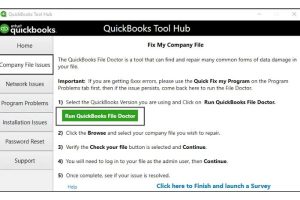
Steps
- Open QuickBooks Tool Hub.
- Select Company File Issues.
- Choose Run QuickBooks File Doctor.
- Select the affected company file.
- Choose the network-related diagnostic option when appropriate.
- Enter the QuickBooks administrator password.
- Allow the diagnostic process to complete.
- Reopen the company file and test multi-user access.
If File Doctor reports that no problem was detected, continue with the network and hosting checks below.
Method 2: Run Database Server Manager on the Host
The Database Server Manager should be checked on the computer that stores the company file.
Steps
- Open the Windows Start menu on the host computer.
- Search for QuickBooks Database Server Manager.
- Open the tool.
- Select Scan Folders.
- Add or browse to the folder containing the .QBW file.
- Select Start Scan.
- Wait for the scan to finish.
- Test the connection from a workstation.
The scan helps QuickBooks recognize the company-file location and refresh related network configuration.
Method 3: Restart QuickBooks Database Services
A stopped database service can prevent workstations from connecting even when the company file itself is healthy.
Steps
- Press Windows + R.
- Enter services.msc.
- Press Enter.
- Locate the applicable QuickBooksDBXX service.
- Right-click it and select Restart.
- Open its properties.
- Check the Startup type.
- Use Automatic where appropriate.
- Locate QBCFMonitorService.
- Restart the service if it is installed.
- Test multi-user access again.
If the service repeatedly stops, investigate Windows event information and recently installed security or system software.
Method 4: Verify Hosting Settings
Incorrect hosting is a frequent source of H-series and multi-user errors.
On Workstations
- Open QuickBooks Desktop.
- Go to File > Utilities.
- Check the hosting option.
- If Stop Hosting Multi-User Access appears on a workstation that should not host, select it.
- Close and reopen QuickBooks if necessary.
On the Host
Confirm that the designated host is configured to provide multi-user access.
The goal is to maintain a consistent hosting arrangement rather than allowing several computers to compete for hosting responsibilities.
Method 5: Check Windows Firewall Rules
Firewall restrictions can block QuickBooks components even when the network itself is working.
What to Check
Review Windows Firewall rules for the QuickBooks programs and services installed with your version.
Common components can include:
- QBW32.exe
- QBDBMgrN.exe
- QBCFMonitorService.exe
- QBUpdate.exe
Firewall configurations can vary by QuickBooks version and installation, so use the executable locations and port information associated with the installed release rather than blindly applying rules from another version.
Test After Making Changes
After allowing the required QuickBooks components:
- Restart the relevant services.
- Reopen QuickBooks.
- Open the company file on the host.
- Test the workstation connection.
If a third-party antivirus or endpoint-security product is installed, check its network protection settings as well.
Method 6: Verify Company-File Folder Permissions
The database service needs appropriate access to the folder containing the company file.
Steps
- Navigate to the company-file folder.
- Right-click the folder.
- Select Properties.
- Open the Security tab.
- Review the permissions assigned to the relevant QuickBooks database service account.
- Confirm that the account has the permissions required for the installation.
- Check the folder’s sharing configuration.
- Test the company file again.
Avoid granting broader Windows permissions than necessary. Use the minimum access required for the QuickBooks environment.
Method 7: Recreate .ND and .TLG Files
Damaged configuration files can interfere with company-file communication.
Steps
- Close QuickBooks on every computer.
- Open the folder containing the company file.
- Locate the .ND file associated with the .QBW file.
- Locate the corresponding .TLG file if present.
- Rename the files rather than deleting them.
- Add .OLD to the filenames.
- Reopen QuickBooks.
- Test the company file connection.
For example:
CompanyFile.qbw.nd
can be renamed to:
CompanyFile.qbw.nd.old
Renaming preserves the original files as a fallback while allowing QuickBooks to generate fresh configuration files.
Method 8: Test the Company File Locally
A controlled local test can help determine whether the problem is related to the network path or the company file itself.
Steps
- Close QuickBooks.
- Create a temporary test folder.
- Copy the company file to the test location.
- Open the copied file locally.
- Check whether QuickBooks can access it normally.
How to Interpret the Result
The copied file opens:
The original network path, permissions, sharing configuration, or hosting environment deserves closer investigation.
The copied file also fails:
The issue may involve the company file, QuickBooks installation, or another local system component.
Do not use a temporary copied file as the permanent multi-user company file unless the environment has been properly configured.
Method 9: Run Quick Fix My Program
If QuickBooks itself is experiencing stuck processes or program-level problems, Quick Fix My Program may help.
Steps
- Open QuickBooks Tool Hub.
- Select Program Problems.
- Choose Quick Fix My Program.
- Allow the process to finish.
- Restart QuickBooks.
- Test the company file again.
This method is particularly useful when the communication problem begins after a program crash, incomplete update, or abnormal shutdown.
Method 10: Investigate Persistent H-Series and Error 6175 Problems
If the previous fixes do not resolve the issue, identify the exact error rather than repeatedly applying the same repair.
Common related errors include:
- QuickBooks Error H101
- QuickBooks Error H202
- QuickBooks Error H303
- QuickBooks Error H505
- QuickBooks Error 6175,0
- QuickBooks company file network errors
- QuickBooks multi-user mode connection problems
- QuickBooks Database Server Manager errors
At this stage, check:
- Host availability
- Network connectivity
- Firewall rules
- Database services
- Folder permissions
- Hosting configuration
- QuickBooks version and release consistency
- Company-file integrity
If the problem affects only one workstation, focus on that workstation first. If every workstation is affected while the host works normally, investigate the host, server services, firewall, and network configuration.
Chapter 5: Expert Troubleshooting Scenarios
Scenario 1: Communication Failed After a Windows Update
Problem: Workstations stopped connecting after a Windows update while the host computer could still open the company file.
Troubleshooting approach:
- Checked Windows Firewall.
- Verified QuickBooks processes were permitted.
- Restarted QuickBooks database services.
- Confirmed the host’s network profile and connectivity.
- Tested multi-user access from a workstation.
Outcome: Network communication was restored after the blocked service and firewall configuration were corrected.
Scenario 2: A New Workstation Created a Hosting Conflict
Problem: Multiple users began receiving an H-series error after a new computer was added to the network.
Troubleshooting approach:
- Reviewed hosting settings on every workstation.
- Found the new workstation configured for hosting.
- Disabled hosting on the workstation.
- Verified the designated host was correctly configured.
- Tested multi-user access.
Outcome: The workstations were able to reconnect to the company file.
Scenario 3: Database Service Stopped After Server Restart
Problem: Users lost access to the company file after the server restarted.
Troubleshooting approach:
- Opened Windows Services.
- Located the applicable QuickBooks database service.
- Found that the service was stopped.
- Started the service.
- Reviewed its startup configuration.
- Tested workstation connectivity.
Outcome: The connection returned after the database service became available.
Chapter 6: How to Prevent Future Communication Errors
Prevention is easier when the network and QuickBooks environment are maintained consistently.
| Practice | Recommended Timing | Purpose |
| Check database services | After major Windows changes | Detect stopped services |
| Review firewall rules | After security changes | Prevent blocked communication |
| Verify hosting | After adding computers | Avoid hosting conflicts |
| Maintain backups | Regularly | Protect against data loss |
| Update QuickBooks consistently | When appropriate | Reduce version inconsistencies |
| Monitor network stability | Ongoing | Identify connectivity problems |
| Review folder permissions | After Windows changes | Maintain required access |
A simple maintenance routine can prevent many avoidable multi-user failures.
FAQs
1. What does “QuickBooks cannot communicate with the company file” mean?
It means QuickBooks Desktop cannot establish or maintain the required connection to a company file stored on another computer or server. Firewall restrictions, hosting problems, database services, permissions, and network issues are common causes.
2. How do I fix QuickBooks Cannot Communicate with Company File?
Start by checking the host computer, running File Doctor where appropriate, reviewing Database Server Manager, checking hosting settings, restarting QuickBooks services, and verifying firewall and folder permissions.
3. Why is my firewall blocking QuickBooks?
Windows Firewall or third-party security software can prevent QuickBooks processes from communicating across the network. Review the firewall rules and allow the QuickBooks components required by your installed version.
4. What is QuickBooks Database Server Manager?
Database Server Manager helps QuickBooks Desktop share company files over a network so authorized workstations can access them in multi-user mode.
5. How do I restart QuickBooks Database Server Manager?
Press Windows + R, enter services.msc, locate the appropriate QuickBooks database service, and restart it. Check its startup configuration if the service repeatedly stops.
6. Why am I receiving QuickBooks Error 6175,0?
Error 6175,0 can occur when QuickBooks cannot start or access the database service needed for multi-user hosting. Review hosting settings and the relevant QuickBooks database services.
7. Can a damaged .ND file cause communication problems?
Yes. The .ND file contains network-related information associated with the company file. Renaming the file can allow QuickBooks to recreate the configuration.
8. How can I determine whether the problem is the company file or network?
Test the company file locally or open a sample company file. If QuickBooks works locally but fails across the network, investigate the network, hosting, firewall, or permissions.
9. Does QuickBooks need the same version on every workstation?
Multi-user environments should use compatible QuickBooks versions and releases. Check the product and release information on each computer when investigating connection problems.
10. What should I do if none of these fixes work?
Stop making repeated configuration changes and identify the exact error code, affected computers, host configuration, and recent system changes. Persistent problems may require deeper network, service, or company-file diagnostics.
Conclusion
QuickBooks Cannot Communicate with Company File errors can interrupt multi-user accounting, but the underlying cause can usually be isolated by checking the environment systematically.
Start with the basics: confirm the host is available, verify the company-file location, check Database Server Manager, review hosting, and examine firewall and folder permissions. If necessary, recreate the .ND and .TLG configuration files, test the company file locally, and use QuickBooks repair utilities.
The most important troubleshooting principle is to avoid treating every communication error as a company-file corruption problem. A firewall rule, stopped database service, incorrect hosting configuration, or network failure can produce similar symptoms. Identifying whether the issue affects one workstation or the entire network often provides the fastest path to the correct solution.
Need Expert Help? Contact the Data Service Team
If the communication problem continues after these troubleshooting steps, the Data Service Team can assist with advanced QuickBooks diagnostics, company-file connectivity, network configuration, and data-related issues.
Data Service Team Contact Number: +1-(888)-718-7888












Leave a Reply