

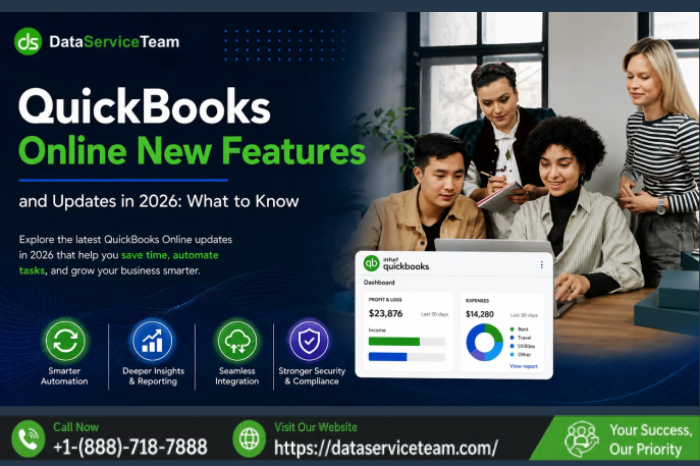
What’s New in QuickBooks Online 2026? AI Features, Major Updates & Error Fixes
Introduction
QuickBooks Online is entering a major new phase in 2026, with artificial intelligence, automated bookkeeping, smarter banking workflows, modern reporting, and improved collaboration becoming a bigger part of everyday accounting.
For small businesses, accountants, bookkeepers, and growing companies, these changes are designed to reduce repetitive data entry and make financial information easier to understand and act on. However, new features and interface changes can also create questions about compatibility, payroll, bank feeds, reporting, subscriptions, and unexpected errors.
As a certified QuickBooks ProAdvisor and accounting software specialist, I have seen how important it is to understand both the benefits and the practical limitations of new accounting technology. AI can automate repetitive work, but business owners should still review important transactions, reconciliations, payroll information, and financial reports before relying on automated decisions.
This complete 2026 guide explains the major QuickBooks Online updates, AI-powered features, pricing changes, payroll improvements, accountant tools, and common errors users may encounter.
Chapter 1: What’s New in QuickBooks Online 2026?
The biggest QuickBooks Online changes in 2026 center around four areas:
- AI-powered bookkeeping automation
- A redesigned modern interface
- Smarter financial reporting
- Improved collaboration and workflow management
The goal is straightforward: reduce manual accounting work while giving business owners better visibility into their financial performance.
Instead of navigating through multiple screens for routine tasks, users can increasingly rely on intelligent suggestions, automated workflows, personalized dashboards, and conversational financial insights.
Major 2026 Updates at a Glance
| Feature | What Changed | Primary Benefit |
| Modern Interface | Updated navigation and customizable layouts | Easier daily workflows |
| AI Bank Feeds | Smarter transaction categorization | Less manual data entry |
| AI Reconciliation | Faster matching and review | Saves reconciliation time |
| Invoicing on Autopilot | Automated invoice creation and reminders | Faster billing |
| Books Upkeep | AI-assisted bookkeeping maintenance | Cleaner books |
| Intuit Intelligence Chat | Natural-language financial questions | Faster business insights |
| KPI Dashboards | Improved performance monitoring | Better decision-making |
| Payroll Automation | Greater automation for payroll tax handling | Reduced administrative work |
| Accountant Collaboration | More controlled information requests | Better client communication |
Chapter 2: The New QuickBooks Online Modern Interface
The Modern Experience Is Becoming the Standard
One of the most noticeable changes in 2026 is the redesigned QuickBooks Online experience.
The updated interface focuses on cleaner navigation, faster workflows, customizable dashboards, and easier access to frequently used accounting tasks.
For existing users, the change may initially feel unfamiliar. However, the redesigned experience is intended to make common activities such as invoicing, banking, reporting, and expense management easier to navigate.
Key Interface Improvements
Customizable Dashboard
Users can personalize dashboard widgets and arrange important financial information according to their workflow.
For example, a business owner may prioritize:
- Cash flow
- Outstanding invoices
- Revenue
- Expenses
- Profitability
- Bank balances
Bookmarkable Actions
Frequently used accounting tasks can be easier to access through shortcuts and bookmarked actions.
This can be especially useful for accountants and bookkeepers who repeat the same workflow across multiple companies.
Improved Performance
The refreshed experience focuses on smoother page loading and reduced layout changes while pages load.
Mobile Improvements
Mobile users also benefit from improvements to dashboard navigation, performance, and mileage-related functionality.
Chapter 3: AI-Powered QuickBooks Online Features
Artificial intelligence is one of the most important themes in QuickBooks Online 2026.
The objective is not simply to add AI for the sake of technology. The more practical goal is to automate repetitive accounting tasks while giving users better information.
AI-Powered Bank Feeds
QuickBooks Online can learn from previous transaction categorization patterns and use that information to provide smarter suggestions.
This means frequently recurring transactions may require less manual classification.
Additional Banking Improvements
Users can benefit from features such as:
- Smarter transaction categorization
- AI-assisted reconciliation
- Missing payee alerts
- Drag-and-drop attachments
- Improved account search
- Better transaction review workflows
Why Human Review Still Matters
Automation does not eliminate the need for accounting judgment.
Before accepting AI-generated categorizations, review:
- Large transactions
- Unusual expenses
- Transfers
- Loan payments
- Payroll-related transactions
- Owner distributions
- Tax-sensitive expenses
AI should assist the accounting process rather than replace financial oversight.
Chapter 4: Invoicing on Autopilot
Invoicing is another area receiving significant automation improvements.
The Invoicing on Autopilot capability can help create invoice drafts from business documents and automate certain payment reminder workflows.
This can be especially useful for businesses that repeatedly invoice customers based on:
- Sales orders
- Statements of work
- Recurring services
- Customer agreements
- Project documentation
Potential Benefits
Automated invoicing can help businesses:
- Reduce repetitive data entry
- Create invoices faster
- Maintain consistent billing
- Follow up on unpaid invoices
- Improve cash-flow visibility
Because automated invoices affect customer balances and revenue records, businesses should still review important invoices before they are finalized.
Chapter 5: Smarter Reporting and KPI Dashboards
Financial reports are becoming more flexible and easier to personalize.
Improved Report Customization
Users can benefit from:
- Persistent filters
- Saved report preferences
- Favorite reports
- Automatic report refresh
- Improved formatting
- Easier transaction drill-downs
These improvements can make recurring financial reviews more efficient.
KPI Scorecards
KPI dashboards can help businesses monitor important indicators such as:
- Revenue
- Profit margins
- Cash position
- Class performance
- Business trends
For example, a business owner could compare revenue performance across different departments and then drill down into the transactions responsible for the change.
Chapter 6: QuickBooks Online Advanced Updates
QuickBooks Online Advanced receives several important enhancements in 2026.
Books Upkeep
Books Upkeep uses automation to help keep accounting records current and reduce repetitive bookkeeping work.
The purpose is to identify transactions that can be resolved with a high degree of confidence, allowing accounting professionals to spend more time reviewing exceptions and less time handling routine bookkeeping.
Bill Pay Improvements
Advanced users can also benefit from expanded accounts-payable functionality, including improved bill management and payment workflows.
Industry-Specific Improvements
Additional capabilities are aimed at industries such as:
- Construction
- Professional services
- Project-based businesses
- Businesses with complex inventory requirements
Chapter 7: Enhanced Inventory Management
Inventory-focused businesses can benefit from expanded functionality around purchasing and inventory valuation.
Notable improvements include:
- Item receipts
- Moving average cost valuation
- Sales-order-to-purchase-order linking
- Improved purchasing workflows
- Better inventory visibility
These features can help businesses reduce manual inventory calculations and improve purchasing decisions.
Chapter 8: Intuit Intelligence Chat
One of the most interesting developments in 2026 is conversational access to business information.
Instead of manually opening several reports, users can ask questions using natural language.
For example:
“How much revenue did my business generate last month?”
Or:
“What happened to my cash flow compared with the previous month?”
The system can provide business insights and help users explore scenarios.
Why This Matters
Traditional accounting software requires users to know where information is stored.
Conversational tools change that workflow by allowing users to begin with the question rather than the report.
However, financial decisions should still be based on reviewed accounting records and appropriate professional judgment.
Chapter 9: Payroll Updates in 2026
Payroll is another major area of change.
The 2026 updates increase automation around payroll tax handling and employee management.
Automated Payroll Tax Processing
The updated payroll workflow is designed to automate more payroll tax responsibilities, reducing manual administrative tasks.
Businesses should make sure payroll setup information is accurate before relying on automated tax processing.
Review:
- Employee information
- Tax setup
- Federal withholding
- State tax information
- Direct deposit settings
- Payroll schedules
- Company payroll preferences
Workforce Improvements
QuickBooks Workforce has also expanded beyond traditional payroll functionality to support broader employee-related workflows, including hiring, onboarding, and retention.
Chapter 10: Accountant and Bookkeeper Improvements
QuickBooks Online 2026 also introduces workflow improvements for accounting professionals.
Notable Accountant Features
- Undo Reconcile capabilities
- Improved client information requests
- Assigned team-member workflows
- Better filtering and status tracking
- Desktop-to-Online migration improvements
- Chart of Accounts controls
These features can make it easier for accountants to collaborate with clients without repeatedly requesting information through email or disconnected communication channels.
Chapter 11: QuickBooks Online 2026 Pricing Changes
Pricing is an important consideration when evaluating the new features.
Subscription pricing for certain QuickBooks Online plans is changing for renewals beginning August 1, 2026, while some entry-level options remain unchanged.
Before changing plans, businesses should compare:
- Number of users
- Required accounting features
- Payroll requirements
- Inventory needs
- Bill management
- Reporting requirements
- Automation capabilities
- Accountant access
The most expensive plan is not automatically the best choice. The right subscription depends on the company’s actual workflow.
Chapter 12: Common QuickBooks Errors After 2026 Updates
New interfaces and automated workflows can sometimes expose configuration or compatibility problems.

QuickBooks Errors: Common Error Codes, Causes, Troubleshooting Steps & Solutions
Here are some common error categories users should understand.
QuickBooks Bank Connection Errors
Bank-feed problems can prevent transactions from downloading correctly.
Common symptoms include:
- Bank account disappears
- Transactions stop downloading
- Connection requires reauthorization
- Duplicate accounts appear
- Bank login fails
Basic Troubleshooting
- Review the banking connection.
- Confirm current bank credentials.
- Check whether the bank requires additional verification.
- Refresh the connection.
- Review duplicate or inactive accounts.
- Reconnect the correct account when necessary.
QuickBooks Payroll Update Errors
Payroll-related problems may occur when software, payroll settings, or tax information is outdated.
Common payroll error categories include:
- PS033
- PS038
- 15XXX-series errors
- Payroll subscription issues
- Tax table update problems
- Payroll calculation inconsistencies
Recommended Approach
Start by confirming:
- Payroll subscription status
- QuickBooks version
- Payroll tax table status
- Employee tax setup
- Payroll service configuration
- Internet connectivity
Avoid manually changing payroll tax calculations unless you understand the accounting and compliance consequences.
QuickBooks 6000-Series Errors
6000-series errors are generally associated with company-file access.
Common causes include:
- Company file path problems
- Network configuration
- Hosting conflicts
- Damaged configuration files
- File permissions
- Company file damage
If the problem occurs after a major system change, first determine whether the issue affects one computer or every workstation.
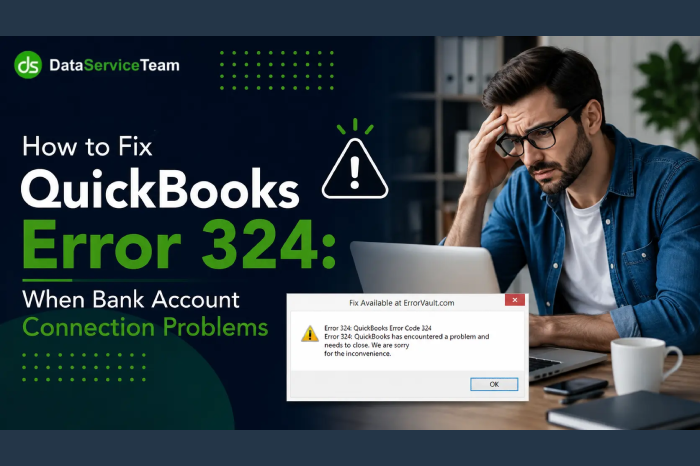
QuickBooks Error 324
Error 324 commonly indicates a broken banking connection where QuickBooks can no longer locate an account previously connected to the bank.
Possible causes include:
- New bank account number
- Replacement credit card
- Bank system migration
- Changed account information
- Closed account
- Reauthorization problems
The safest approach is to reconnect the account and carefully map it to the correct existing accounting account when appropriate.
QuickBooks Error 102
Banking error 102 can occur when QuickBooks cannot communicate correctly with the financial institution.
Before changing accounting records, check:
- Bank website availability
- Login credentials
- Security verification
- Connection status
- Recent bank maintenance
QuickBooks Error 9999
Error 9999 is generally associated with banking connection problems.
Refreshing the connection, checking the bank’s availability, and reconnecting the affected account may resolve the problem.
QuickBooks Won’t Open
If the application does not launch after an update, possible causes include:
- Damaged installation files
- Windows compatibility issues
- Background processes
- Security software interference
- Outdated program components
Restarting the computer and repairing the installation are logical early troubleshooting steps.
Also read:- Learn how to fix QuickBooks Won’t Open issues caused by damaged files, startup problems, compatibility conflicts, or software errors.
Chapter 13: How to Prepare for QuickBooks Online 2026
Before adopting major new features, complete a basic accounting technology review.
Step 1: Review Your Company Settings
Check:
- Company information
- Chart of Accounts
- User permissions
- Bank connections
- Payroll configuration
- Tax settings
Step 2: Review Automation
Do not automatically accept every AI recommendation.
Review automated:
- Transaction categories
- Bank matches
- Invoice drafts
- Recurring transactions
- Reconciliation suggestions
Step 3: Review Reports
Compare important reports before and after major workflow changes.
Pay particular attention to:
- Profit and Loss
- Balance Sheet
- Accounts Receivable
- Accounts Payable
- Cash Flow
- General Ledger
Step 4: Train Your Team
Employees should understand which tasks are automated and which still require human approval.
Step 5: Maintain a Backup and Recovery Strategy
Automation does not replace good accounting controls.
Maintain appropriate records and establish procedures for correcting mistakes before they affect financial reporting.
Chapter 14: Expert Troubleshooting Scenarios
Scenario 1: AI Categorization Is Incorrect
A business notices that recurring transactions are being assigned to the wrong expense category.
Recommended Solution
Review the transaction history and automation rules, identify the incorrect pattern, correct the category, and monitor future transactions.
Result
The business maintains automation while keeping financial classifications under human review.
Scenario 2: Bank Feed Stops Working
A previously connected bank account suddenly stops downloading transactions.
Recommended Solution
The user checks the bank connection, confirms credentials, reviews authorization requirements, and reconnects the account if necessary.
Result
The banking feed resumes without recreating the entire accounting history.
Scenario 3: Payroll Information Appears Incorrect
A business notices unexpected payroll calculations after changing payroll settings.
Recommended Solution
Review employee tax information, payroll preferences, tax tables, and payroll subscription status before processing another payroll.
Result
The business identifies the configuration issue before it affects additional paychecks.
Chapter 15: Best Practices for Using QuickBooks Online in 2026
| Best Practice | Recommended Frequency | Benefit |
| Review AI suggestions | Every banking session | Prevents incorrect categorization |
| Reconcile accounts | Monthly | Maintains accurate balances |
| Review payroll settings | Before payroll runs | Reduces payroll errors |
| Monitor bank connections | Weekly | Detects connection failures early |
| Review financial reports | Monthly | Improves financial visibility |
| Check user permissions | Quarterly | Protects sensitive information |
| Review automation rules | Monthly | Prevents recurring classification mistakes |
| Train accounting staff | As features change | Improves adoption |
| Review subscription needs | Annually | Avoids unnecessary costs |
Frequently Asked Questions
1. What is new in QuickBooks Online 2026?
The major changes include a modernized interface, AI-powered bank feeds, automated reconciliation, smarter invoicing, improved reporting, conversational financial insights, payroll automation, and enhanced accountant collaboration.
2. What is the biggest QuickBooks Online update in 2026?
The combination of the modern interface and expanded AI capabilities represents one of the most significant changes. These improvements affect banking, reconciliation, invoicing, reporting, and bookkeeping workflows.
3. Is QuickBooks Online using AI in 2026?
Yes. AI is being incorporated into several workflows, including transaction categorization, reconciliation assistance, bookkeeping maintenance, invoice automation, and conversational business insights.
4. Can AI replace an accountant?
No. AI can automate repetitive accounting activities, but professional review remains important for unusual transactions, financial reporting, tax-sensitive items, reconciliations, and business decisions.
5. What is Books Upkeep?
Books Upkeep is an AI-assisted capability designed to help keep accounting records current by resolving certain high-confidence bookkeeping tasks automatically.
6. What is Intuit Intelligence Chat?
It is a conversational business-information tool that allows users to ask financial questions using natural language and receive insights or explore business scenarios.
7. Are QuickBooks Online prices changing in 2026?
Certain QuickBooks Online subscription plans have pricing changes for renewals beginning August 1, 2026. Businesses should review their plan and feature requirements before renewal.
8. Why is my bank connection not working after an update?
A banking connection may require reauthorization, especially when a financial institution changes its security system, account information, or connection requirements.
9. Can QuickBooks Online updates cause errors?
Updates can sometimes expose compatibility, configuration, authorization, or workflow problems. Most issues can be isolated by determining whether the problem involves the account, browser, bank connection, payroll setup, user permissions, or QuickBooks configuration.
10. What should I do if QuickBooks Online is not working correctly after an update?
Start by identifying exactly what changed. Check the affected workflow, review account and user settings, verify bank or payroll connections, and test whether the problem affects one user or the entire company.
Conclusion
QuickBooks Online 2026 represents a significant step toward intelligent and automated accounting. The modern interface, AI-powered bank feeds, automated reconciliation, smarter invoicing, advanced reporting, Books Upkeep, conversational financial insights, and expanded payroll capabilities can reduce repetitive work and give businesses faster access to useful financial information.
However, automation should always be combined with professional oversight. Businesses should review AI-generated recommendations, reconcile accounts regularly, verify payroll information, monitor bank connections, and maintain strong accounting controls.
The most effective approach is not to automate everything blindly. Instead, use the new technology to handle repetitive tasks while allowing business owners, accountants, and bookkeepers to focus on review, accuracy, compliance, and strategic financial decisions.
If you experience banking problems, payroll errors, company-file issues, update failures, or other accounting software disruptions, the Data Service Team can provide professional troubleshooting assistance.
Data Service Team Contact Number: +1-(888)-718-7888











Leave a Reply